
· 5 min read
Build a MiniLesson by talking to the Assistant
MiniLesson now has an AI assistant built into the activity. Describe the lesson you want, approve the plan it shows you, and it builds the items.

MiniLesson has had “AI Generate” for a while now. You pick a template, fill in a few fields — a topic, some keywords, a language level — and it builds a set of items for you. It works well when a template matches what you had in mind, and less well when you have to guess which of the seventy-odd templates that is.
So we’ve added an Assistant: a chat area inside the lesson itself. You tell it what you want, it works out how to build it, and it shows you the plan before it creates anything.
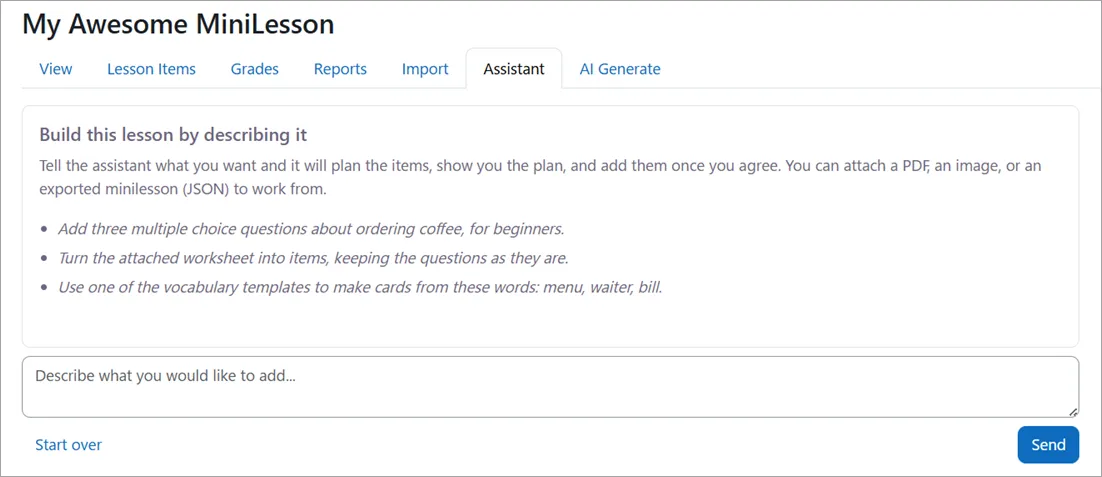
What’s new
- You describe the lesson, not the template. “A lesson for A2 students about ordering food in a cafe, with some listening and a speaking task at the end” is enough to work with. The Assistant reads the list of templates and their inputs, and picks the ones that fit.
- It can use several templates in one lesson, or none. Many templates produce a single item and are meant to be combined. Where no template fits, the Assistant composes the items directly instead, field by field. It can mix both in one lesson.
- It covers every item type and every template, not a special subset. It uses the same generation services that the AI Generate tab uses.
- It generates media too. Pictures and audio come with the items, the same way they do from the templates.
- You can attach source material. Hand it a PDF, an image, or an exported lesson as JSON. A PDF can be the source for new activities, or something to reproduce faithfully as items. It will ask which you meant if that isn’t clear. An exported lesson is treated as a template: it will use the same item types and options, but with a new topic or keywords or whatever you instruct.
- Nothing is created until you say so. Anything that makes a lesson or adds items stops and asks first.
- The conversation is saved. Come back later and pick up where you left off, on the same lesson.
Nothing happens until you approve it
This is the part we spent the most time on. An AI that quietly writes twelve items into your lesson may not be a time saver, it could be a mess to clean up.
So before the Assistant creates anything, it shows you a plan: the template it wants to use, every input it will send, and which values came from you versus which it chose on your behalf. If a value is its own guess, it says so and offers the alternatives.
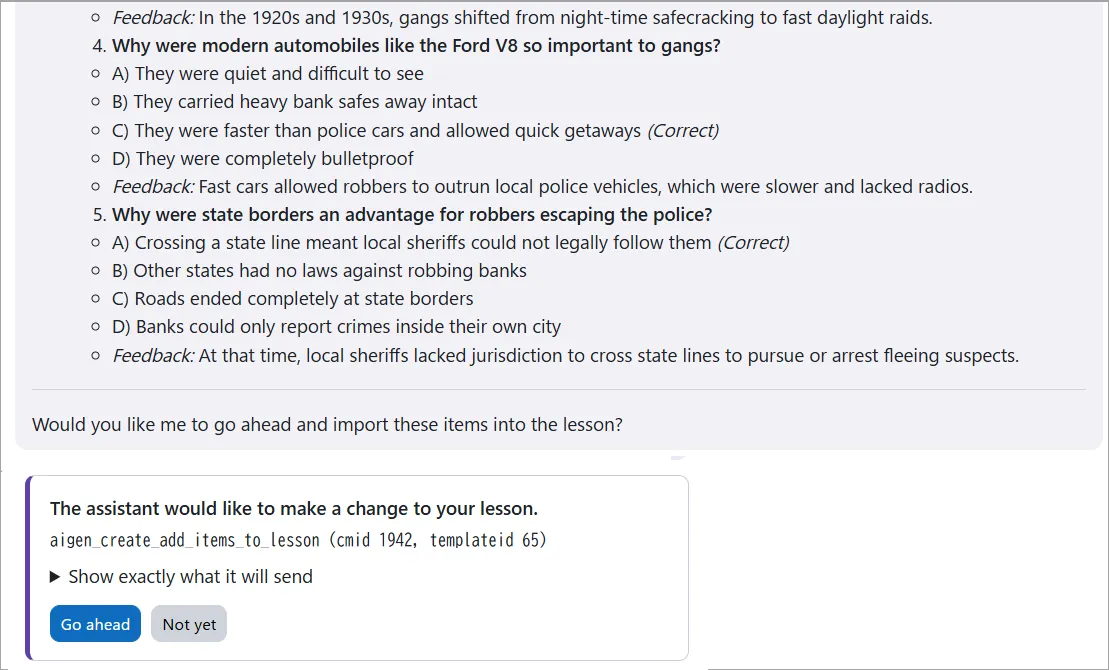
The approval step is enforced by Moodle, not by the AI. The three actions that create or import anything always stop and wait for you, whatever the model decides to do. You can approve the plan, or tell it what to change and look again.
Using it
The Assistant appears as a tab in any lesson you can use AI generation on. Open it and type what you want, the way you’d describe a lesson to a colleague.
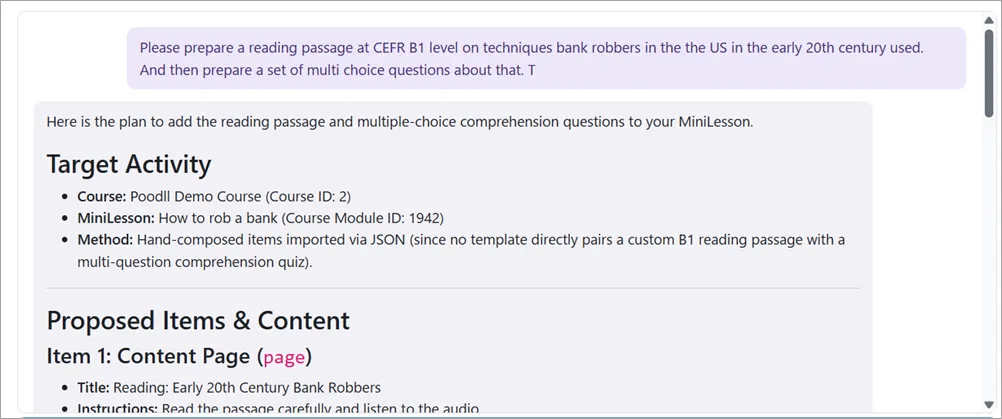
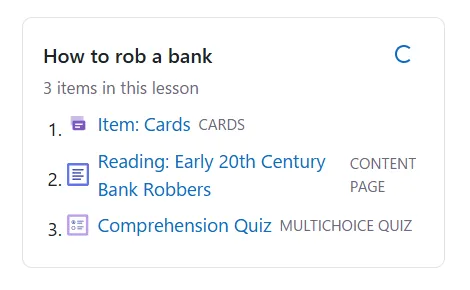
Beside the conversation is the lesson’s current item list, so you can see what has been added as it happens.
It knows which lesson it’s on, so “add two more speaking items at the end” or “make the gapfill easier” work without you having to re-explain the lesson each time.
NB After the item has been created, the assistant can not edit or delete it for you. You will need to do that yourself.
Try it out
You can try it out now on your own Moodle / Poodll site if Minilesson’s version is (or is greater than): 1.1.54 (Build 2026091200). Or just go to the Poodll demo site and try it there.
- Go to the Poodll Demo Site
- Put the course in edit mode
- Add a new Poodll MiniLesson.
- Give it a name.
- Set the target language to the language you intend to teach.
- Optionally set the student’s native language for word definitions and translations.
- Choose to use the Assistant, or look for the “Assistant” tab
- Tell it what you want.
Setting it up
There’s a new “Assistant” settings page for MiniLesson, and the Assistant is on by default. It needs credentials for one of two providers:
- Cloud Poodll (the default): it runs on your Poodll credentials, with no AI account of your own to set up.
- Your own key : enter a Gemini API key, and your site calls Google directly on your own billing.
Teachers who can’t already use AI generation don’t see the Assistant at all, and students never do. Whatever it does, it does as the teacher who asked, with the same permission checks as the rest of the plugin.
The same assistant, wherever you talk to it
If you’ve used MiniLesson’s MCP connector to build lessons from ChatGPT or Claude, this is the same machinery: the same tools, the same guidance about how to choose between templates and hand-composed items. The Assistant simply removes all that setup, and lives right in your MiniLesson in your Moodle.
The MCP is still there and still worth using if you already use an agent like Claude or ChatGPT. The MCP is a better fit than the assistant when you want to combine other tools (eg Google Sheets) in your workflow, or want to create a series of lessons in one go, or want the agent to remember what you did in previous sessions. For other uses, this is the shorter path: open the lesson, say what you want, look at the plan, and let it build.