· 6 min read
Zombie Trouble: An interactive story
Who said Moodle doesn't have zombies? We've got lots. This is a Zombie adventure for Moodle written using MiniLesson and it's AI assistant.
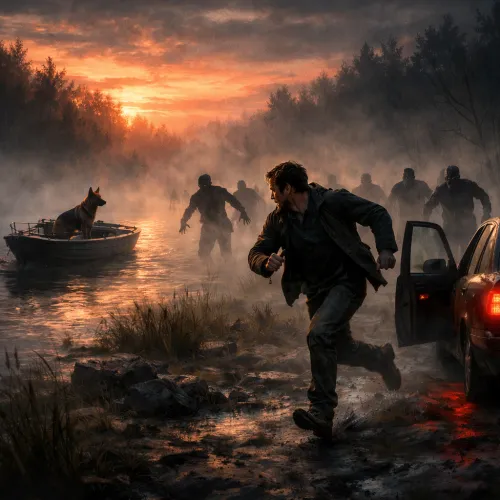
Zombie Trouble is a five-part interactive fiction series. I wrote it to give the MiniLesson fiction item, and the new MiniLesson AI assistant a good workout. Readers make choices, solve problems, and practice their reading comprehension - while trying hard not to die.
Try it here: Zombie Trouble
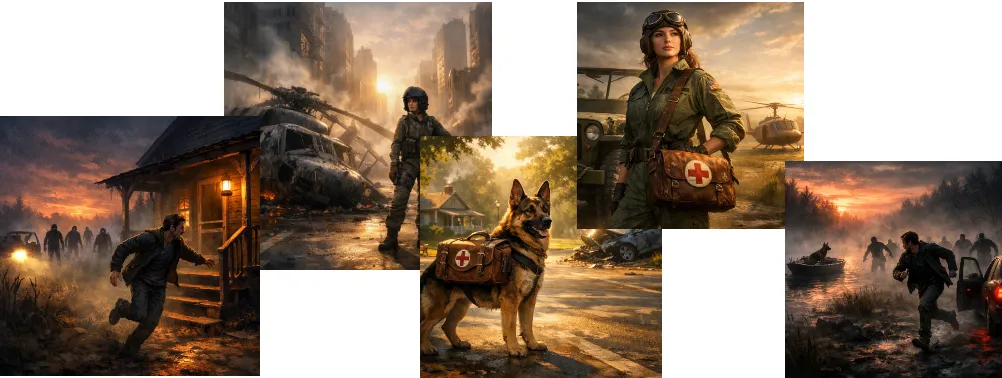
Here is a quick look at the journey:
Part 1: The Farm You run out of petrol next to a farm full of living dead zombies. That’s bad. Trapped inside a dusty, creaky farmhouse, you have to do some quick thinking and get a can of fuel before the front door gives way.
Part 2: Trouble on the Water A new morning brings a new challenge: you need to rescue a dog stuck on a small motorboat surrounded by zombies. You will need a few things from the cabin and to do things in an “orderly” way.
Part 3: Crash in the City Crash! It’s hard to ignore a helicopter that crashes in front of you. Everyone’s dead, kind of. But there’s something in the helicopter that you are going to need to take care of.
Part 4: Zero to Hero Not all heros wear tights. Woof. It’s up to you. Suddenly you are back in the suburbs with a new set of troubles to overcome. A family is counting on you. You will need to be brave, and clever and kind all in the same story.
Part 5: Race to the End You have to get to the virus center and save the world. Motorbikes, tractors, bicycles and choppers all make their appearance. You are stronger than you look, and you will need to be. Good luck.
Did AI write it?
Partly. First I created a detailed story outline, describing the setting, overall goals, puzzles etc. Then AI produced the Yarn formatted text and accompanying images. The MiniLesson AI generate feature has knowledge of how to create fiction stories and images. But the bulk of the time creating each story was working with the first draft generated by AI and cleaning it up, fixing logic issues, adding more “rooms” and plot features, making the language more appropriate, editing images and testing.
The simple stories took approx. 2 hours. The more complicated ones took an embarassing long amount of time. The most complicated was part 4, because I implemented an inventory system (take/drop objects).
How did we make it?
If you played it you will have noticed some interesting features. Here’s a few:
- It is native Moodle (obvious but cool)
- There is game logic, puzzles and gates
- It has images and videos
- It has translations and narration
- You can review your journey through the story
Where did all that come from?
Yarn story format
It is written in a markup language called Yarn. There’s documentation for that on the Poodll support site. We did not create Yarn, we just implemented it. The important thing is that AI can generate it and you can edit it. That’s what I did when I wrote this story.
First I went to the AI assistant and pasted in a prompt like this:
“I want you to create an interactive fiction in the style of a lock room drama. The hero runs out of petrol one evening and makes their way to a farmhouse with a light on. Only halfway he notices people walking slowly towards him. They are living dead zombies. He makes it to the farmhouse and must collect petrol, a torch, a radio to distract the zombies and batteries. Then he must get back to his car, fill it with petrol and escape.”
The assistant made a plan like this: 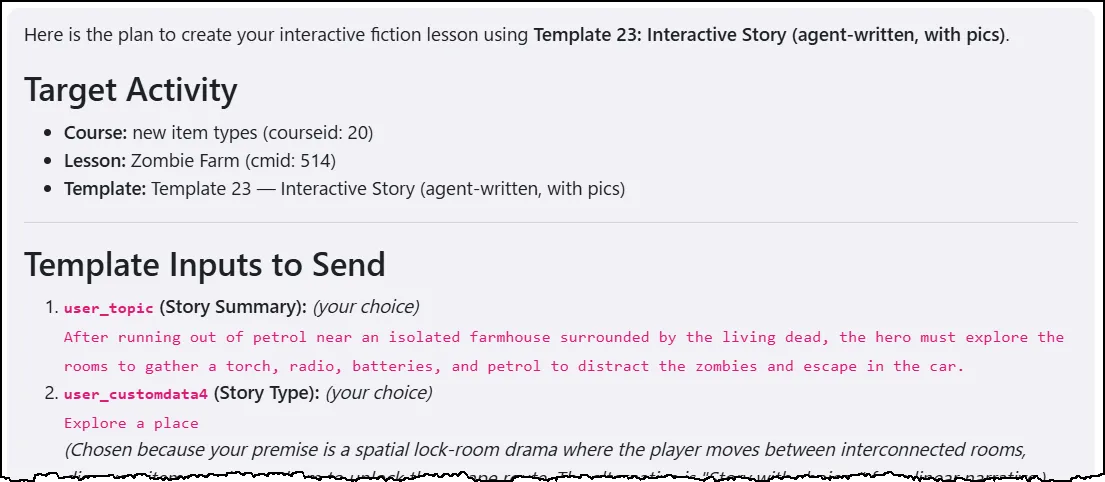
I accepted the plan and it made a fiction item with:
- a cover page / poster image
- a story in yarn format
- story images
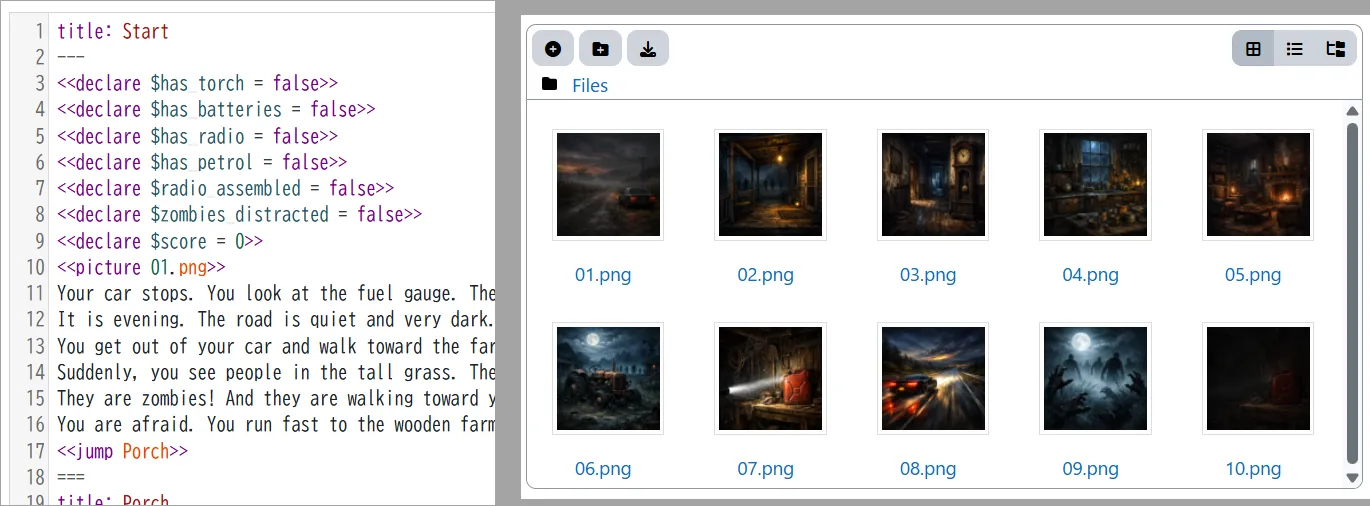
You can edit the yarn story manually, or use the AI helper on the yarn editor if you prefer to stay out of the weeds.
Editing images
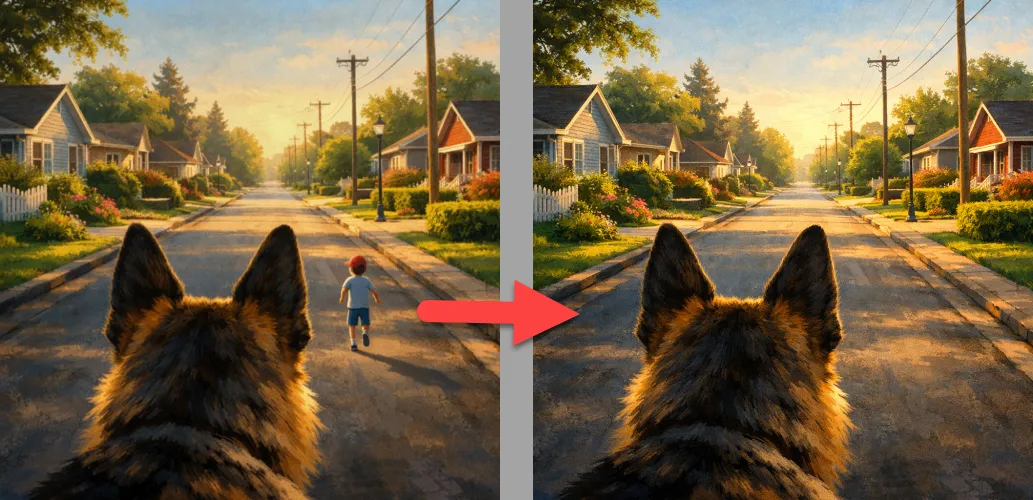
The images are great until they are not. There are always 1 or 2 images that need editing. In the following example we had a picture of a dog watching a small boy running. But at a certain point in the story, the dog is on the street but the small boy has gone. So we needed to generate an alternate version of the picture. For this, and other image tasks, I use the Poodll AI Image repository. It was also necessary at times to make the zombies a little less horrific.
The video cut scene
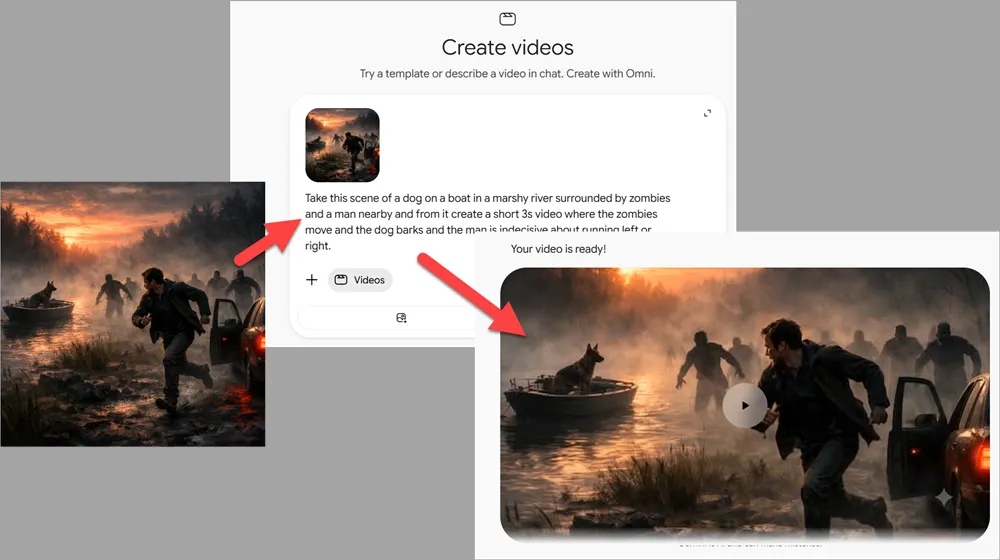
In part 2 there is a video of a dog on the boat and the man getting out of his car trying to reach him past the zombies. In Yarn, videos are inserted like images so it looks like this:
<<video 00.mp4>>
And the video is just added in with the attachments for the activity.
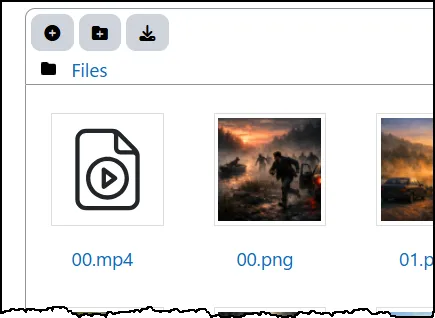
More interesting is how I created it. I took the image that AI had generated as the poster for the fiction item, and asked Google Gemini to extend it into a video. And that was pretty much all I had to do.
Translations and Narration
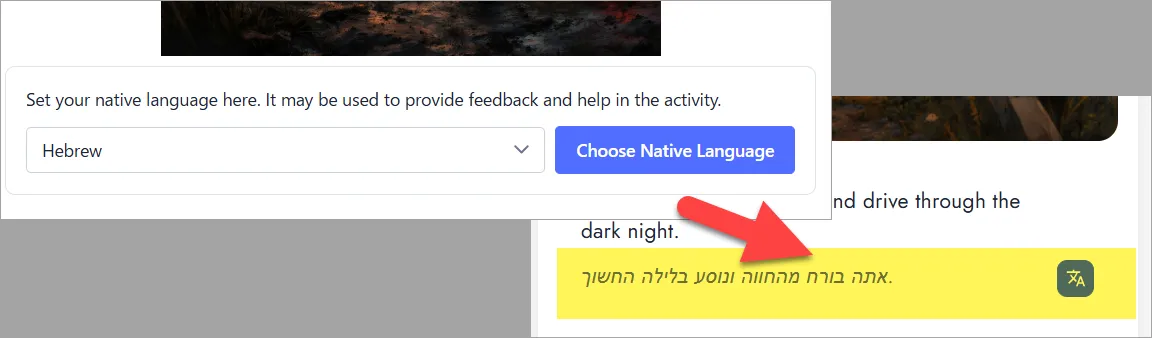
At the beginning of each story there is a poster image and the user can set their native language. This is so that later they can translate the text of the story if they do not understand it. If the user has a chrome browser it will download a local model (just once for all eternity). If it is not Chrome it will call a cloud service and translate the text.
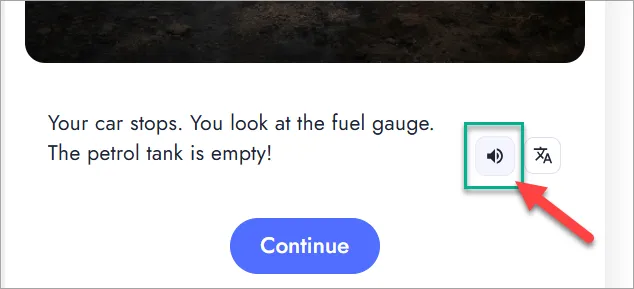
Narration is provided by the Poodll text to speech (TTS) infrastructure. The voice can be specified in the fiction item settings. I strongly felt that fiction was a reading app and did not want to implement TTS. But everyone kept wondering why sound “wasn’t working.” So I gave up and implemented it.
Full Screen Review mode
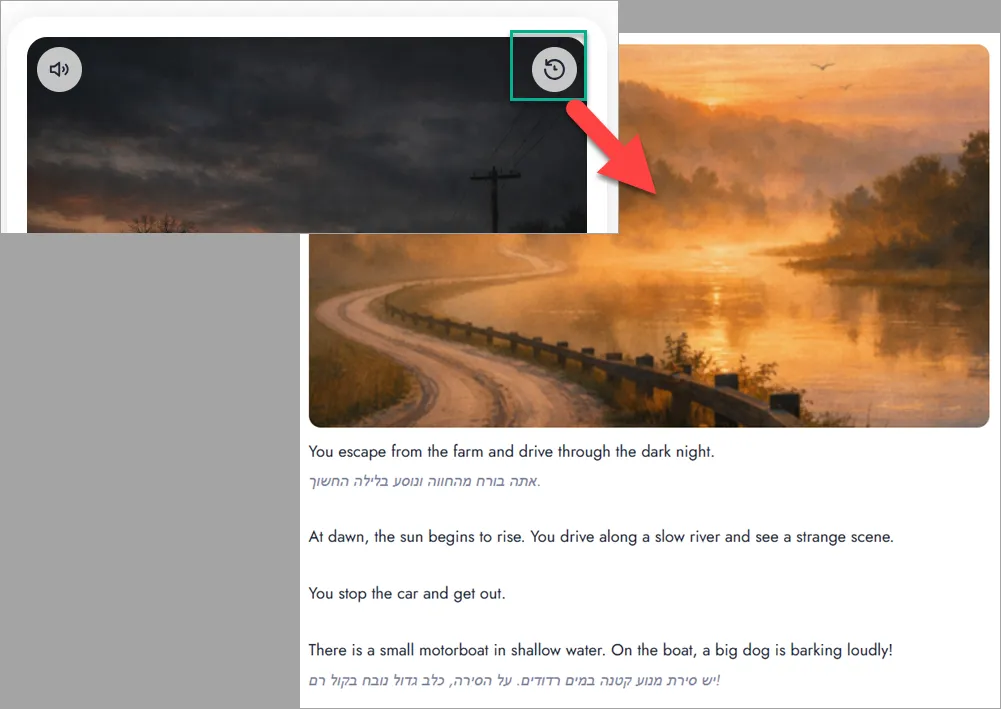
It is possible to review your journey through the story. You do this in-story to check details you forgot, look at the pictures again, or see translations that you already requested. It is a little icon on the top right. Roger Segu from Components for Learning did it for me and it’s cool.
Try making your own story?
If you want to make your own story you need Poodll MiniLesson. If you do not have it, take a free trial or try it on the Poodll demo site.
- Create a new MiniLesson
- Ask the AI assistant to create a fiction story and give it lots of details about what should happen.
- Wait a few minutes for it to finish
Good Luck.