· 3 min read
Fighting YouTube for Subtitles
Automatically fetching a YouTube video's subtitles turned out to be a losing battle - here's what we tried, what we removed, and the manual fallback we landed on.
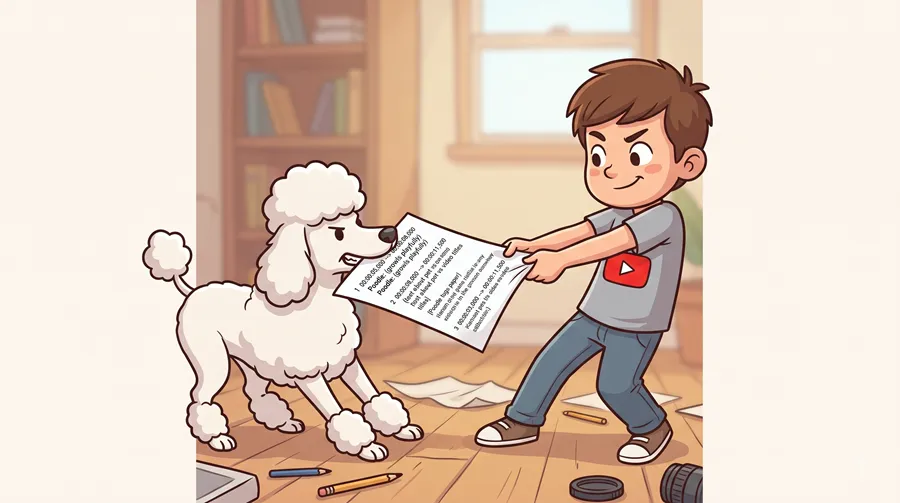
Two items in MiniLesson want the subtitles of a YouTube video: the Shadow item, which highlights each word as a video plays so students can shadow along with it, and the AI Generate “YouTube Lesson” templates, which builds reading and speaking activities from a video’s transcript. Both need the actual text, with timing, not just the video itself.
YouTube doesn’t give that to you in any direct way. It’ll happily serve subtitles to a browser, but a server making the same request on a student or teacher’s behalf is a different story.
What wasn’t working
The original “Fetch subtitles” button asked YouTube for a video’s captions directly from our server, the same way a library like youtube-transcript-api does it. It worked - until it didn’t. YouTube blocks automated requests, and it does it per IP address, which means it targets exactly the kind of server most Moodle sites run on: a cloud or datacentre host, not a home broadband connection. Whether a given request gets through is genuinely unpredictable - the same video could fail one minute and succeed the next.
We left the code to automatically fetch subtitles in place, because it will still work in some cases, and it has the added benefit that we can sometimes get word level timestamps from Youtube. But when it does not work, we implemented a fallback.
The fallback: paste it in by hand
Since automatic fetching can’t be made reliable, we built a manual path that always works, because it’s just a person copying text: “Paste transcript.”
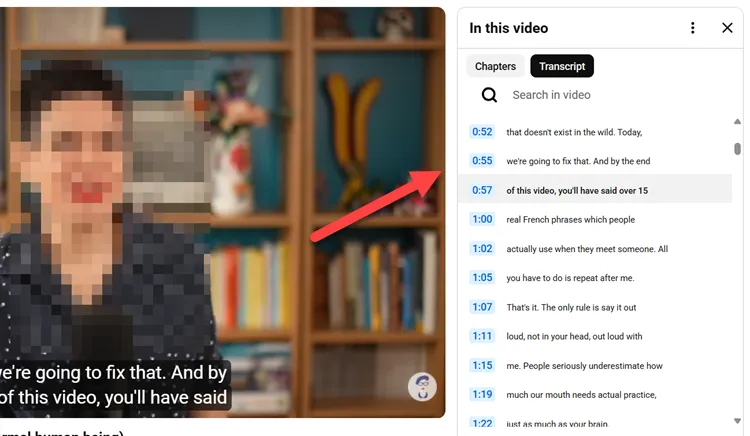
The steps, right there in the dialog:
- Open the video on YouTube in a new tab.
- Below the video, expand the description and click “Show transcript.”
- In the transcript panel’s ⋮ menu, make sure timestamps are switched on.
- Select the whole transcript, copy it, and paste it into the box in MiniLesson.
- Click “Convert to subtitles.”
MiniLesson parses the pasted text and timestamps into proper subtitles for the item. The one trade-off: a pasted transcript only carries a timestamp per line, not per word, so word-by-word highlighting in the Shadow item automatically switches to highlighting a line at a time instead.
Where you’ll see this
In the Shadow item’s authoring form, “Fetch subtitles” is still there and still worth trying first - when it works, it’s faster than copying and pasting. If it fails, “Paste transcript” is right next to it.

If you’re building a Shadow item or a YouTube-based AI Generate lesson and the automatic fetch lets you down, paste is there, and it always gets you the same result.