· 3 min read
WordCards: Four Ways to Practice a Word List in MiniLesson
WordCards is a new MiniLesson item for practicing vocabulary. There are four practice types - listen and type, listen and choose, type the word, choose the word.
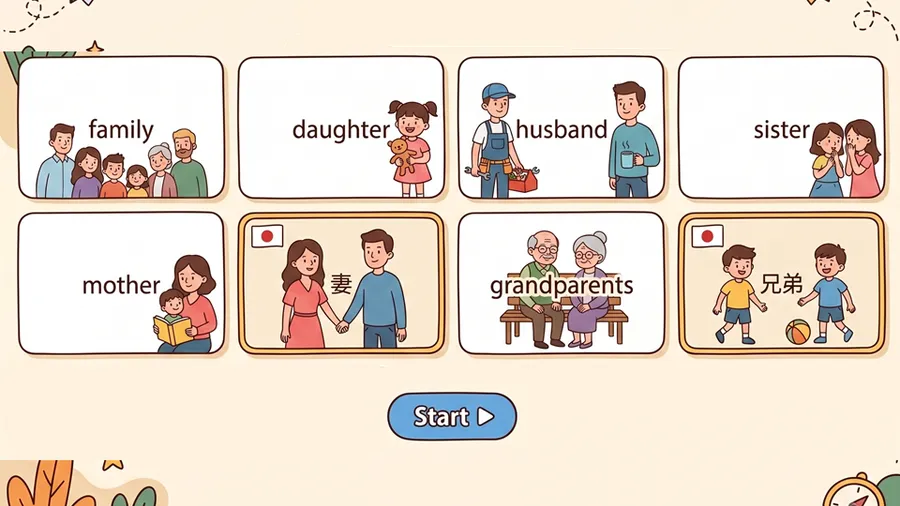
WordCards is a new item type for MiniLesson. You give it a list of words with their definitions or translations, and students work through the list one word at a time, in whichever of four practice modes you choose.
Where this came from
Poodll already has a standalone WordCards activity, and its practice modes are built specifically for drilling individual words. It also includes a small onscreen keyboard, useful on mobile or for typing characters (accents, non-Latin scripts) that aren’t on a student’s physical keyboard. We wanted that style of practice available as one item inside a MiniLesson sequence, alongside your reading, listening and speaking items, rather than as a separate activity. So we brought the four practice modes into MiniLesson as a single item type.
Some features
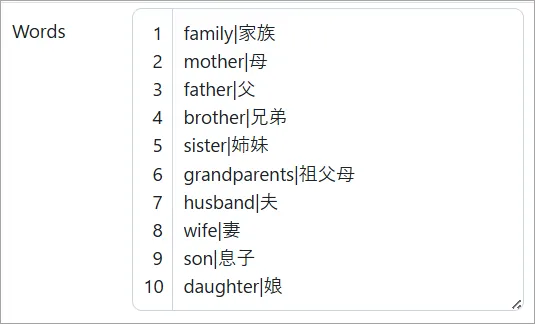
- Word list entry, one word per line: e.g.
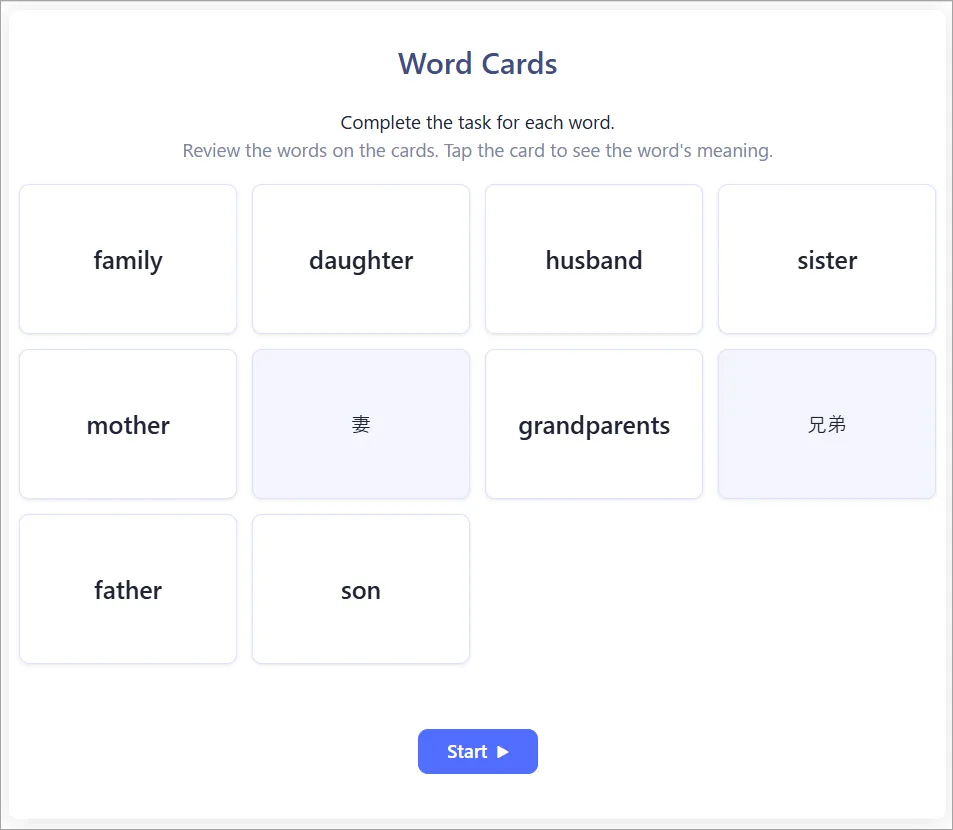
dog | A common pet.The format is the word/phrase, a pipe character, and then the definition/translation. It is the same format as Scatter and Space Game. So it might already feel familiar. - An intro screen of flip cards - the word on the front, its definition on the back. This is so students can review the list before being they go in to practice. You can skip this screen with the “Hide start page” setting if you prefer.
- Four practice types, chosen from a dropdown on the item form:
- Listen and type - hear the word, type it.
- Listen and choose - hear the word, pick it from a set of options.
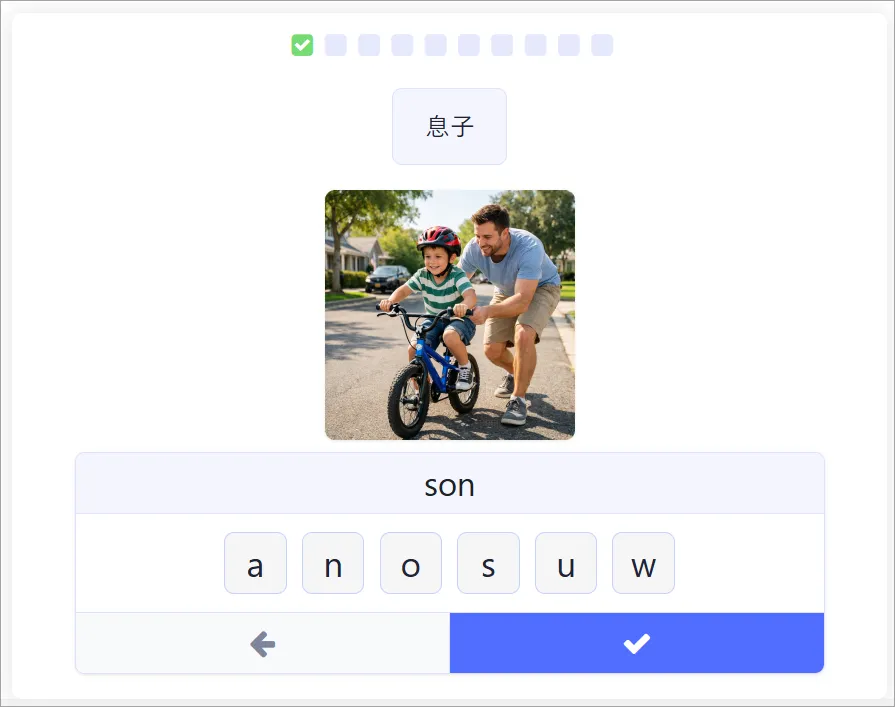
- Type the word - see the definition, type the matching word.
- Choose the word - see the definition, pick the matching word from a set of options.
- A built-in onscreen keyboard for the typing modes, sized for mobile and useful for characters your students may not have on their own keyboard.
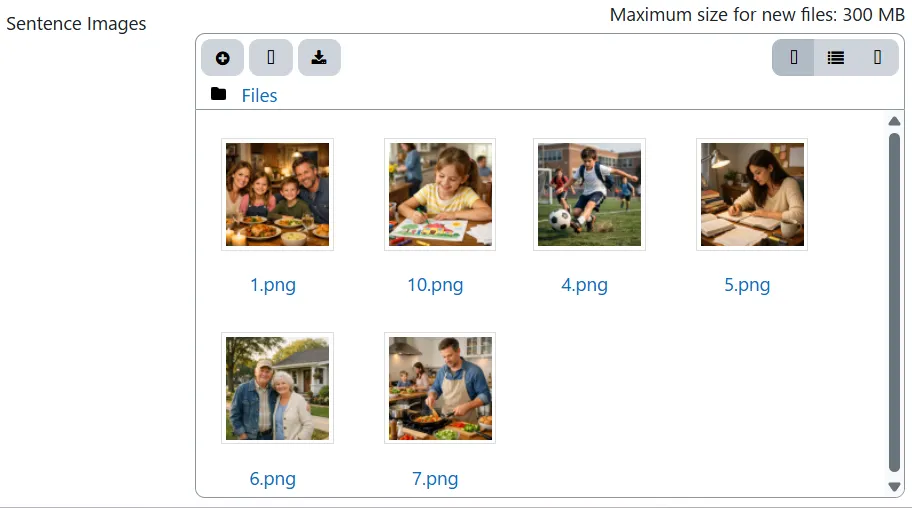
- Optional images and audio per word, matched by line number rather than by the word itself - upload
1.mp3and1.pngfor the word on line 1,2.mp3for line 2, and so on. Uploaded audio is used if present; otherwise MiniLesson generates it with your chosen TTS voice. - Number badges on the choose modes - each option is labelled 1 to 5, and pressing the matching number key selects it, so a student practicing on a laptop doesn’t need to reach for the mouse for every word.
- A results summary at the end, styled the same way as MiniLesson’s Listening Gap Fill results screen.
Adding a WordCards item
From the “Add new item” picker, choose WordCards. Enter your word list in the text area - one word | definition pair per line - then set a practice type, a TTS voice, and optionally upload images or audio named by line number.
Students first see the flip-card review screen (unless you’ve hidden it), then work through the list in the practice mode you chose.
Why it’s useful
If you’ve been building vocabulary practice by hand with Scatter, Multichoice, or Gap Fill items, WordCards covers a lot of that ground in one item, with keyboard support that those don’t have. Pair it with the MiniLesson AI Generate template and you can go from a keyword list to a full flip-card-plus-practice item without typing out the definitions yourself.
Pro Tip
The wordcards item just uses one of the practice types per item. So if you want to combine practice types (e.g listen and type, listen and choose) you would create the first item, then use the duplicate button in the items list to create the second item. Then edit the second item’s practice type