· Updates · 3 min read
TTS Dialog gets a proper conversation view
TTS Dialog is one of the quieter features in MiniLesson, turning short scripts into spoken conversations. We've completely revamped the player with full transcripts, playback controls, and tap-to-translate.
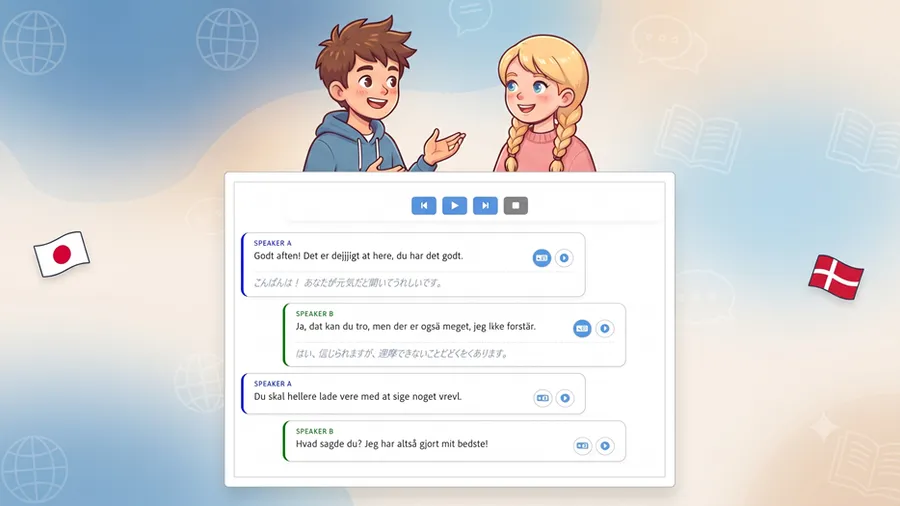
TTS Dialog is not an item type of its own — it’s a media prompt you can add to items like Page or Multichoice, and it turns a short script into a spoken conversation between two or three voices. You write something like:
A) Hi, what can I get for you?
B) I'll have a coffee, please.
A) Anything else?
B) No thanks, that's all.
and pick a TTS voice for A, B and (optionally) C. MiniLesson generates the audio and plays it back as a conversation, line by line.
What wasn’t working
The old player did the job, but it was very basic. There was a single play button, and while a line was speaking, that line’s text appeared on screen next to a plain colored icon for the speaker. As soon as the next line started, the old text disappeared and the new one took its place.
For a language learner, that’s not a lot to work with. The text is on screen for a couple of seconds and then it’s gone. You can’t glance back at a line you missed, you can’t isolate one line to hear it again, and there’s no way to check a word you didn’t understand without stopping and restarting the whole thing.
What’s new
The dialog now displays as a full conversation, not just the current line:
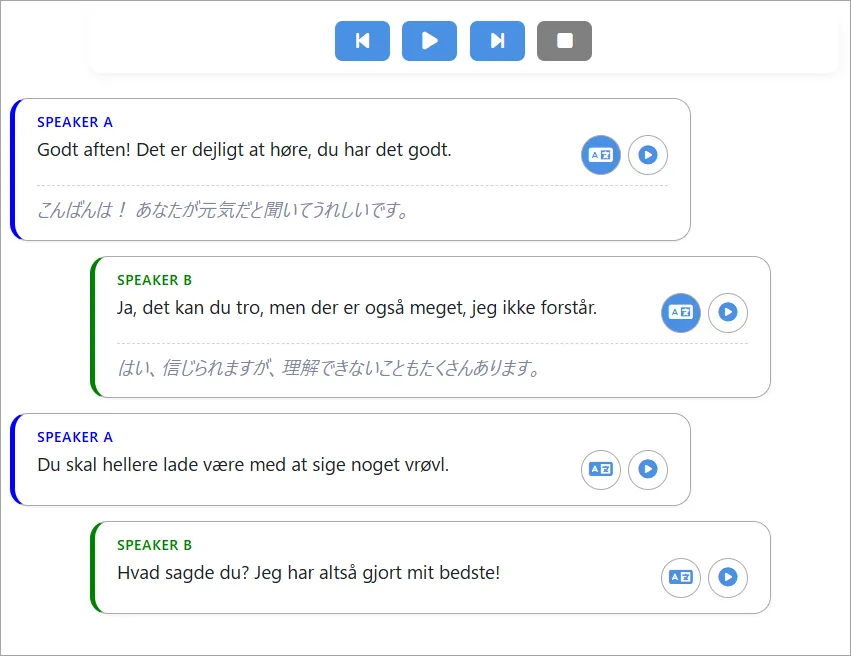
- Every line is on screen at once, laid out like a chat conversation. Speaker A’s lines sit on one side, B’s are indented, and C’s are indented differently again, so you can follow who’s talking without reading the labels every time.
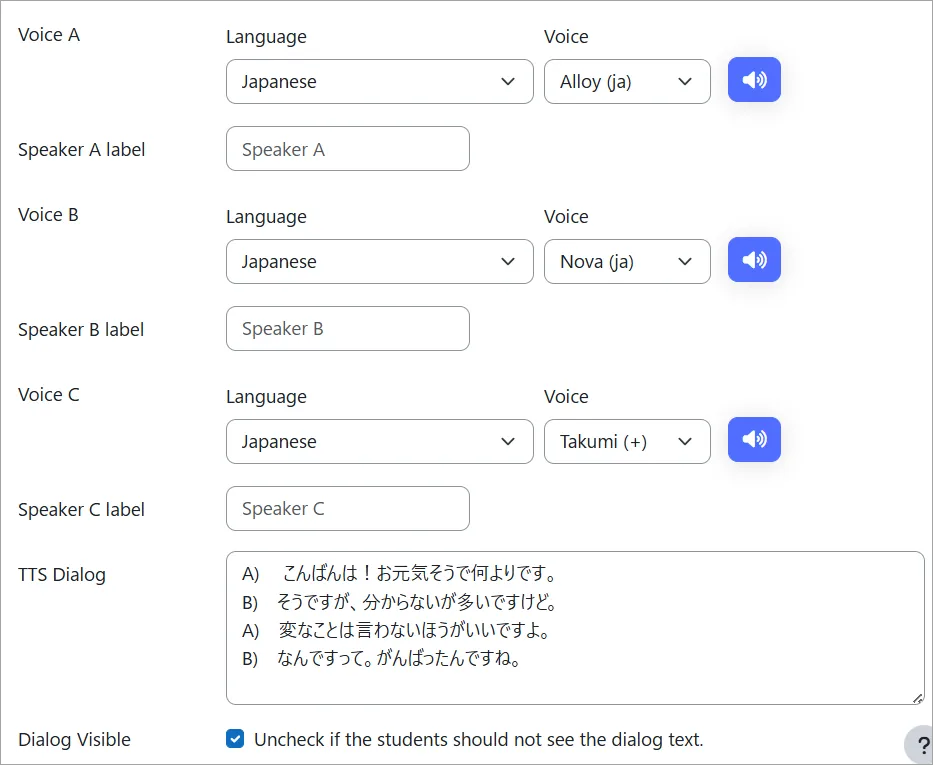
- Speakers can have real names. Instead of “Speaker A” and “Speaker B”, you can label them “Waiter” and “Customer”, or whatever fits the scene. Leave the label blank and it falls back to “Speaker A/B/C” as before.
- Proper playback controls — previous line, play/pause, next line, stop — instead of one button that only started the whole sequence from the top.
- Each line has its own play button, so a student can replay just that one line as many times as they want, without restarting the conversation.
- Sound effect lines (written as
>>seagulls) now show as a small, centered marker with a speaker icon, instead of being just another line of dialog — so they read as background detail, not something a character said. - Tap-to-translate, per line. If the student’s native language is set and it’s different from the dialog’s language, a translate icon appears on each line. Tapping it shows an inline translation right under that line.
Making a TTS Dialog
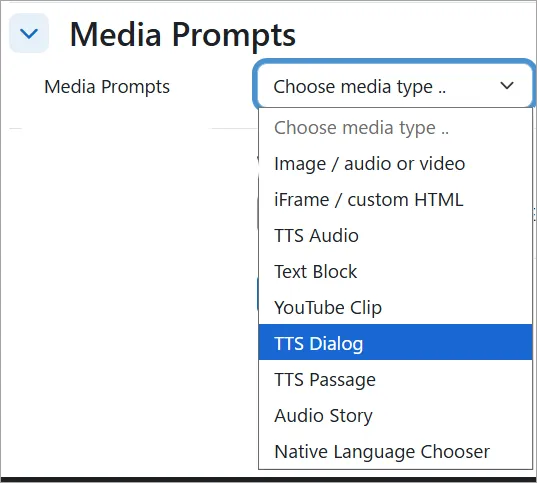
In the content page item, and in all items, there is a “Media Prompts” section. From the dropdown menu choose TTS Dialog.
The label fields (Speaker A/B/C label) and the voice pickers are right next to each other in the item form, wherever TTS Dialog appears. If you leave “TTS Dialog visible” unchecked, students still just get a single play button with no transcript — that option hasn’t changed, for cases where you want listening without reading (e.g a TOEIC or STEP eiken style listening question).
If you’ve been using TTS Dialog for roleplay-style listening practice — ordering food, phone calls, checking in at a hotel — this update is aimed squarely at that use case: it’s built to make each line something a student can revisit, not just hear once and lose.