
2. Building Lessons with Poodll MiniLesson
A MiniLesson is a short, self-guided lesson made from a sequence of items. Each item is one screen that presents content or sets the student a task, such as answering a question, repeating a sentence or chatting with an AI partner. Students work through the items at their own pace. Most items are graded automatically, and the result goes to the Moodle gradebook.
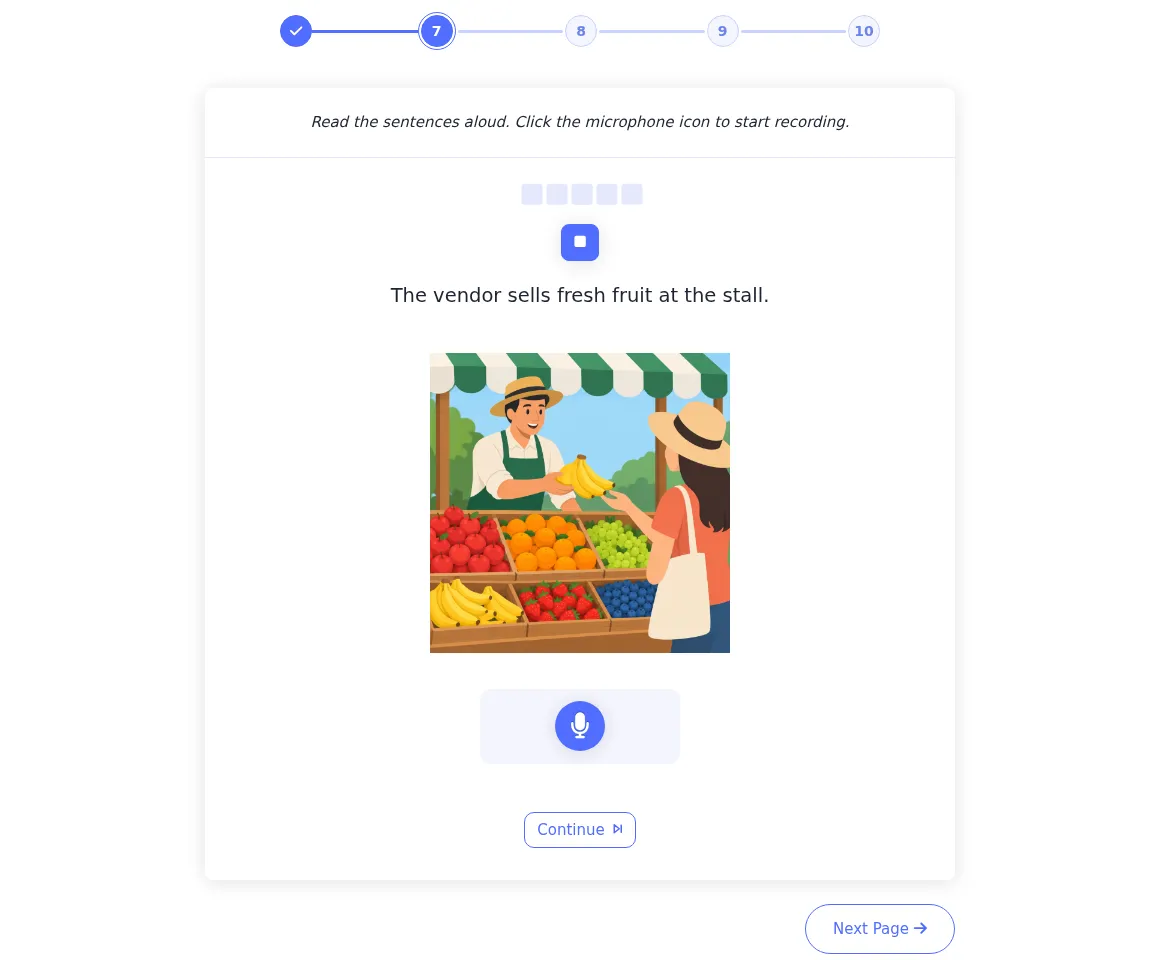
Figure 2.1. A student working through a MiniLesson.
2.1 When to use a MiniLesson
Section titled “2.1 When to use a MiniLesson”Use a MiniLesson when you want students to practise independently through a guided sequence. Typical uses include:
- Topic lessons: introduce vocabulary, practise it, then ask students to use it in speech or writing.
- Pronunciation practice: listen-and-repeat sentences with feedback on each spoken word.
- Listening practice: dictations and gap fills with automatically generated audio.
- Grammar practice: a short explanation followed by word-order or gap-fill tasks.
- Homework: a short task that students can complete outside class, with grades recorded automatically.
If you want one extended speaking task, Solo may be simpler (see Section 3). If you want to track a set of words over a whole course, use WordCards (see Section 4).
2.2 Creating a MiniLesson
Section titled “2.2 Creating a MiniLesson”- In your course, turn Edit mode on and select +, then Activity or resource.
- Choose Poodll MiniLesson.
- Enter a name and, if you wish, a description.
- Set Target/Voice Language to the language students are learning.
- Set Learner’s Native Language if you want AI feedback, definitions and translations in the students’ first language.
- Review the other settings described below, then select Save and display.
| Setting | What it controls | Default |
|---|---|---|
| Show item titles in lesson | Whether students see each item’s title. | No |
| Show Item Review | Whether students see the correct answer and any feedback immediately after an item. | Yes |
| Max. Attempts | How many times a student can attempt the lesson. | Unlimited |
| Transcriber | The speech recognition mode. See Section 6.3. | Open STT (Strict) |
| Text and Media | Whether text and media are entered separately or together in a rich text editor. Separate is recommended because it lays out more reliably on different screen sizes. | Separate |
| Enable native language features | Turns on the translate button and related features. See Section 6.2. | Yes |
| Can continue previous attempt | Whether a student can return and finish an incomplete attempt. | Yes |
| Finish Screen (Advanced) | Whether students finish on a Full results breakdown, a Simple score or a Custom screen. | Full |
| Link to next activity (Post attempt options) | An activity that students can continue to after finishing. | None |
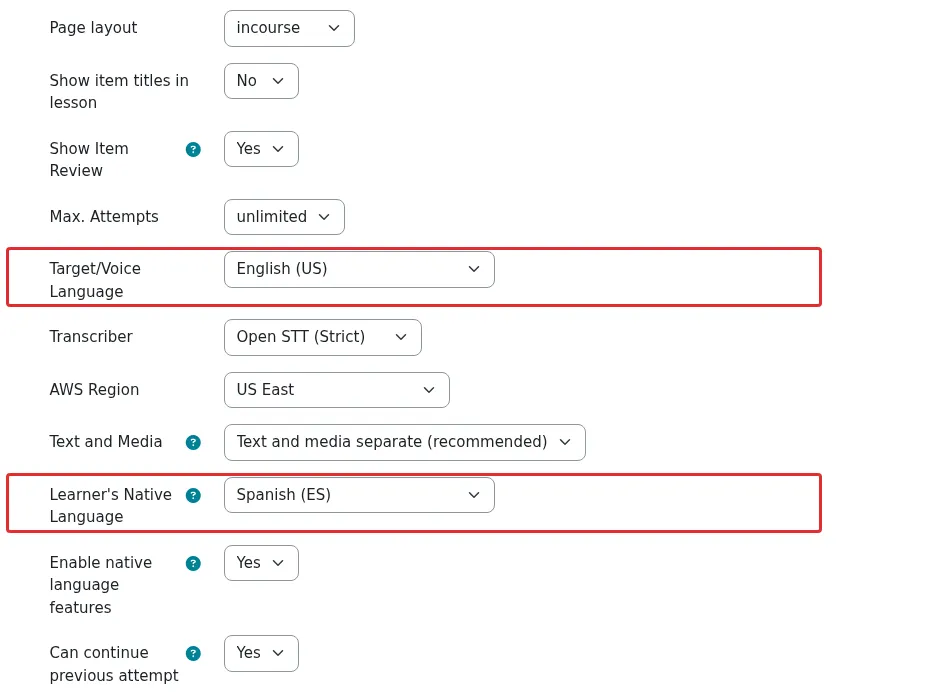
Figure 2.2. The main MiniLesson settings.
2.3 Three ways to build a lesson
Section titled “2.3 Three ways to build a lesson”After saving the settings, you can add items in any of these ways, and you can combine them.
| Method | Tab | Best when… |
|---|---|---|
| Add items by hand | Lesson Items | You want full control of the content. |
| Generate with AI | AI Generate | You have a topic, word list, text or YouTube video and want a fast first draft. |
| Import | Import | You have items in a CSV or JSON file, or are copying from another lesson. |
Your site may also offer a ready-made Lesson Bank and an Assistant tab, where you can build the lesson by chatting with an AI assistant. An administrator must enable these.
2.4 Adding items by hand
Section titled “2.4 Adding items by hand”- Open the Lesson Items tab and choose + Add new item.
- Select the item type. A short description appears beside the list. Select Add.
- Enter an item title. Students see it only if Show item titles in lesson is on.
- Enter any instructions for the student.
- Add any media prompts (see below), then choose a layout, or leave it on Auto.
- Complete the settings for that item type, such as the sentences for a dictation.
- Save the item.
- Use the View tab or the item’s preview to check it.
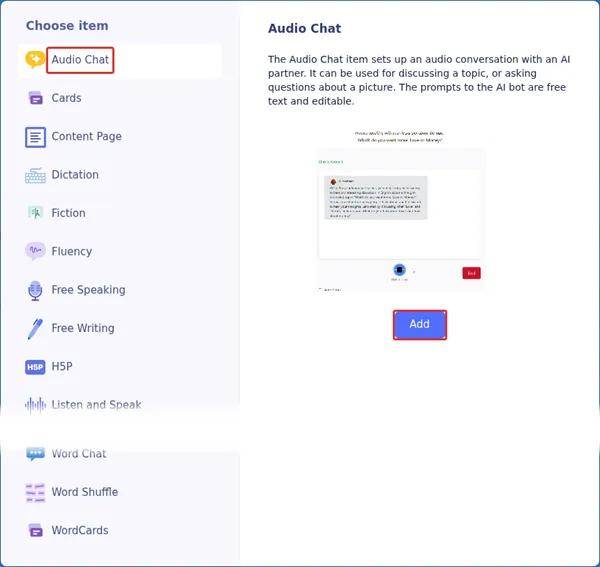
Figure 2.3. Choosing an item type.
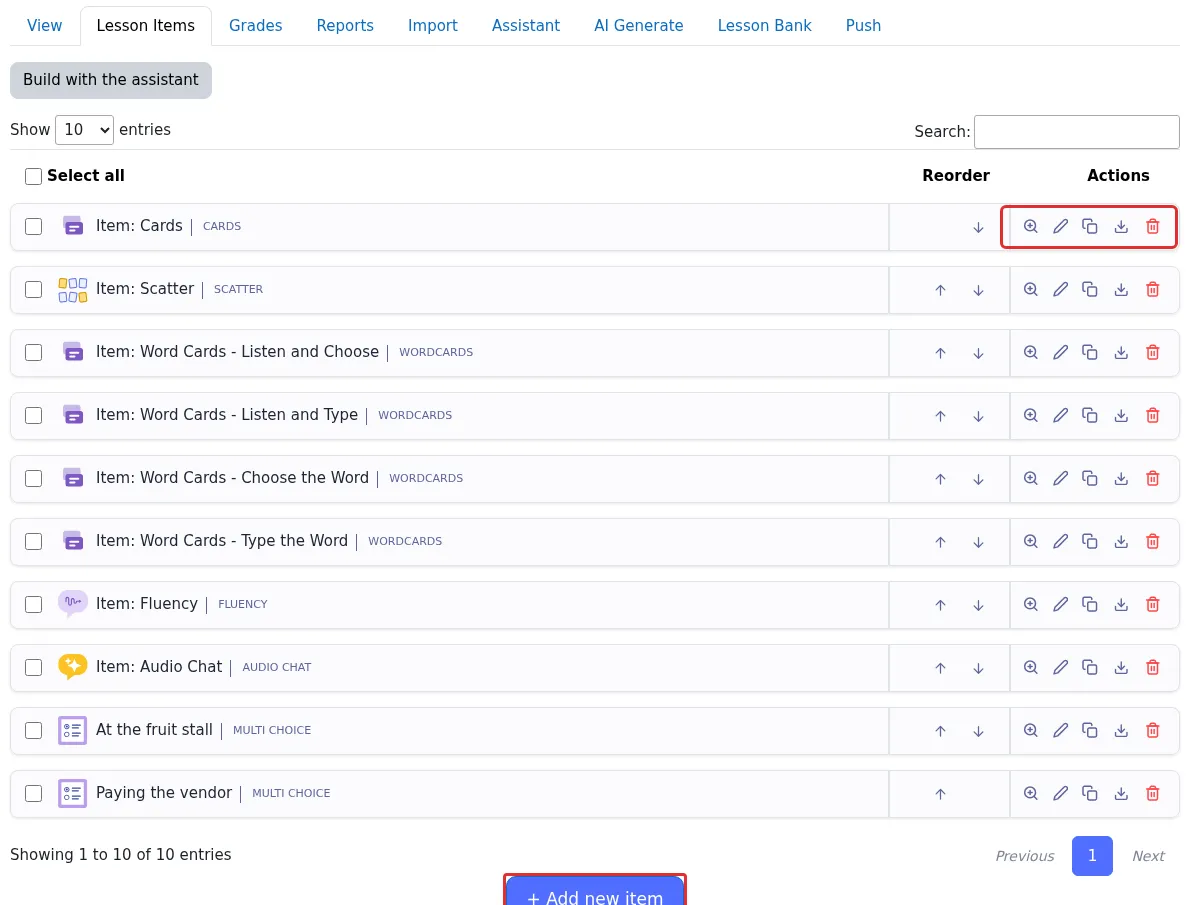
Figure 2.4. The Lesson Items tab, where you can move, preview, edit and delete items.
Media prompts
Section titled “Media prompts”Most items can show content above the task. Choose what you need from the Media Prompts list:
- Image / audio or video: upload a file.
- Text Block: add a reading text or instructions.
- TTS Audio: type text, choose a voice and let Poodll generate the audio.
- TTS Dialog: generate a conversation with up to three voices.
- TTS Passage: generate audio for a longer passage.
- YouTube clip: play part of a YouTube video.
- Audio Story: make a narrated slide show from an audio track and a set of images.
- iFrame / custom HTML: embed content from elsewhere.
- Native language chooser: set the user’s native language preference.
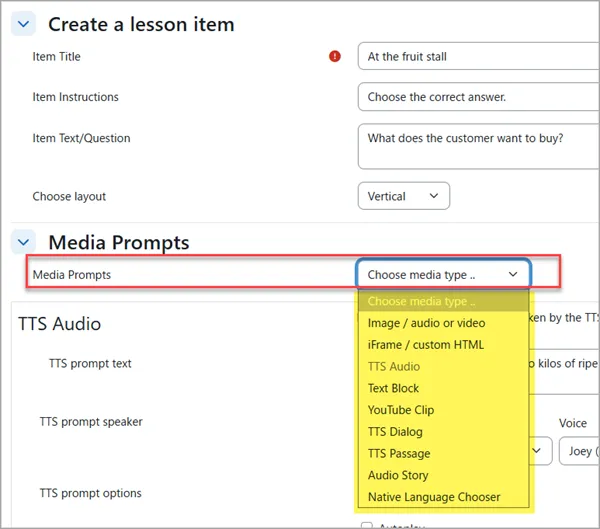
Figure 2.5. Adding text-to-speech audio as a media prompt.
2.5 Choosing item types
Section titled “2.5 Choosing item types”Speaking and pronunciation
Section titled “Speaking and pronunciation”| Item type | What the student does |
|---|---|
| Listen and Speak | Listens to audio prompts and responds by speaking; often used for listen-and-repeat. |
| Speech Cards | Reads aloud a series of cards, each with a phrase or sentence. |
| Fluency | Says sentences aloud and sees which parts were good, OK or not good. |
| Self Check | Compares their recording with a model and decides whether to try again. It does not use speech recognition, so it works in any language. |
| Passage Reading | Reads a passage aloud while recording and receives a score. |
| Video Shadowing | Speaks along with a YouTube clip, line by line. |
| Short Answer | Answers a question by speaking. You set the acceptable answers. |
| MC Audio | Answers a multiple-choice question by speaking the answer aloud. |
| Speaking Gapfill | Says the completed sentence aloud. |
| Free Speaking | Responds to an open speaking task and receives an AI grade and feedback. |
| Audio Chat | Has a spoken conversation with an AI partner about a topic or picture. |
Listening and writing
Section titled “Listening and writing”| Item type | What the student does |
|---|---|
| Dictation | Listens to audio and types what they hear. |
| Dictation Chat | Answers audio prompts by typing, in a chat-style layout. Administrators may need to switch this type on. |
| Listening Gapfill | Listens to a sentence and types the missing words. |
| Passage Gapfill | Listens to a passage and fills in the missing words. |
| Typing Gapfill | Types the missing words in a sentence. |
| Free Writing | Responds to an open writing task and receives an AI grade and feedback. |
| Word Chat | Has a text chat with AI in which they try to use target words. |
Reading, grammar and comprehension
Section titled “Reading, grammar and comprehension”| Item type | What the student does |
|---|---|
| Multi Choice | Chooses one of up to four answers, which can be text, audio or images. |
| Multichoice Quiz | Answers several questions, one at a time, while a resource such as a reading passage stays on screen. |
| Word Shuffle | Puts scrambled words back in the correct order. |
| Fiction | Plays through a branching story. Stories are authored in a format called Yarn, so this is for advanced users. |
Vocabulary
Section titled “Vocabulary”| Item type | What the student does |
|---|---|
| Cards | Studies cards containing text, pictures and audio. Good for introducing vocabulary. |
| WordCards | Chooses or types the correct word from a set of new words. |
| Scatter | Clears a grid of cards by matching word pairs. |
| Space Game | Plays an arcade-style game by “shooting” the correct words. |
Content
Section titled “Content”These item types are for presenting content.
| Item type | What it does |
|---|---|
| Content Page | Shows your text or media and a next button. |
| Slides | Shows a presentation authored in Markdown. For advanced users. |
| H5P | Embeds an H5P activity from the Moodle content bank. |
Teaching tip: You do not need to learn every item type. Start with Content Page, Multi Choice, and Listen and Speak, then add others as your lessons develop.
2.6 Generating a lesson with AI
Section titled “2.6 Generating a lesson with AI”The AI Generate tab builds items for you from a template. Templates range from a single item, such as a dictation from a topic, to complete lessons, such as a grammar lesson or a YouTube-based lesson.
- Check the activity’s Target/Voice Language and Learner’s Native Language. AI uses these when it generates the lesson.
- Open the AI Generate tab.
- Select a lesson template. You can filter the list by skill, such as Speaking or Vocabulary Practice, or by Single-Item and Multi-Item.
- Enter the information the template requests, such as a topic, keywords, a passage, a language level or an image style.
- Confirm, then wait. A progress bar shows how the generation is going, and a tick appears when an item is finished. Generation runs in the background, so it is safe to leave the page.
- Open the Lesson Items tab, then review and edit what was created.
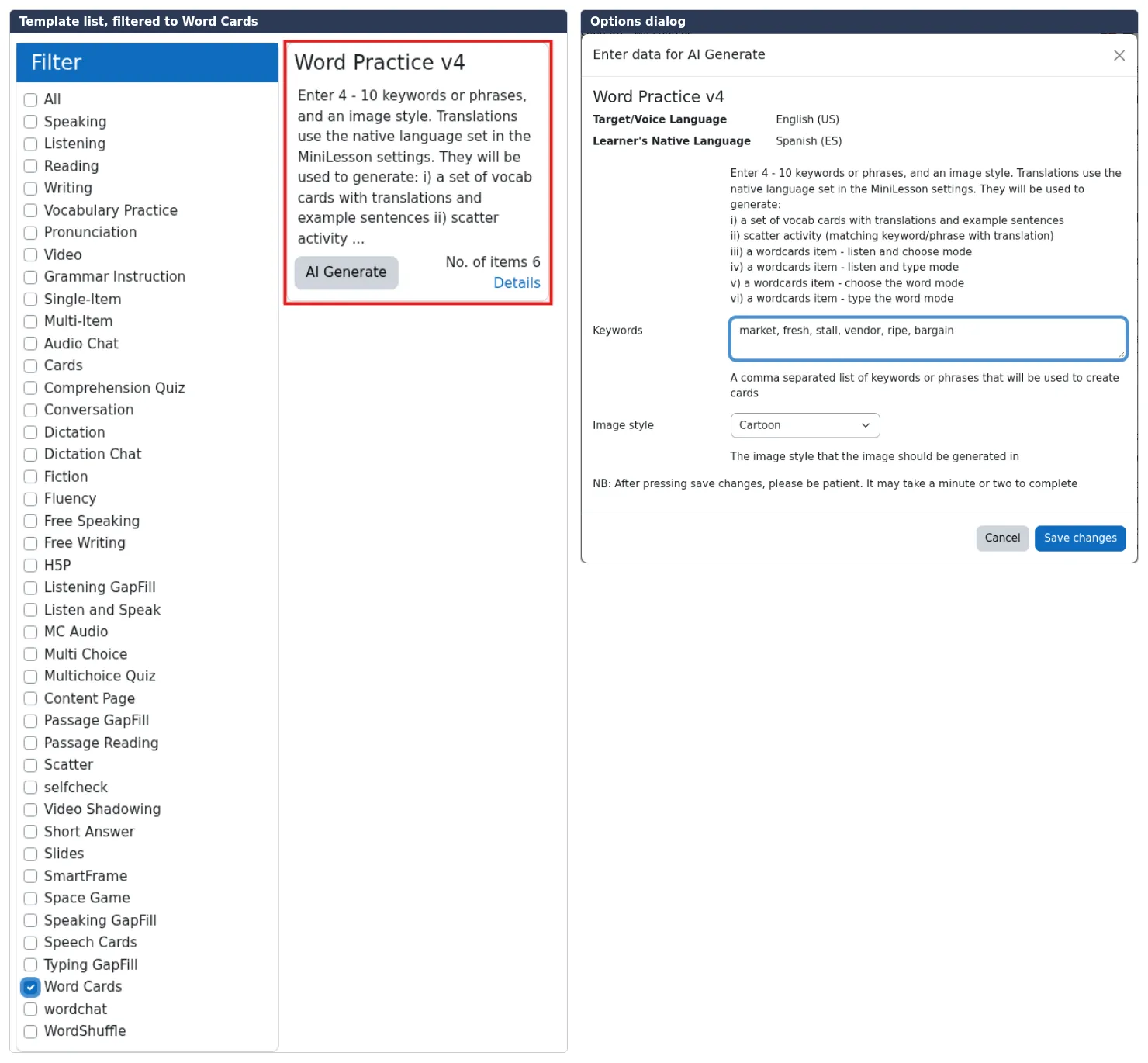
Figure 2.6. Choosing a template and entering options on the AI Generate tab.
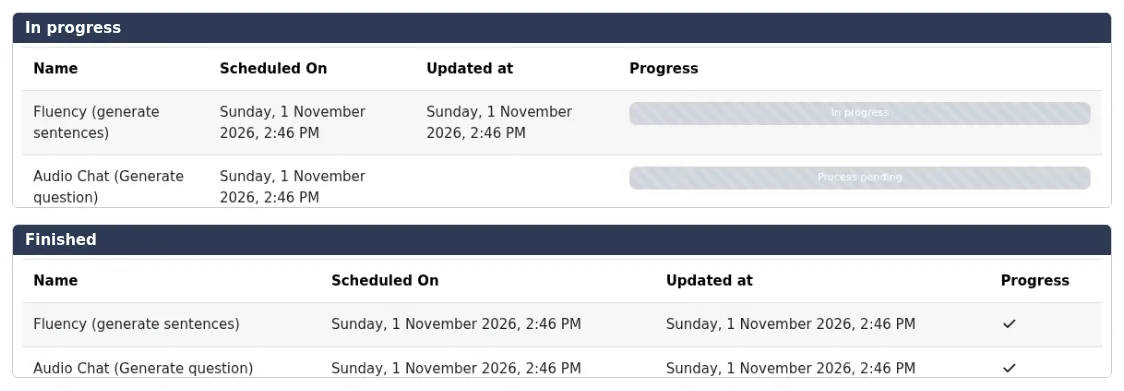
Figure 2.7. AI generation in progress and complete.
Always review AI-generated lessons. Check the content for accuracy and level. You may want to change which words are gaps, adjust time limits or word counts, or choose a different voice. Generated items can be edited just like ones you made by hand.
If a generation stays pending for a long time, ask your administrator to check that the Moodle cron job is running.
2.7 Importing, exporting and other options
Section titled “2.7 Importing, exporting and other options”Import and export
Section titled “Import and export”On the Import tab, you can import items from a JSON file and export the current lesson as JSON. Exporting and importing is a convenient way to reuse a lesson in another MiniLesson. See Importing Items into MiniLesson (CSV) for the CSV format.
Quick Tip It is also possible to export an individual item from it’s row in the lesson items page.
Sentence images and audio
Section titled “Sentence images and audio”Several sentence-based item types, including Listen-and-Speak and Fluency, let you upload an image or your own audio for each sentence. Name each file after the sentence number, such as 2.jpg or 3.mp3. See Sentence audio and images.
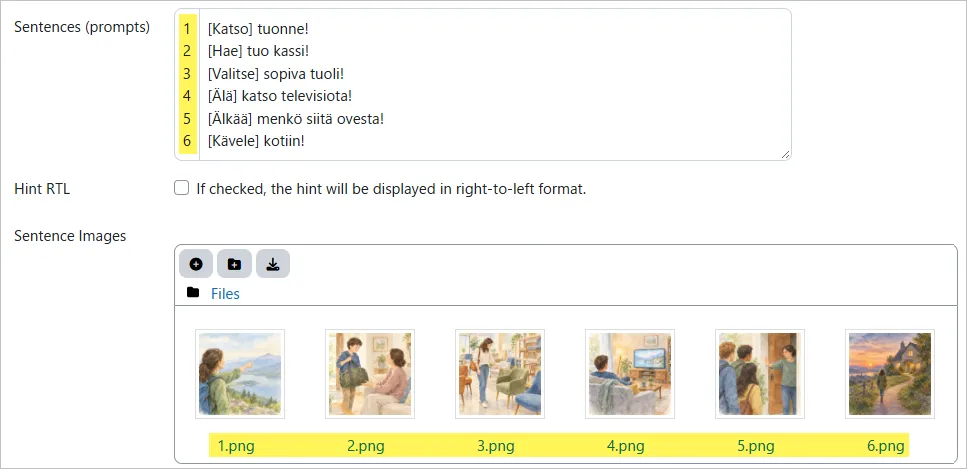
Virtual keyboard
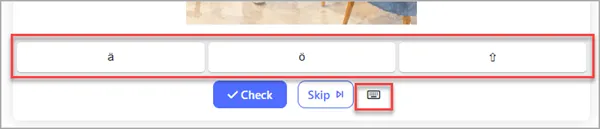
Section titled “Virtual keyboard”If students type in a language their keyboard does not support, you can enable a virtual keyboard in items such as Free Writing, Typing Gapfill and Listening Gapfill. It uses the activity’s target language. See Virtual Keyboard Feature.
2.8 What students see and how grades work
Section titled “2.8 What students see and how grades work”Students open the activity and work through the items in order. If Show Item Review is on, they see the correct answers and feedback after each item. At the end, the Finish Screen shows their score and stars and, on the Full setting, a breakdown of each item. If attempts remain, they can select Try Again.
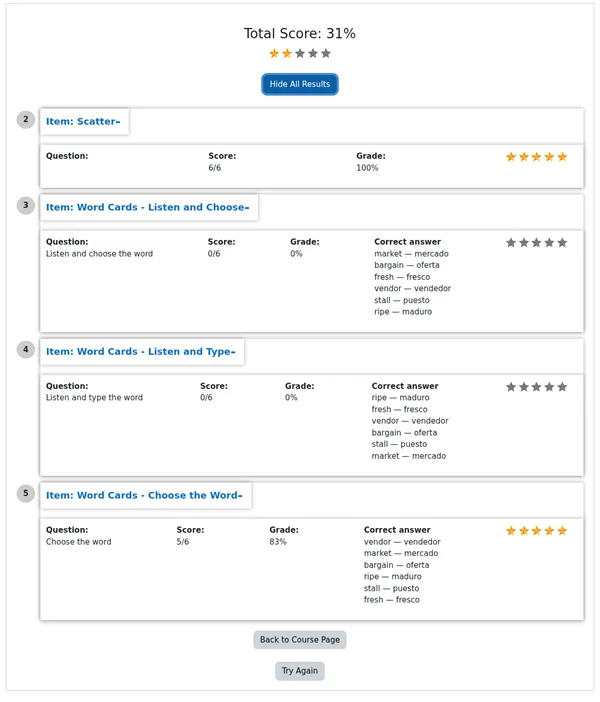
Figure 2.8. The Full finish screen with the per-item breakdown open.
Teachers can review results on two tabs:
- Grades: see each student’s latest grade and open their attempt. Select View, then See All Results, for item-by-item scores. On spoken items, see details shows information such as the Audio Chat transcript or the Fluency sentences. To change a grade, use the Moodle gradebook.
- Reports: view the Grade Report, Attempts Report, Incomplete Attempts Report and Course Attempts Report. Grades data can be exported to CSV.
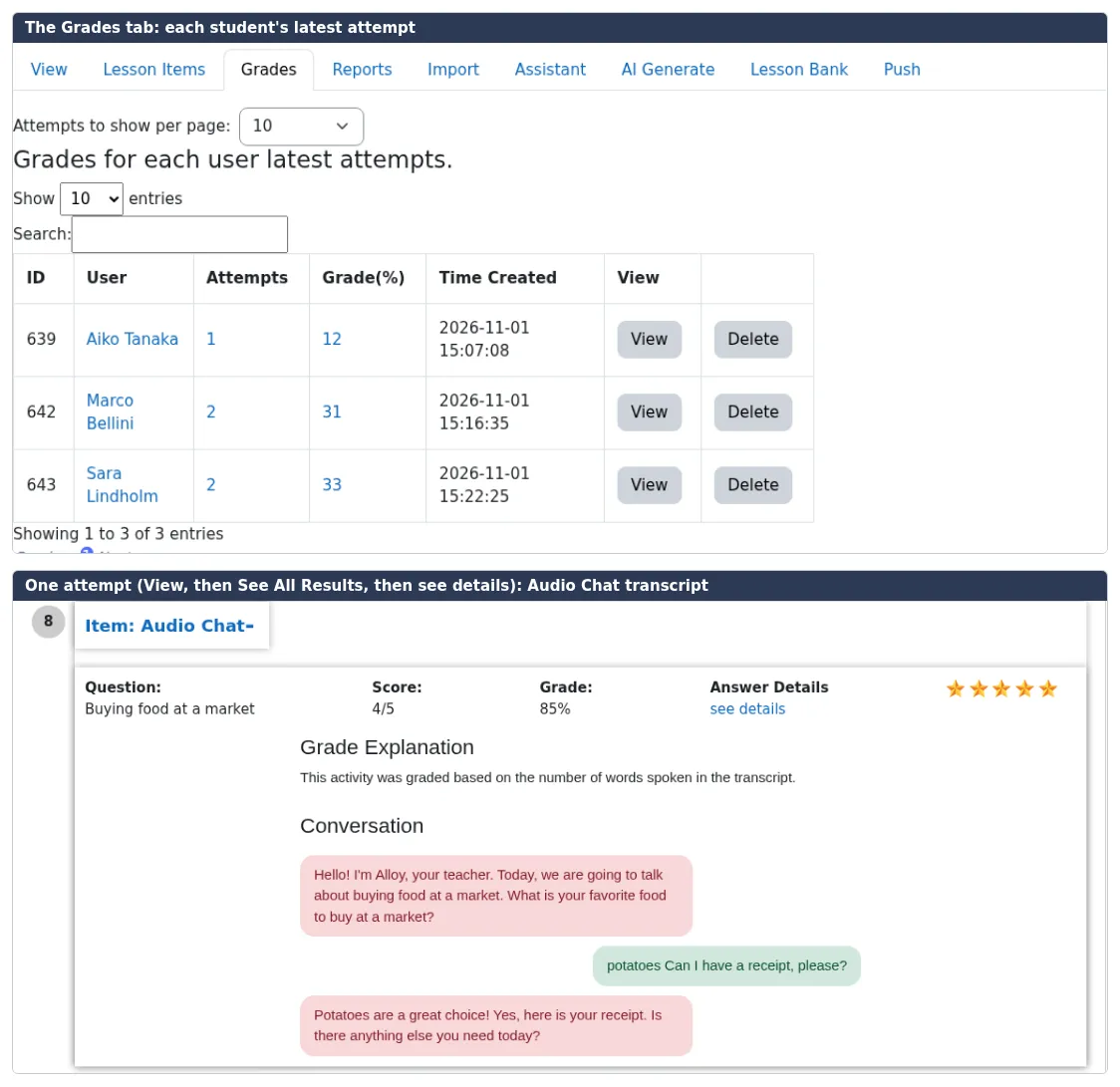
Figure 2.9. Reviewing student attempts on the Grades tab.
For activity completion, you can require that the student has finished the activity, reached a Minimum Grade, or both.
2.9 Common questions
Section titled “2.9 Common questions”Why can’t I see an item type?
Section titled “Why can’t I see an item type?”Your Moodle administrator can hide item types site-wide. Items that have already been added to a lesson are not affected.
Why is there no Lesson Bank tab?
Section titled “Why is there no Lesson Bank tab?”The Lesson Bank must be enabled in the site administration settings. Ask your administrator.
Do I have to record the audio myself?
Section titled “Do I have to record the audio myself?”No. Prompts can use text-to-speech voices, so no recording is needed. You can also upload your own audio.
Can students retry a single item?
Section titled “Can students retry a single item?”Some item types have a retry option, immediately after it is completed and retry is enabled (eg audiochat or wordshuffle). Otherwise students can retake the whole lesson if Max. Attempts allows it.
Can students navigate back to an earlier item?
Section titled “Can students navigate back to an earlier item?”No. Currently they can not go back.
Can I embed a MiniLesson elsewhere in Moodle?
Section titled “Can I embed a MiniLesson elsewhere in Moodle?”Yes, with the Poodll or Generico filter. See Embedding MiniLessons.