
6. Language Settings, Speech Recognition, AI, Grades and Reports
The four Poodll Languages activities share several features. This section explains the settings that matter most across all four, so that you can choose them confidently and interpret the results sensibly.
6.1 Target language
Section titled “6.1 Target language”The target language is the language students are learning. It affects speech recognition, the voices available and the language AI uses when generating content.
| Activity | Setting |
|---|---|
| MiniLesson | Target/Voice Language |
| Solo | Target Language |
| WordCards | Target Language |
| ReadAloud | Passage language |
Choose the variant closest to your students’ model of the language, such as English (GB) or French (Can.). More than 50 language variants are available, though not every feature is available in every language.
Your administrator sets the default for new activities, so check this setting each time you create an activity.
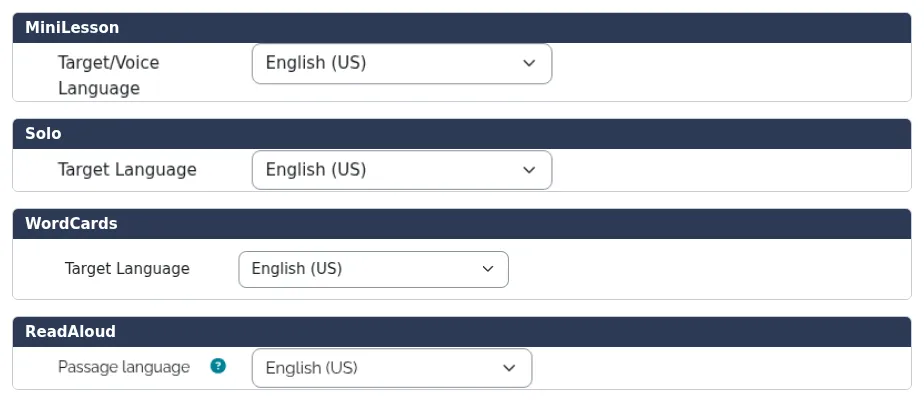
Figure 6.1. The target language setting in each activity.
6.2 Native language support
Section titled “6.2 Native language support”Students often understand definitions, hints and feedback better in their first language. Each activity handles this a little differently.
| Activity | Setting | What it does |
|---|---|---|
| WordCards | Definitions Language and Show language chooser | Sets the language of definitions. With the chooser on, each student can set their preferred language of definitions/translations. |
| MiniLesson | Learner’s Native Language and Enable native language features | If enabled, native language features allows AI to use the active native language for feedback, definitions and translations. |
| Solo | AI Feedback Language | Sets the language of AI feedback. If the plugin’s “Enable Native Language” admin setting is checked, the user preferred native language as chosen in WordCards or MiniLesson is used. |
A student’s chosen language
Section titled “A student’s chosen language”A student’s language choice can apply across activities. For example, the definitions language a student chooses in WordCards is shared with MiniLesson as their native language. Whether this choice overrides your activity setting depends on options that an administrator controls.
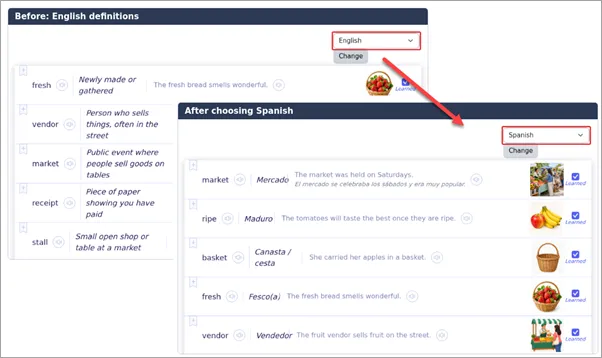
Figure 6.2. A student choosing their definitions language in WordCards.
Translations in WordCards
Section titled “Translations in WordCards”Translated definitions are available for words added with the Word Wizard. If you type a definition by hand or import it, students see the text you entered.
Translations in MiniLesson
Section titled “Translations in MiniLesson”An administrator can turn on Pre-translated hints and definitions, so that hints and card translations are prepared in advance in chosen languages. AI makes these translations in the background when an item is saved, and the item form shows them so that you can review or regenerate them.
6.3 Speech recognition: Open or Guided?
Section titled “6.3 Speech recognition: Open or Guided?”Speech recognition, also called speech-to-text or STT, turns a student’s speech into text so that it can be scored. MiniLesson, WordCards and ReadAloud let you choose between two modes.
| Mode | How it works | Choose it when… |
|---|---|---|
| Open STT (Strict) | Does not know what the student is expected to say. | You want a stricter check. Mispronounced words are more likely to be marked wrong. |
| Guided STT (Poodll) | Gives higher probability to the words expected. | You want a more generous result, for example with beginners or strongly accented speech. |
In ReadAloud, you can make a separate choice for the Practice and Read steps. In Solo, students speak freely, so there is no expected text to guide recognition.
Getting results while the student speaks
Section titled “Getting results while the student speaks”In some cases, speech can be recognised as the student speaks, so that results appear almost immediately. In Solo this is the Use streaming recording setting. In ReadAloud, your administrator controls which steps use realtime recognition with Open STT.
6.4 Text-to-speech voices
Section titled “6.4 Text-to-speech voices”Text to speech (TTS) means you do not have to record your own model audio. Voices are listed by language. Their quality and features vary, and some have symbols in the list. In ReadAloud, for example, + marks a better-quality voice and ! indicates a voice that cannot create line breaks automatically.
Teaching tip: Listen to several voices. For beginners, a slower speed, such as Slow or Extra slow, may be more suitable.
6.5 Using AI sensibly
Section titled “6.5 Using AI sensibly”| AI does… | Where |
|---|---|
| Grades free speaking and writing against your instructions | Solo; Free Speaking and Free Writing in MiniLesson |
| Suggests grammar corrections and gives feedback | Solo; Free Speaking and Free Writing in MiniLesson |
| Holds a conversation with a student | Audio Chat and Word Chat in MiniLesson |
| Generates lessons, images and audio | AI Generate in MiniLesson |
| Generates or simplifies a passage | AI text utils in ReadAloud |
| Looks up words or suggests meanings and pictures | Word Wizard in WordCards |
Keep these points in mind:
- Review generated content before students see it. AI can produce errors and content at the wrong level.
- Treat automatic scores as evidence, not as the final word. Speech recognition errors affect results, especially with background noise, strong accents and names.
- Check high-stakes results. Listen to a sample of recordings, and adjust grades where you can.
- Tell students how results are produced. They should understand that a low score may sometimes reflect recognition rather than their ability.
- Follow your institution’s AI and privacy policies.
Your site may let administrators choose which AI provider handles some tasks, or restrict these features. Contact your administrator if you have questions.
6.6 Grades and completion
Section titled “6.6 Grades and completion”All four activities can send a grade to the Moodle gradebook.
| Activity | What the grade is based on | Which attempt counts | Completion conditions |
|---|---|---|---|
| MiniLesson | The scores of the graded items | Latest attempt | Finished; Minimum Grade |
| Solo | The AutoGrading formula, or the teacher’s grade | Latest attempt | All steps completed |
| WordCards | Performance in the practice steps | Grade Options: most recent or highest | Finished; learned all words |
| ReadAloud | WPM against Target WPM, averaged with the quiz score if the quiz has questions | Grade options: latest or highest | All steps; Minimum grade |
If you don’t want a gradebook entry, set Grade to None in the activity’s settings.
6.7 Useful reports
Section titled “6.7 Useful reports”| I want to… | Activity | Where to look |
|---|---|---|
| See grades for one lesson | MiniLesson | Reports → Grade Report |
| See who has started but not finished | MiniLesson, Solo | Reports → Incomplete Attempts |
| See all attempts across a course | MiniLesson, ReadAloud | Reports → Course Attempts Report |
| Review spoken items | MiniLesson | Grades → View → See All Results |
| Listen to students’ speech | Solo | Grades → Grade |
| Listen to students’ reading | ReadAloud | Grading |
| Download recordings | Solo | Reports → Download Audio |
| Compare class averages across the course’s Solo activities | Solo | Reports → Class Progress |
| See word learning progress | WordCards | Reports → Terms Learned |
| See the words students miss most | ReadAloud | Reports → Missed words |