4. Giving Audio, Video and Corrections Feedback
Cloud Poodll Assignment Feedback lets teachers give feedback on student work directly within Moodle’s Assignment activity. Instead of relying only on written comments, teachers can record spoken or video feedback, make screen recordings, or provide text-based corrections.
The plugin also includes Corrections feedback, which can compare a student’s submitted text or transcript with a corrected version and highlight the differences. Teachers can use automatically generated grammar suggestions as a starting point, then edit the suggested text before saving their feedback.
This section describes the Cloud Poodll Assignment Feedback plugin, not the older Classic Poodll Feedback plugin. Cloud Poodll does not require the Poodll filter. The plugin must be installed and configured by the Moodle administrator before its feedback options appear in assignments.
4.1 Choosing a feedback method
Section titled “4.1 Choosing a feedback method”Different kinds of feedback are useful for different teaching tasks.
| Feedback method | Particularly useful for |
|---|---|
| Audio feedback | Personal explanations, pronunciation comments, and detailed responses that are quicker to say than type |
| Video feedback | More personal explanations and feedback where gestures or visual communication add value |
| Screen feedback | Showing students where something needs improvement on a document, presentation, or other visible work |
| Text feedback | Brief written comments or feedback students may need to scan or refer to later |
| Corrections feedback | Showing differences between a student’s original wording and an improved or corrected version |
The available options depend on the plugin configuration and the settings of the individual assignment.
4.2 Enabling Cloud Poodll feedback in an assignment
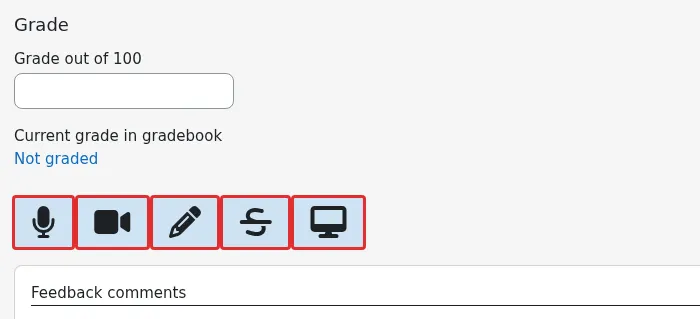
Section titled “4.2 Enabling Cloud Poodll feedback in an assignment”You can enable Cloud Poodll feedback when you create an assignment or add it to an existing one.
- Open the Moodle course and turn editing on if necessary.
- Create a new Assignment, or open an existing assignment and select Settings.
- Find the Feedback types section.
- Enable Cloud Poodll Feedback (the exact label may vary slightly by plugin version).
- In the Cloud Poodll feedback settings, choose the available Recorder Options that suit your task. To let the grader choose among the supported modes during grading, select Audio, Video, Screen, Text or Corrections Feedback, if this option is available.
- Review any additional recording settings, such as the recorder type and recording time limit, where shown.
- Save the assignment settings.
Tip: Cloud Poodll Assignment Submission and Assignment Feedback are separate plugins. You do not have to require a Cloud Poodll recording submission to use Cloud Poodll feedback. For example, students can submit written work through Moodle while you respond with an audio recording or corrections.
4.3 Recording audio feedback
Section titled “4.3 Recording audio feedback”Audio feedback is especially helpful when you want to explain your assessment in a supportive, conversational way. It can also be quicker than typing detailed comments.
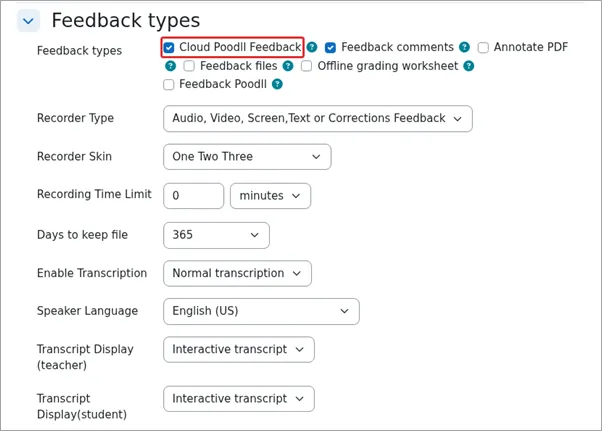
- Open the assignment and go to its submissions or grading page.
- Select Grade for the student whose work you want to assess.
- Locate the Cloud Poodll Feedback area.
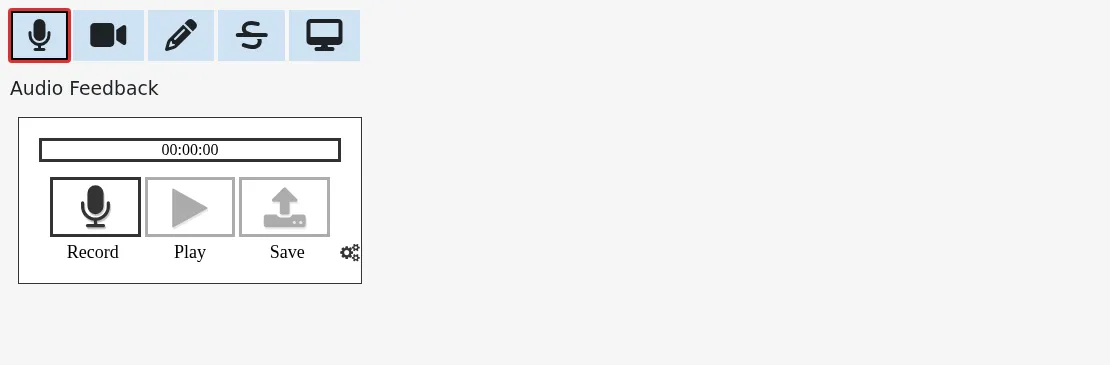
- Choose Audio if you have access to multiple feedback modes.
- Allow the browser to use your microphone if prompted.
- Start recording and speak your feedback.
- Stop recording, then play it back if the recorder offers a preview.
- Save the grading changes using Moodle’s grading controls.
Audio feedback works well when it has a clear structure: briefly recognise what the student did well, identify one or two priorities for improvement, and explain the next step.
Example: “Your introduction is clear and the main argument is easy to follow. In your next draft, focus on linking your examples more explicitly to the conclusion.”
4.4 Recording video or screen feedback
Section titled “4.4 Recording video or screen feedback”Video feedback can help you communicate a more personal response. Screen feedback is useful when you want to show a student exactly which part of their work you are discussing.
- Open the student’s submission in the assignment grading interface.
- In the Cloud Poodll Feedback area, choose Video or Screen, if available.
- Grant the relevant browser permissions. Video recording may require camera and microphone access; screen recording may require you to choose a window, tab, or screen to share.
- Record your feedback, referring to specific examples in the student’s work.
- Stop the recording and review it if a playback preview is available.
- Save the grading changes.
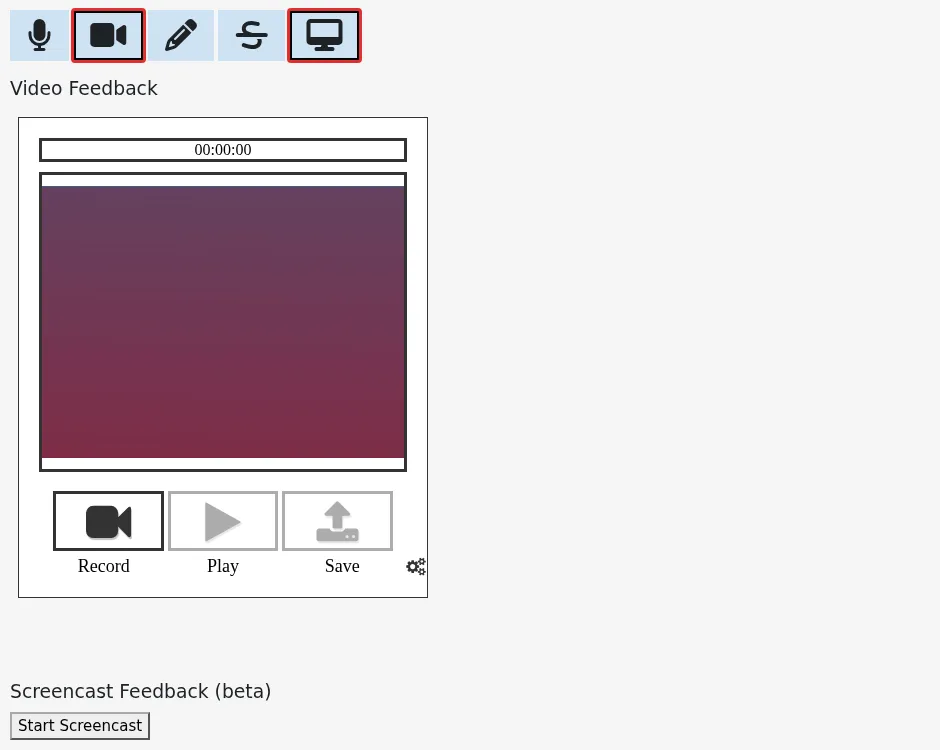
Tip: When recording your screen, close unrelated tabs and windows first so that you do not accidentally include personal information or other students’ work.
4.5 Providing Corrections feedback
Section titled “4.5 Providing Corrections feedback”Corrections feedback helps teachers show students how their original wording differs from a corrected version. It is particularly useful for language learning, writing assignments, and spoken tasks that have been transcribed.
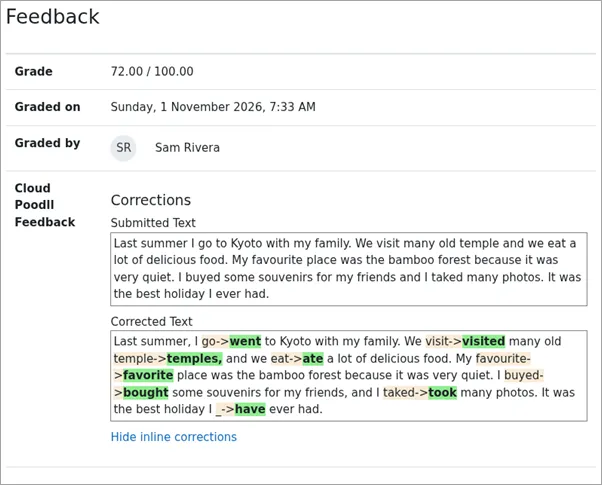
The teacher can work with submitted text, ask Poodll for grammar suggestions, and revise those suggestions. The plugin then marks up the differences between the original and corrected text for students to see.
Enable Corrections feedback
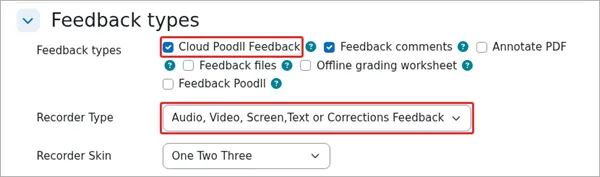
Section titled “Enable Corrections feedback”- Open the assignment Settings.
- Under Feedback types, enable Cloud Poodll Feedback.
- Under Recorder Options, choose Audio, Video, Screen, Text or Corrections Feedback to make Corrections available alongside the other modes.
- Save the settings.
Prepare corrections for a student
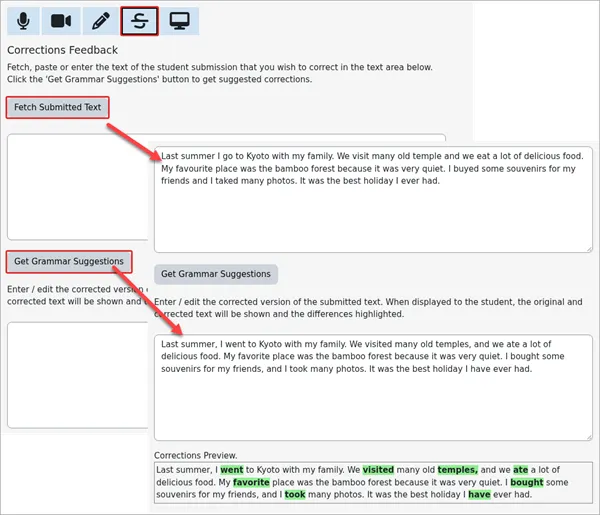
Section titled “Prepare corrections for a student”- Open the assignment grading page and select a student submission.
- In the Cloud Poodll feedback controls, choose Corrections.
- Click Fetch Submitted Text to retrieve the student’s available submitted text or transcript.
- Review the fetched text. If it comes from speech transcription, check whether recognition errors have affected the wording.
- Click Get Grammar Suggestions to produce a suggested corrected version.
- Review the suggestions carefully. Edit the corrected text to fix errors, preserve the student’s intended meaning, or leave acceptable language unchanged.
- Check the preview of the differences between the submitted text and your revised version.
- Save the grading changes in Moodle.
Review suggestions before saving
Section titled “Review suggestions before saving”Automatically generated corrections are suggestions, not definitive judgments. They may change an acceptable expression, miss the student’s intended meaning, or introduce unnecessary rewriting. Teachers should review the corrected text before using it as assessment feedback.
For language learning, it is often more useful to focus on a limited number of relevant features rather than rewriting everything. For example, an assignment about past-tense narration might focus on verb forms while retaining otherwise acceptable vocabulary and sentence structure.
In Corrections feedback, the student can see the differences marked between the two versions rather than receiving only a generic comment such as “Check your grammar.”
4.6 Combining Cloud Poodll feedback with grades and Moodle comments
Section titled “4.6 Combining Cloud Poodll feedback with grades and Moodle comments”Cloud Poodll feedback is part of the normal Moodle assignment grading workflow. You can use it alongside a numerical grade, a grading guide or rubric where configured, and other Moodle feedback options enabled for the assignment.
For example, a teacher might:
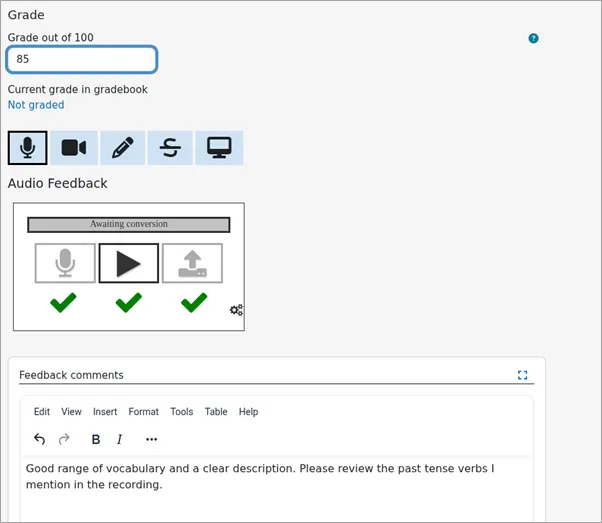
- Enter a grade using the assignment’s grading controls.
- Record audio feedback explaining the main strengths and weaknesses.
- Add a brief written note in Moodle’s standard feedback comments, if those are enabled.
- Save the grade and feedback.
4.7 Transcription and playback of recorded feedback
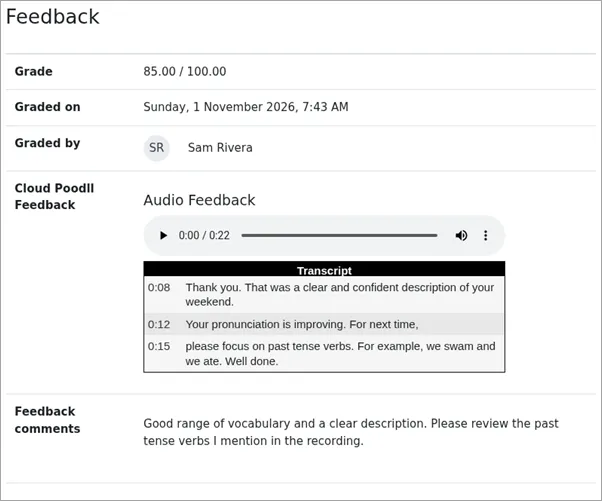
Section titled “4.7 Transcription and playback of recorded feedback”When transcription is enabled and supported for the selected recording mode, Cloud Poodll can produce a transcript of spoken feedback. Depending on site and assignment settings, this transcript may be shown with a media player.
Transcription can help students revisit feedback and locate specific points without replaying the entire recording. As with other automatic transcripts, accuracy depends on factors such as recording quality, language, and pronunciation.
4.8 Common questions
Section titled “4.8 Common questions”I cannot see Cloud Poodll in the Feedback types list. What should I do?
Section titled “I cannot see Cloud Poodll in the Feedback types list. What should I do?”The Cloud Poodll Assignment Feedback plugin may not be installed or available on your Moodle site. Contact your Moodle administrator.
I can record audio feedback, but I cannot see Corrections. Why?
Section titled “I can record audio feedback, but I cannot see Corrections. Why?”Check the assignment’s Recorder Options. Corrections must be included among the enabled feedback modes. Your Moodle administrator may also need to check the installed plugin version and site configuration.
Can I use Cloud Poodll Feedback with an ordinary file or text submission?
Section titled “Can I use Cloud Poodll Feedback with an ordinary file or text submission?”Yes. Cloud Poodll Assignment Feedback is separate from Cloud Poodll Assignment Submission and can be used with other Moodle assignment submission types.
Do I have to accept the automatic grammar suggestions?
Section titled “Do I have to accept the automatic grammar suggestions?”No. You can edit the suggestions before saving Corrections feedback. Review them for accuracy and for their relevance to your teaching goals.
Where are the recordings stored?
Section titled “Where are the recordings stored?”Cloud Poodll recordings are stored using Poodll’s cloud service rather than the Classic Poodll filter-based storage system. Storage region, retention, and other settings are managed by the site’s configuration. Contact your Moodle administrator for your institution’s policy.
Why can’t my students see feedback yet?
Section titled “Why can’t my students see feedback yet?”Check that the feedback and grade have been saved and that any grading workflow or release restrictions allow students to view them.