
5. Using Audio and Video Questions in Moodle Quizzes
Cloud Poodll Recording Question lets teachers add questions to Moodle quizzes that students answer by recording audio or video or drawing on a whiteboard. It is useful for speaking assessments, oral examinations, short presentations and questions where a spoken explanation is more appropriate than a written answer.
Cloud Poodll Recording Question is separate from the older Classic Poodll Recording Question. The Cloud Poodll plugin does not depend on the Poodll filter. Recordings are handled through the Poodll cloud, and optional automatic transcription can assist teachers when reviewing responses.
Unlike automatically marked multiple-choice questions, Cloud Poodll recording questions require manual grading by the teacher.
5.1 When to use a recording question
Section titled “5.1 When to use a recording question”Use a Cloud Poodll recording question when you want a spoken or video response within a Moodle Quiz. For example, you might ask learners to:
- Describe an image aloud.
- Answer an interview question or explain a decision.
- Read a short passage aloud.
- Give a short oral presentation.
- Demonstrate an object or process on video.
A recording question is particularly useful when the response should be part of a structured quiz with other question types, a quiz time limit, or Moodle’s quiz review and grading workflow.
If students need to submit a longer recording as a standalone piece of work, consider a Cloud Poodll Assignment Submission instead (see Section 3).
5.2 Creating an audio response question
Section titled “5.2 Creating an audio response question”- Open your Moodle course and create a Quiz, or open an existing quiz.
- Open the quiz’s Questions editing page (the wording and location vary by Moodle version).
- Select Add and then a new question.
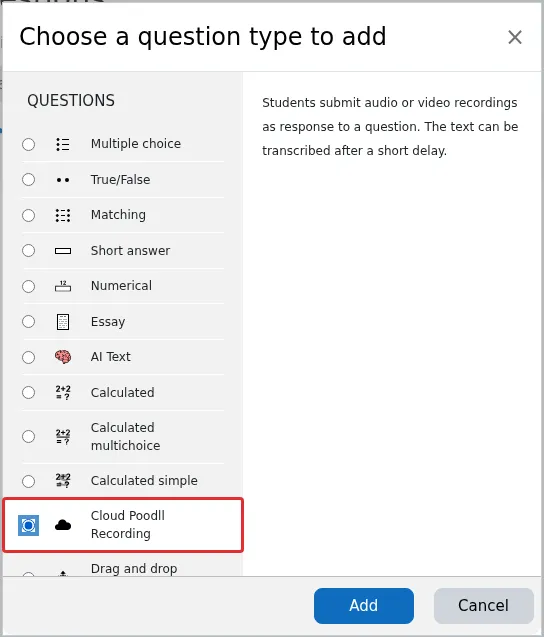
- Choose Cloud Poodll (the Cloud Poodll Recording Question type) and select Add.
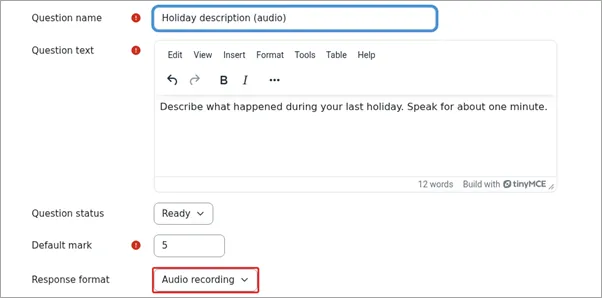
- Enter a descriptive Question name. This is mainly for teachers and helps you identify the question in the question bank.
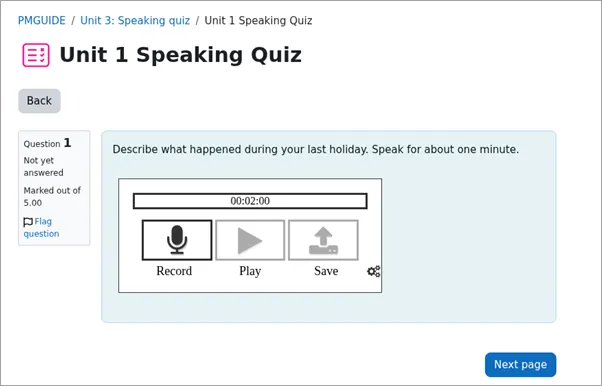
- Enter the Question text. Write the instructions the learner should follow, such as “Describe what happened during your last holiday. Speak for about one minute.”
- Enter the Default mark, according to the points you want to award for the response.
- Under the recording settings, select Audio as the recording type.
- Review the available recorder, duration and transcription options (see Section 5.4).
- Select Save changes.
Teaching tip: Make the task instructions specific. State what students should talk about and, when appropriate, the expected response length and assessment criteria. A clear prompt makes both recording and grading easier.
5.3 Creating a video response question
Section titled “5.3 Creating a video response question”Video questions follow almost the same process as audio questions:
- Open the quiz’s question editing page and add a new Cloud Poodll question.
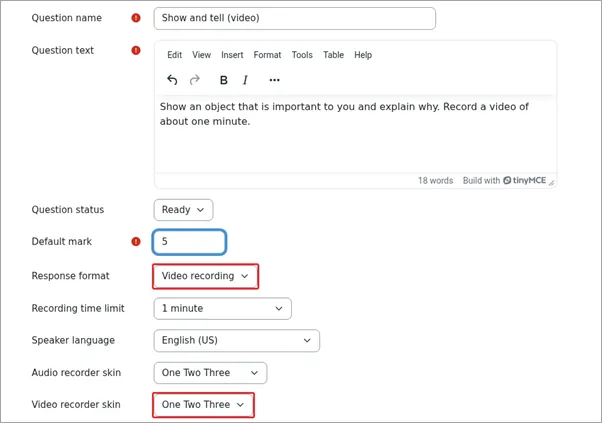
- Enter the question name, instructions and default mark.
- Select Video as the recording type.
- Configure the recorder and any applicable recording duration options.
- Save the question and preview it before using the quiz with learners.
Use video when seeing the learner or what they demonstrate is relevant to the activity, for example, a show-and-tell task or a practical demonstration. If only speech is being assessed, an audio question may be simpler for students and teachers.
Teaching tip: For a speaking assessment, decide whether video is genuinely necessary. Audio-only recording can reduce bandwidth requirements and make the activity less distracting.
5.4 Creating a whiteboard response question
Section titled “5.4 Creating a whiteboard response question”Whiteboard questions follow almost the same process as audio and video questions:
- Open the quiz’s question editing page and add a new Cloud Poodll question.
- Enter the question name, instructions and default mark.
- Select Whiteboard as the recording type.
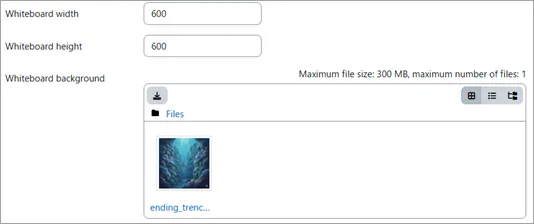
- Configure the whiteboard size and optionally a background image.
- Save the question and preview it before using the quiz with learners.
5.5 Configuring recording and transcription options
Section titled “5.5 Configuring recording and transcription options”The exact options available depend on the installed plugin version and your Moodle site’s configuration. Review the following settings when editing a Cloud Poodll question.
Recording type and recorder appearance
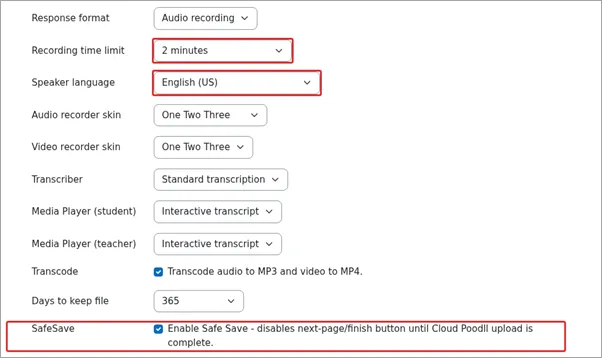
Section titled “Recording type and recorder appearance”Choose whether the response should be audio or video. Where recorder choices are available, select the recorder that suits your task. A simple recorder is often best for a formal assessment; a recorder with playback or retry controls may be preferable for practice.
Recording duration
Section titled “Recording duration”If a recording limit is available, choose a duration appropriate for the question. Give enough time for the expected answer, but avoid setting unnecessarily long limits for short responses.
Automatic transcription
Section titled “Automatic transcription”If automatic transcription is enabled on your site, Cloud Poodll can produce text from a student’s recording. Select the appropriate speaker language when that setting is offered.
Transcripts can help with reviewing responses, but they may contain mistakes—especially with learner speech, unfamiliar names or background noise. Listen to the recording when evaluating pronunciation, fluency or meaning.
Quiz Safe Save
Section titled “Quiz Safe Save”Quiz Safe Save helps prevent students from selecting Next or Finish before the recording has uploaded successfully. This is designed to prevent student’s losing their recording by mistake.
When using Safe Save is is best if the recording question is the only question on its quiz page. This avoids confusing interactions with other questions. Safe Save does not replace sensible quiz timing: the learner still needs enough time to finish recording and upload the file before the quiz closes.
Important: Recording a response and submitting the quiz are separate parts of the workflow. Students should let the recording upload complete before moving on or finishing the quiz.
5.6 Manually grading recorded responses
Section titled “5.6 Manually grading recorded responses”Cloud Poodll recording questions are manually graded. Once students have submitted attempts:
- Open the relevant Quiz.
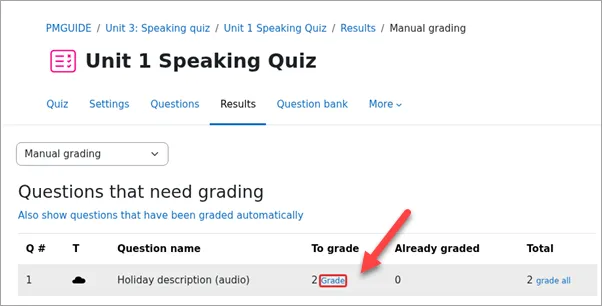
- Open Results and find Manual grading. The menu location and wording vary between Moodle versions.
- Find the Cloud Poodll question that needs grading.
- Select the option to Grade individual responses or Grade all responses for that question.
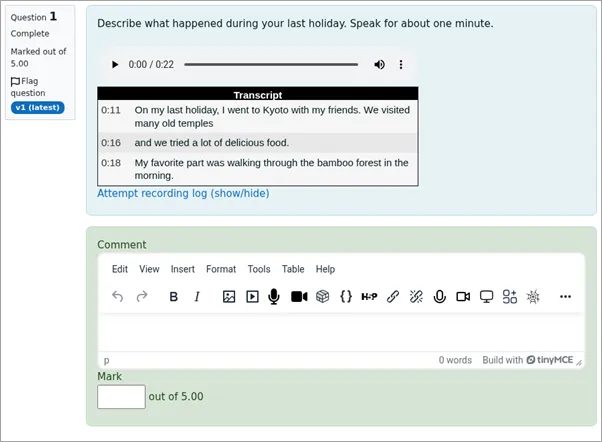
- Play the submitted recording. If a transcript is available, use it as a supplementary reference.
- Enter the mark and, if desired, a written comment in Moodle’s grading fields.
- Save the grading changes.
5.7 Common questions
Section titled “5.7 Common questions”Should I choose a Quiz or an Assignment?
Section titled “Should I choose a Quiz or an Assignment?”Choose a Quiz when you need several structured questions, a combination of question types, or Moodle’s quiz-attempt workflow. Choose an Assignment for longer standalone submissions, revision over time or the assignment feedback workflow described in Sections 3 and 4.
Can recordings be graded automatically?
Section titled “Can recordings be graded automatically?”The Cloud Poodll Recording Question is a manually graded question type. Automatic transcription converts speech to text where configured, but a transcript is not an automatic grade.
What happens if a student finishes the quiz before the upload completes?
Section titled “What happens if a student finishes the quiz before the upload completes?”A recording may not be attached successfully if a student navigates away too soon. Where available, enable Quiz Safe Save, preferably with the recording question on its own page. Also allow extra time for uploads when configuring a timed quiz.
Why is there no transcript?
Section titled “Why is there no transcript?”Transcription must be supported and configured for the question, and the language settings must be appropriate. Processing may not be immediate. If transcripts remain unavailable, ask the Moodle administrator to check the plugin configuration.
Why can’t I see Cloud Poodll in the question-type chooser?
Section titled “Why can’t I see Cloud Poodll in the question-type chooser?”The Cloud Poodll Recording Question plugin may not be installed or enabled on your Moodle site. Ask your Moodle administrator. Do not confuse it with the older Classic Poodll Recording Question, which depends on the Poodll filter.