
8. Troubleshooting and Frequently Asked Questions
Most problems with Poodll Languages can be solved by checking browser permissions, the activity’s language setting and whether processing has finished. This section covers Poodll MiniLesson, Poodll Solo, Poodll WordCards and Poodll ReadAloud. For more detail on recorders and uploads, see the troubleshooting section of the Poodll Media Teacher’s Guide.
8.1 The microphone is not working
Section titled “8.1 The microphone is not working”A browser must have permission to use your microphone before it can record or recognise speech.
- Open the Moodle page containing the activity.
- Click the site information or permissions icon beside the address bar. Its appearance depends on the browser.
- Check that Microphone is allowed. In Chrome, its switch should be on.
- Reload the page and try again.
- Check that the correct microphone is selected in your computer’s sound settings and that it is not muted.
- Close other programs that might be using the microphone.
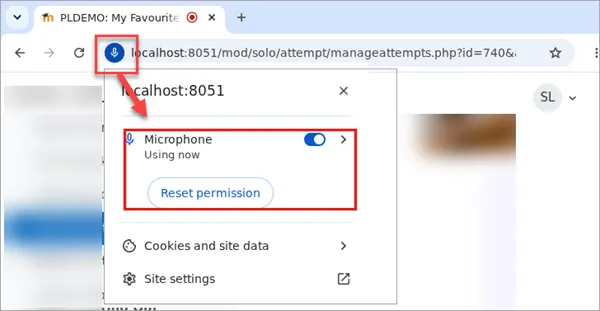
Figure 8.1. Checking the browser’s microphone permission.
Important: Microphone access normally requires a secure HTTPS connection. If your Moodle site does not use HTTPS, contact your Moodle administrator.
8.2 Speech is marked wrong
Section titled “8.2 Speech is marked wrong”Speech recognition is good but not perfect. If correct speech is being marked wrong, check these points in order.
- Language. Confirm that the activity’s target language is the language being spoken.
- Recording quality. Listen to the recording, if available. Background noise, a distant microphone and other voices all reduce accuracy.
- Transcriber. Try Guided STT (Poodll) rather than Open STT (Strict). Guided recognition is more generous because it expects certain words.
- Acceptable alternatives.
- In ReadAloud, add Alternatives for words often misheard (see Section 5.6).
- In WordCards, add Acceptable mistranscribes for the word (see Section 4.4).
- Names and unusual words. These are harder to recognise. Where possible, avoid them or provide alternatives.
If your target language has limited recognition support, consider activities that do not depend on it, such as the Self Check item in MiniLesson.
8.3 Results have not appeared
Section titled “8.3 Results have not appeared”Some results are processed after the student finishes.
| Situation | What to do |
|---|---|
| Solo results are still waiting | Wait a few minutes, then return to the activity. Longer recordings take longer. Transcription normally happens in the cloud unless streaming recording is enabled. |
| ReadAloud results are still waiting | Wait a few minutes and reopen the activity. Check that Enable AI is on. If it is off, you need to grade the attempts manually. |
| Results never arrive | Ask your administrator to check that the Moodle cron job is running and that the Poodll subscription and credentials are valid. |
Ask students not to close the page until any upload has finished.
8.4 AI Generate or the Word Wizard is not working
Section titled “8.4 AI Generate or the Word Wizard is not working”AI Generate stays in “process pending”
Section titled “AI Generate stays in “process pending””AI generation runs as a background task through the Moodle cron job. If cron is not running, generation will not progress. Ask your administrator to check it.
AI Generate gives an error
Section titled “AI Generate gives an error”Check that you have filled in every input the template requests. Try a shorter input, or try a different template.
The Word Wizard cannot find a word
Section titled “The Word Wizard cannot find a word”Check the spelling and the activity’s Target Language. Inflected forms and idioms may not be in the dictionary. If it is available, use Create with AI, or add the word by hand on the Words Admin tab.
Pictures or audio are missing
Section titled “Pictures or audio are missing”Generated media can take some time. If a picture is still missing, generate it again or upload your own image. For audio, check that the item or word has a suitable voice selected for the target language.
8.5 Model audio problems in ReadAloud
Section titled “8.5 Model audio problems in ReadAloud”If the Listen or Practice steps have no audio or do not pause correctly:
- Check that a TTS voice is selected and that it matches the Passage language.
- Check that the passage is not longer than 3000 characters.
- Open the Model audio tab and look for a warning that the audio has not been marked up.
- Select Re-Generate model audio markup, then save.
- If that does not help, change the voice in the settings. Save and retest.
- You can also set the breaks manually - though a bit fiddly it is the most precise way to set word timings.
If you recorded or uploaded your own audio, allow about five minutes for processing and then refresh the page.
8.6 Recording on phones and tablets
Section titled “8.6 Recording on phones and tablets”The activities work on mobile browsers, and all four plugins support the Moodle mobile app. Features can vary by device.
- Use a current browser, and grant microphone permission when prompted.
- Keep the page open until any upload has finished, especially on mobile connections.
- For assessed work, test the activity on the types of device your students use.
8.7 Frequently asked questions
Section titled “8.7 Frequently asked questions”Do students need to install anything?
Section titled “Do students need to install anything?”No. The activities run in a web browser. Students need a working microphone for speaking tasks and a reliable internet connection.
Can I use these activities without a microphone?
Section titled “Can I use these activities without a microphone?”Partly. WordCards can be set up with activities that do not require speech. MiniLesson has many non-speaking items, and Solo has a typed sequence. ReadAloud’s Read step requires speech.
Which languages are supported?
Section titled “Which languages are supported?”Many languages and regional variants are supported. However, text to speech, speech recognition and AI features vary by language. Check the language list in the activity settings and test your task. See What languages does Poodll support?.
How accurate is the automatic grading?
Section titled “How accurate is the automatic grading?”It is useful but not perfect. Recording quality, accents and unusual words all affect it, and AI grades depend on your instructions. Review results before relying on them for high-stakes decisions. See Section 6.5.
Can I change an automatic grade?
Section titled “Can I change an automatic grade?”Yes. You can review and adjust grades on the Grades tab in Solo and the Grading tab in ReadAloud. For MiniLesson, change the grade in the Moodle gradebook.
I changed some grading settings. Do existing grades update?
Section titled “I changed some grading settings. Do existing grades update?”Not necessarily. In ReadAloud, use Save and re-evaluate all attempts and Re-push evaluations to gradebook on the Administrator tab (see Section 5.6).
Why do my teacher test attempts not show word progress?
Section titled “Why do my teacher test attempts not show word progress?”WordCards tracks word learning only for students. Use Switch role to… Student or a test student account.
How long are recordings kept?
Section titled “How long are recordings kept?”Activities that record usually have a Days to keep file setting, with options of 1, 3, 7, 30, 90, 180, 365 or 730 days, or Never expire. The default in Solo and ReadAloud is 365 days.
Can I copy an activity to another course?
Section titled “Can I copy an activity to another course?”Yes. The activities work with Moodle’s standard backup, restore and import tools. In MiniLesson, you can also export items as JSON and import them elsewhere. Test one copy before rolling it out widely, particularly if the course has a different language.
What does the Push tab do?
Section titled “What does the Push tab do?”If enabled, it copies selected settings from one activity to others. Use it with care, as changes cannot be undone. See the Poodll MiniLesson Push Feature.
Why don’t I see an activity, tab or feature?
Section titled “Why don’t I see an activity, tab or feature?”The plugin may not be installed, an administrator may have turned the feature off, or your role may not include permission. Contact your Moodle administrator.
8.8 Where to get help
Section titled “8.8 Where to get help”If the checks above do not resolve the problem, contact your institution’s Moodle support team. Include:
- The Moodle course and activity where the problem occurred.
- Which activity you were using: MiniLesson (and which item type), Solo, WordCards or ReadAloud.
- The activity’s target language and transcriber.
- Your device, operating system and browser.
- The exact error message, if any, plus a screenshot.
- Whether the problem affects one person or several people.
- Whether speech failed to record, failed to process or was processed but scored incorrectly.
Additional help is available from the Poodll Support Center. Your institution’s Moodle support team should be the first contact for site-specific configuration, subscriptions or permissions.