
7. Practical Teaching Ideas with Cloud Poodll
Cloud Poodll can support more than formal speaking tests. Teachers can use audio, video, whiteboards and screen recordings to create short practice tasks, demonstrations, reflections, and personalised feedback within Moodle. This section introduces seven teaching activities that can be adapted for different subjects and levels.
All examples use Cloud Poodll tools. They do not require the Classic Poodll filter. The available options depend on which Cloud Poodll plugins your Moodle administrator has enabled.
7.1 Speaking Practice and Pronunciation
Section titled “7.1 Speaking Practice and Pronunciation”Learning goal: Give students frequent opportunities to practise speaking and receive feedback.
Recommended tool: Cloud Poodll Assignment Submission (audio); optionally Cloud Poodll Assignment Feedback.
A short audio assignment works well for practising target vocabulary, pronunciation, fluency, or a particular language structure. For example, ask students to describe their weekend in 60–90 seconds, using the past tense.
Set up the activity
Section titled “Set up the activity”- In your Moodle course, turn editing on and add an Assignment activity.
- Give it a clear title such as My Weekend — Speaking Practice.
- In the description, state the speaking task and any required words or expressions.
- Under Submission types, enable Cloud Poodll and select an audio recorder.
- Set a suitable recording time limit, if desired.
- If you want to transcribe student speaking, enable transcription and choose the appropriate speech language.
- Save the assignment.
- Later use the assignment’s grading page to listen to submissions.
- Give written or recorded feedback, depending on which feedback plugins are enabled.
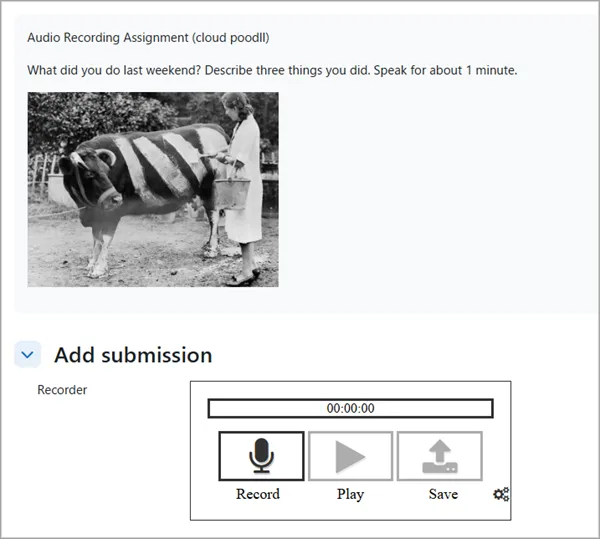
Example task: Describe three things you did last weekend. Speak for approximately one minute. Use at least five past-tense verbs.
Teaching tip: Keep early tasks short and assess just one or two features, such as intelligibility and use of target phrases. Transcripts can assist review but should not be treated as perfect evidence of pronunciation.
7.2 Oral Presentations and Video Reflections
Section titled “7.2 Oral Presentations and Video Reflections”Learning goal: Help students organise ideas, explain concepts, and reflect on their learning.
Recommended tool: Cloud Poodll Assignment Submission (video).
Video submissions are useful for brief oral presentations, project summaries, personal reflections, and demonstrations where facial expressions or objects are relevant.
Set up the activity
Section titled “Set up the activity”- Add an Assignment to the course.
- Describe the presentation topic, expected length, and assessment criteria.
- Enable the Cloud Poodll submission type and choose a video recorder.
- Set a recording time limit appropriate to the task.
- Save the assignment.
- Open submitted recordings from the Moodle assignment grading interface.
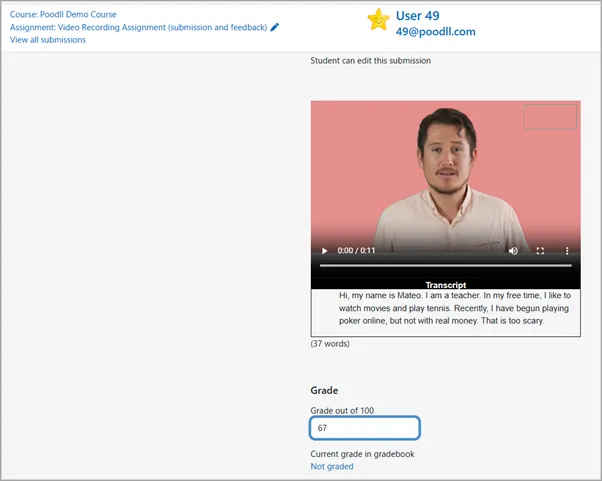
Example task: Record a two-minute presentation explaining one change you would make to your school or workplace. Give two reasons.
Teaching tip: Since it is a Moodle assignment it supports grading rubrics. So you could prepare a rubric and share the details with students before they make their recording.
7.3 Personalised Teacher Feedback
Section titled “7.3 Personalised Teacher Feedback”Learning goal: Give students specific, actionable feedback in a more conversational format.
Recommended tool: Cloud Poodll Assignment Feedback.
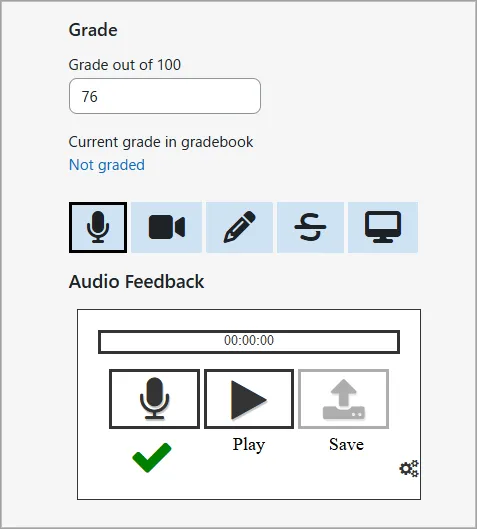
Audio or video feedback lets a teacher respond directly to a student’s work. For language assignments, teachers can model a phrase or explain a pronunciation point. For other subjects, they can talk through a student’s reasoning or suggest the next step.
Set up the activity
Section titled “Set up the activity”- Open or create a Moodle Assignment.
- Under Feedback types, enable the Cloud Poodll feedback option available on your site.
- Choose the appropriate audio or video recorder in the assignment settings.
- After students submit, open the assignment’s Grade view.
- Record feedback and save the grade and feedback in the usual Moodle workflow.
Teaching tip: Keep recorded feedback focused on a few important improvements and include a concrete action the student can take next.
7.4 Oral Examinations and Speaking Assessment
Section titled “7.4 Oral Examinations and Speaking Assessment”Learning goal: Assess a student’s ability to respond orally to a question or prompt.
Recommended tool: Cloud Poodll Recording Question in a Moodle Quiz.
Recording questions can be mixed with other Moodle quiz question types. They are particularly useful for short oral responses to questions, pictures, scenarios, or problem-solving prompts.
Set up the activity
Section titled “Set up the activity”- Create a Moodle Quiz or open an existing quiz.
- Add a new question of type Cloud Poodll Recording Question.
- Enter the prompt, instructions, and marks.
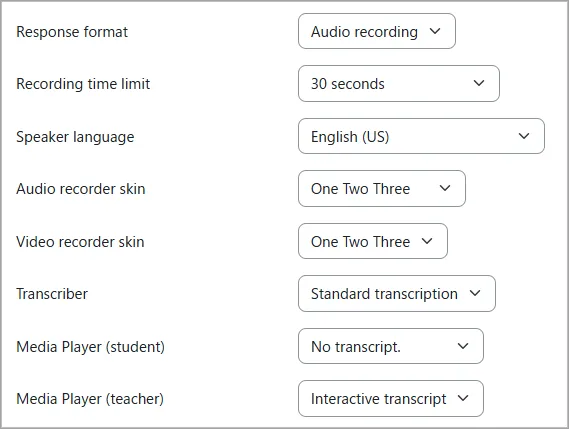
- Select audio or video recording.
- Configure the recording time limit and transcription options as appropriate.
- Save and preview the question before making the quiz available.
- After attempts are submitted, use Moodle’s Manual grading interface to listen, comment, and award marks.
Example task: You are asking a hotel receptionist to change your reservation. Explain the problem and make a polite request. Respond in 45–60 seconds.
Teaching tip: Test the quiz’s recording and submission behaviour before a high-stakes assessment. Where offered, Quiz Safe Save helps reduce the risk of moving on before a recording upload completes. Recording questions require manual grading, even when transcription is enabled.
7.5 Student Discussions and Peer Feedback
Section titled “7.5 Student Discussions and Peer Feedback”Learning goal: Encourage communication, reflection, and responses to classmates.
Recommended tool: A Moodle Forum with a Poodll editor recording button.
In a Forum that permits editor recordings, students can post a short audio or video contribution and respond to another student’s post. This can make asynchronous discussions more like spoken conversations.
Set up the activity
Section titled “Set up the activity”- Add a Forum activity and describe the discussion prompt.
- Check that the forum’s message editor includes the Poodll recording button for the participants who will use it.
- Give a suggested recording length and clear guidelines for constructive replies.
- Create an initial example recording if appropriate.
- Ask students to contribute a recording and respond to at least one classmate.
- Moderate the discussion according to your usual Moodle course practices.
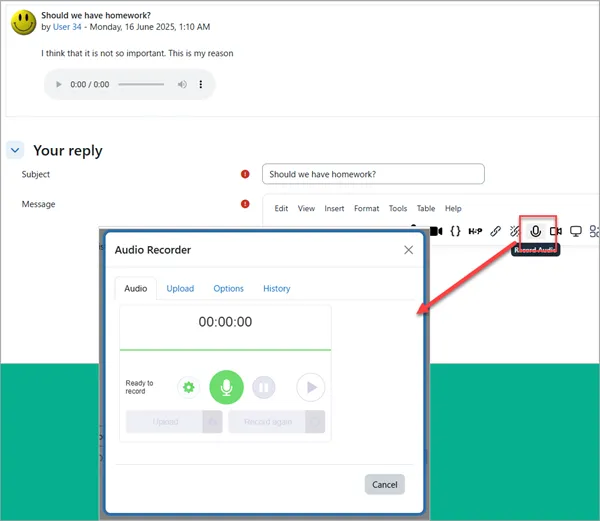
Example task: Which is more useful for learning: practising alone or studying with a partner? Record your opinion and reply to one classmate, giving one reason for agreeing or disagreeing.
Teaching tip: Make privacy expectations explicit. Forum posts are generally visible to the audience permitted by that forum’s settings, unlike ordinary individual assignment submissions.
7.6 Choosing the Right Cloud Poodll Tool
Section titled “7.6 Choosing the Right Cloud Poodll Tool”| Teaching activity | Recommended Moodle location | Cloud Poodll tool |
|---|---|---|
| Individual speaking practice | Assignment | Assignment Submission — audio |
| Video presentation or reflection | Assignment | Assignment Submission — video |
| Model answers and listening examples | Page or other editable content | Tiny Poodll / Cloud Poodll for Atto |
| Short screen demonstration | Editor or supported recording activity | Screen-recording option |
| Individual spoken or corrective feedback | Assignment grading | Assignment Feedback |
| Oral exam question | Quiz | Recording Question |
| Asynchronous spoken discussion | Forum, where editor recording is available | Editor recording toolbar |
All these activities work within Moodle’s existing course structure. Teachers can begin with one short recording task and build more elaborate sequences as students become comfortable with the tools.