
4. Teaching Vocabulary with Poodll WordCards
Poodll WordCards helps students learn words and phrases. You provide a set of terms and definitions. Students study them on flashcards and practise them through a series of activities and games. WordCards keeps track of which words each student has learned, and it can bring earlier words back for review later in the course.
A common approach is to spread vocabulary across a course. For example, 40 words might be taught through 8 words in each of 5 WordCards activities. Students then review earlier words as the course continues.
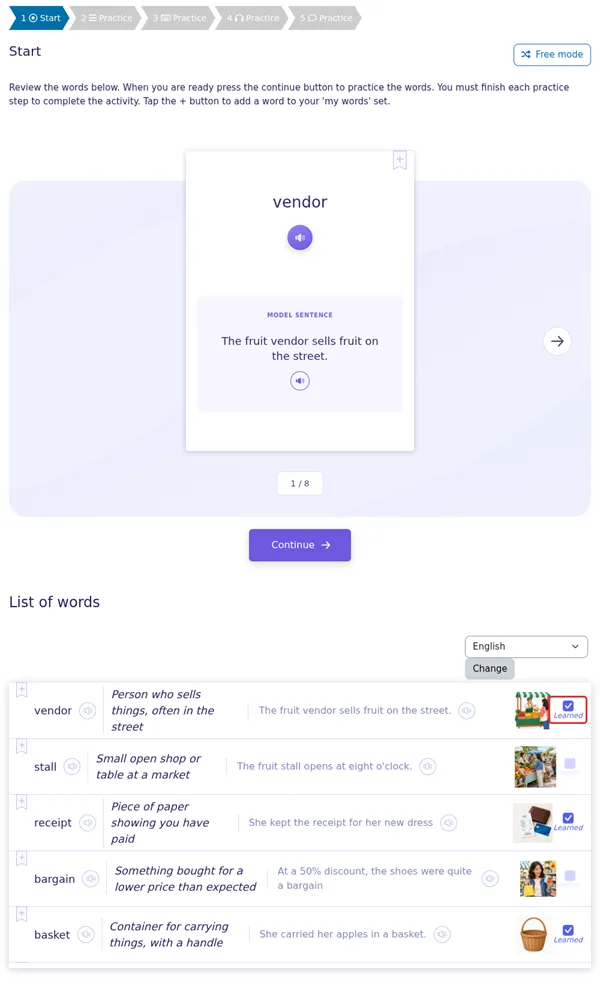
Figure 4.1. A student’s word list with learned words marked.
4.1 How word pools work
Section titled “4.1 How word pools work”WordCards organises words into three pools for each student.
| Pool | What it contains |
|---|---|
| New words | Words introduced in this activity. |
| Review Words | Words the student encountered earlier in this course. |
| My words | Words a student has personally added by selecting + on a word’s card. |
A word is learned, and marked as such on the student’s word list, when the student has correctly matched, typed, said or selected it a set number of times. This is the Learned Point, which is 4 by default. Learned words are less likely to appear in practice, so students spend their time on words they do not yet know.
4.2 Creating a WordCards activity
Section titled “4.2 Creating a WordCards activity”- In your course, turn Edit mode on and select +, then Activity or resource.
- Choose Poodll WordCards and enter a name.
- Choose the Mode (see Section 4.3).
- Set the Target Language, which is the language students are learning.
- Set the Definitions Language, which is the language definitions will appear in.
- Decide whether to Show language chooser, which lets students choose their own definitions language.
- Review the other options, then select Save and display.
| Setting | What it controls | Default |
|---|---|---|
| Card style (learn mode) | Whether learning cards are two sided or one sided. | Two sided |
| Image location (learn mode) | Whether a word’s image is on the back or front of a two sided card. | Card back |
| Video Examples | Whether example videos are shown. | No |
| Learned Point | The number of correct uses at which a word counts as learned. | 4 |
| Maximum Attempts | How many attempts a student can make. | Unlimited |
| Show Language Chooser | Shows a languages dropdown allowing the student to choose their preferred language of definitions/translations | Yes |
| Transcriber | The speech recognition mode for speaking activities. See Section 6.3. | Open STT (Strict) |
| Grade Options | Whether the gradebook uses the most recent attempt or the highest-scoring attempt. | Most recent attempt |
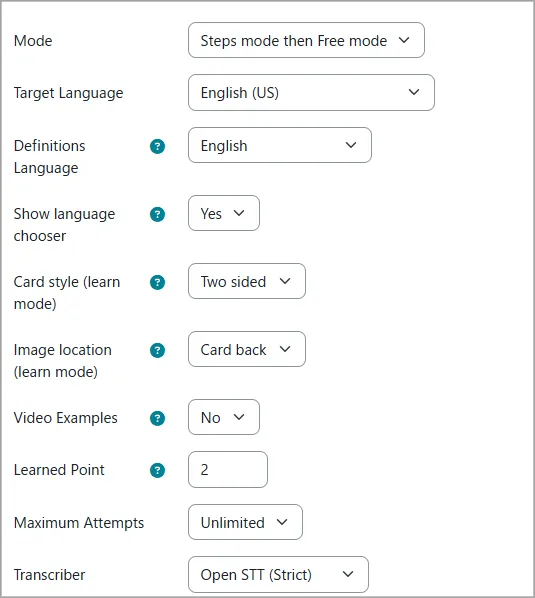
Figure 4.2. The main WordCards settings.
4.3 Steps mode and Free mode
Section titled “4.3 Steps mode and Free mode”The Mode setting controls how students move through the activity.
| Mode | How it works | Use for |
|---|---|---|
| Steps mode | Students complete a sequence of up to five practice steps set by you. | Guided, graded practice |
| Free mode | Students choose their own activity and word pool, and practise as often as they wish. Scores are not recorded. | Independent revision |
| Steps mode then Free mode (default) | Students complete the steps, then can practise freely. | Most courses |
Configuring Steps mode
Section titled “Configuring Steps mode”In Steps Mode Options, choose an activity and a word set size (from 4 to 15) for each step. Step 1 uses new words. Steps 2 to 5 can use new words or review words: activities with (Review) in their name draw on words from earlier in the course. Choose None to leave out a step.
The defaults are:
| Step | Default activity |
|---|---|
| 1 | Choose the Answer |
| 2 | Type the Answer |
| 3 | Listen and Choose |
| 4 | Say the Words |
| 5 | Choose the Answer (Review) |
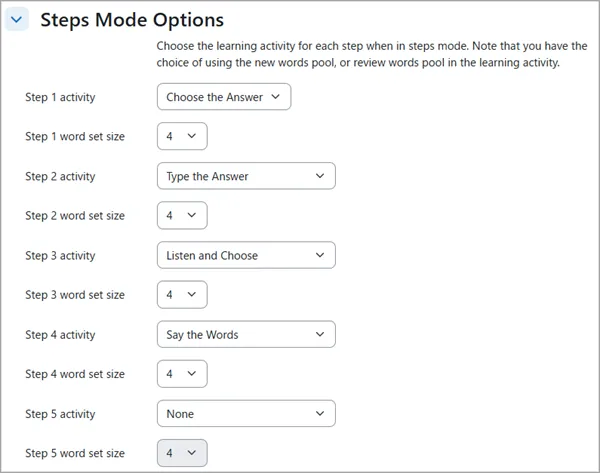
Figure 4.3. Choosing the activity for each step.
Configuring Free mode
Section titled “Configuring Free mode”In Free Mode Options, tick the activities you want students to be able to choose. All are on by default.
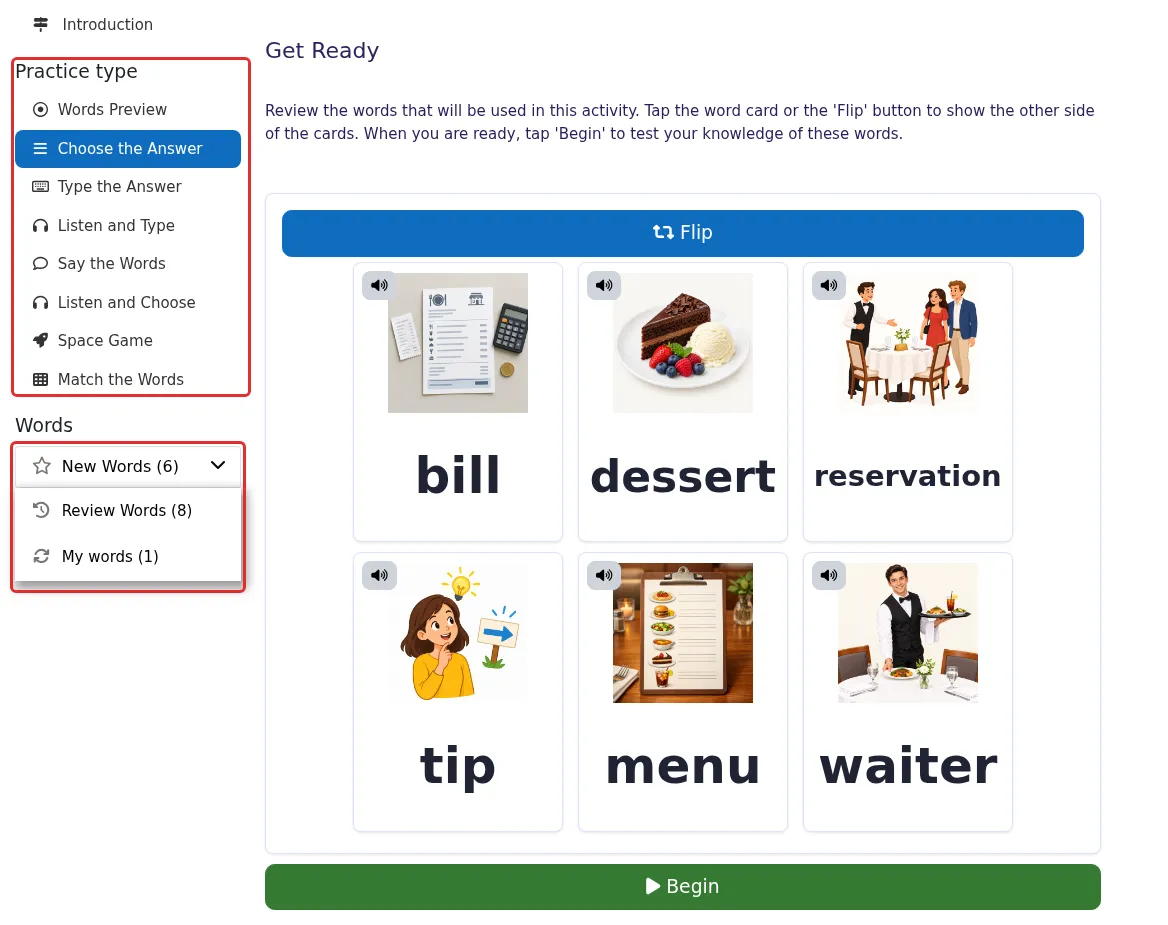
Figure 4.4. A student choosing a word pool and activity in Free mode.
Teaching tip: If the course’s first WordCards has a review step, students may have no earlier words to review. Consider using None for review steps in the first activity.
4.4 Adding words
Section titled “4.4 Adding words”You can add words in four ways.
| Method | Tab | Best when… |
|---|---|---|
| Word Wizard | Word Wizard | You have a list of words and want definitions fetched for you. (recommended) |
| Add one at a time | Words Admin | You want complete control over each word. |
| Import from text | Import | You already have your words and definitions in a spreadsheet or list. |
| Import from glossary | Import | Your course has a Moodle Glossary with the terms you need. |
Using the Word Wizard
Section titled “Using the Word Wizard”The Word Wizard looks up your words in a dictionary and offers definitions, translations and example sentences.
- Open the Word Wizard tab.
- Check the Definitions Language.
- Enter the words, separated by commas or one per line.
- Select Fetch Definitions.
- Each word appears as a card listing its meanings. Find the one you want and select Use this. To change the definition or example sentence first, select Edit.
- The word moves to the Added to this activity list.
For long lists, choose Add the words in the background. The first meaning of each word is used, and you do not need to stay on the page. You can also choose to make a picture for each word. Check and edit the words afterwards.
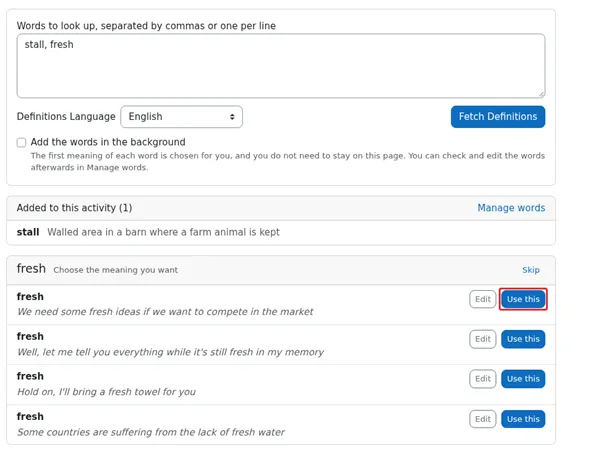
Figure 4.5. Choosing the meaning you want in the Word Wizard.
If a word or phrase, such as an idiom, is not in the dictionary, the Word Wizard may offer a Create with AI button. It may also offer Complete missing translations with AI. These need an AI provider configured on your Moodle site, and an administrator must make them available. Always check AI-suggested meanings.
Further down the Word Wizard page, the Image Wizard can generate a picture for each word that does not yet have one (Fetch Images), and Fetch translated sentences adds translations of the example sentences.
Adding or editing a word
Section titled “Adding or editing a word”On the Words Admin tab, select Add New to add a word. You can view, edit and delete existing words in the table below. Only the term and definition are required.
| Field | What it is for |
|---|---|
| Term | The word or phrase being learned. |
| Definition | The meaning or translation. |
| Model sentence | A short example that helps show the meaning. |
| Acceptable mistranscribes | Words speech recognition may hear instead, separated by commas. For example, for sad you might accept said. |
| TTS Voice | The voice used to read the word aloud. |
| Audio file, model sentence audio and image | Optional files. Your audio is used in place of the generated voice. |
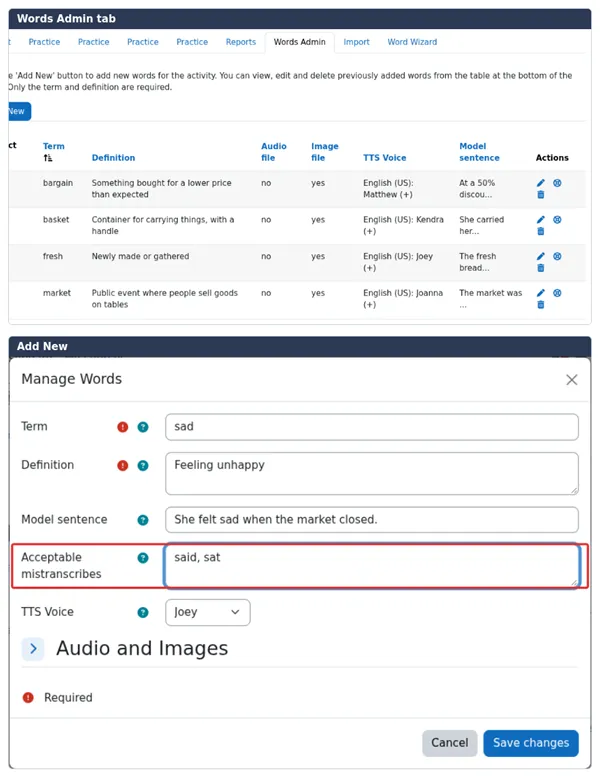
Figure 4.6. Adding and managing words on the Words Admin tab.
Importing words
Section titled “Importing words”On the Import tab, paste your list into Import Data, with one word per line, and choose the delimiter (tab, comma or pipe). Each line has this format. The last two fields are optional:
new-word | definition | TTS Voice | Model SentenceFor example:
Bonjour | Hello | Celine | Bonjour MonsieurThe Import tab can also export the activity’s terms, which is useful for reusing a word list in another activity.
4.5 Practice activities
Section titled “4.5 Practice activities”| Activity | What the student does |
|---|---|
| Words Preview | Previews the words and marks any they already know. A quick matching check confirms them. Only available as Step 1 or in Free mode. |
| Choose the Answer | Chooses the matching term or definition from a list. |
| Type the Answer | Types the matching word. |
| Listen and Type | Hears the word and types it. |
| Listen and Choose | Hears the word and chooses the match. |
| Say the Words | Says the word aloud and is checked by speech recognition. |
| Space Game | Plays an arcade-style game by shooting the correct word. |
| Match the Words | Matches pairs of cards. |
The Learning Activity Options section lets you adjust several of these. For example, you can choose whether Choose the Answer shows the term or the definition at the top, and whether Say the Words shows the term or the model sentence.
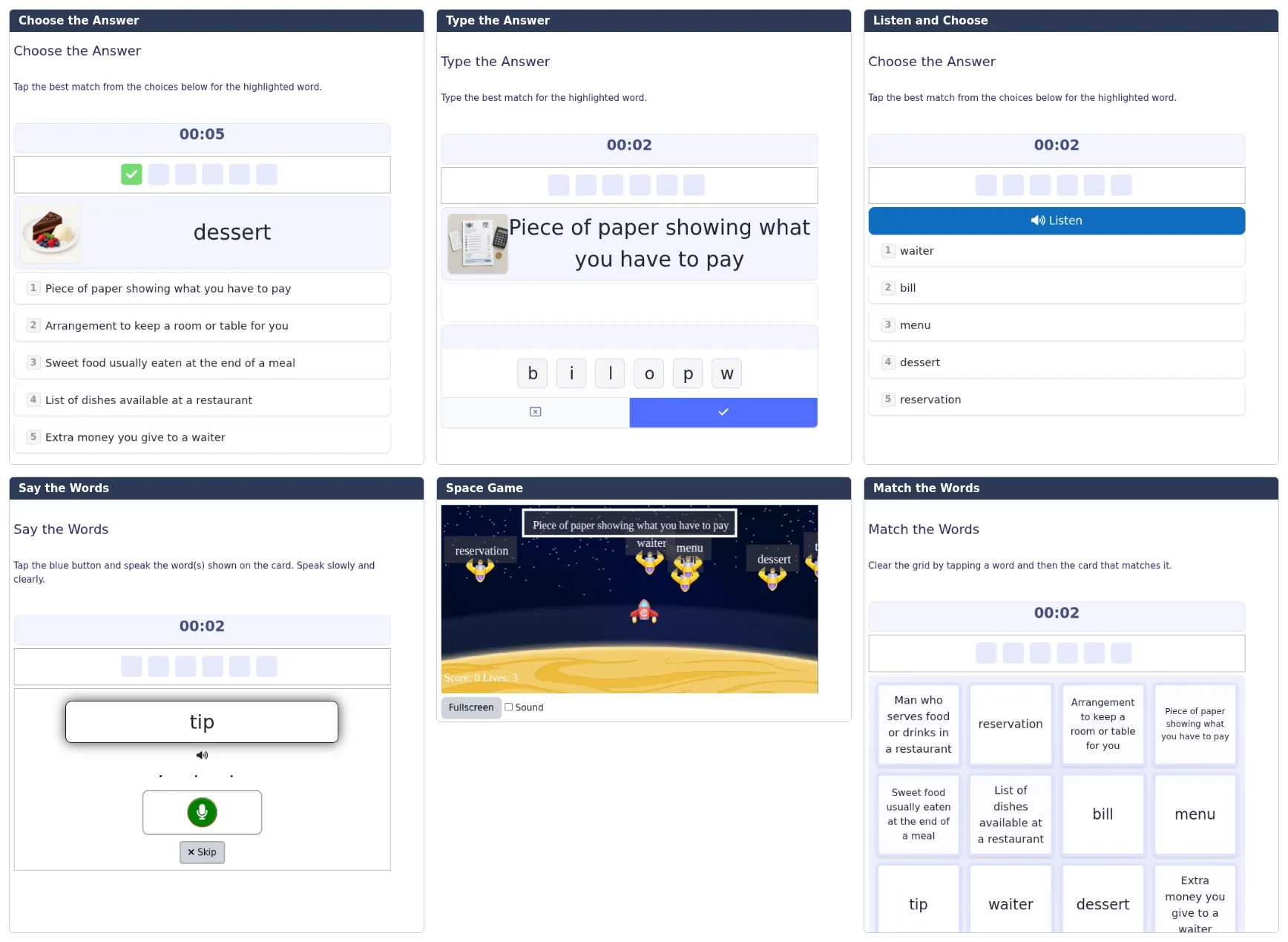
Figure 4.7. WordCards practice activities.
Speaking activities need speech recognition support. Say the Words depends on voice transcription for the target language, which may not be available for every language. If it is not suitable for your language, choose another activity.
Teaching tip: Use Words Preview as Step 1 with mixed-ability classes. Students who already know a word can mark it, so they do not spend time practising it.
4.6 Native language definitions
Section titled “4.6 Native language definitions”The word definitions and example sentences can be translated and shown in the student’s native language - if the words were added using the Word Wizard. The language is chosen in the native language chooser located above the list of words on the activity top page. The preference is shared between Poodll Wordcards, Poodll Solo and Poodll MiniLesson.
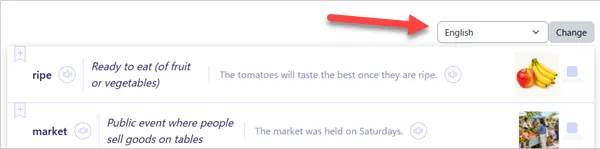
Figure 4.8. Native language chooser.
4.7 Grades, reports and completion
Section titled “4.7 Grades, reports and completion”The Reports tab has reports for tracking word learning and attempts:
- Terms Learned: the number and percentage of terms each student has learned in this activity.
- Terms Learned in course: the same figures across this course.
- Terms Learned (Site): the same figures across the whole site.
- Grades Report: each student’s grade in this activity.
- All Attempts Report: a summary of attempts per student in this activity.
You can export report data with the Export to Excel button. If you change how an activity is graded, Re-push grades to gradebook on this page sends the grades to the gradebook again.
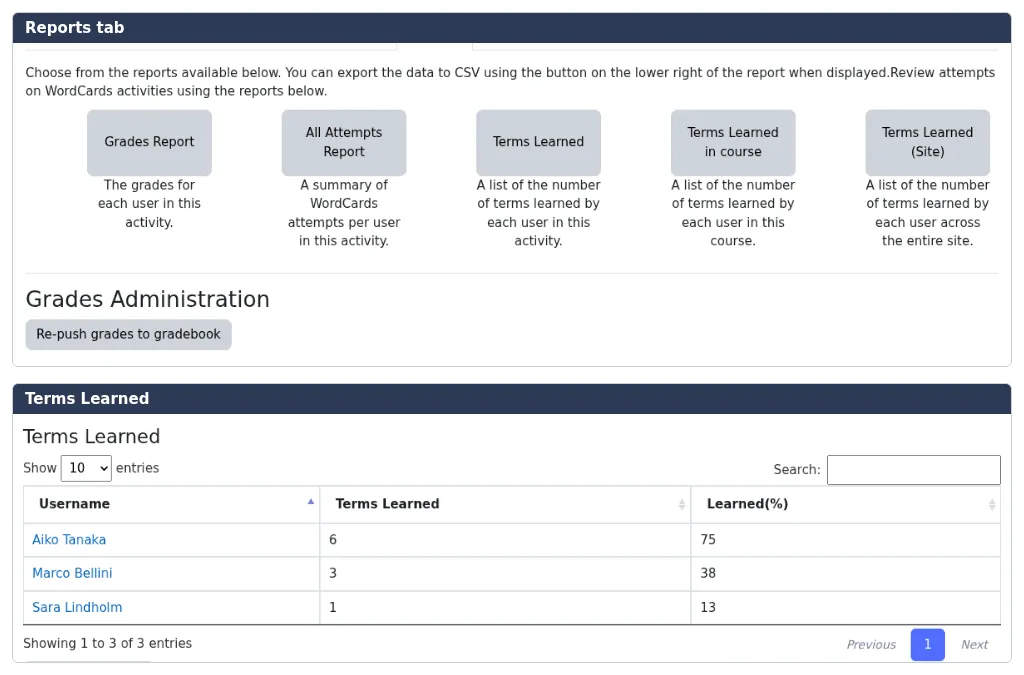
Figure 4.9. Tracking students’ word learning.
For activity completion, WordCards offers two conditions: The student has finished the activity and The student has learned all the words.
4.8 Common questions
Section titled “4.8 Common questions”I completed practice as a teacher but no words show as learned. Why?
Section titled “I completed practice as a teacher but no words show as learned. Why?”Word learning is tracked only for students. Use Switch role to… Student or a test student account.
Why are some definitions not available in other languages?
Section titled “Why are some definitions not available in other languages?”Automated translations come from the Word Wizard. If you typed or imported a definition, it appears as you entered it. Words added with an older version of the plugin may also need updating. See Section 6.2.
Can students add their own words?
Section titled “Can students add their own words?”Students can add any word from the activity to their My words list using the + on the card, then practise that list in Free mode. They cannot create new terms.
Why is a correctly spoken word marked wrong?
Section titled “Why is a correctly spoken word marked wrong?”Speech recognition sometimes hears a similar word. Add the likely mistake to Acceptable mistranscribes on the word, or try the Guided STT (Poodll) transcriber in the activity settings.
Can I change settings across many WordCards activities at once?
Section titled “Can I change settings across many WordCards activities at once?”Yes. The Master Instance and Push features let you push settings from one activity to others, if your role permits it. See How to use the Push Settings feature in WordCards.