
1. Getting Started with Cloud Poodll
Poodll Media helps teachers and students record, submit, and respond to audio and video directly inside Moodle. Teachers can create speaking assignments, ask students to record answers in quizzes, add recordings to course content, and provide personalised feedback without requiring students to use separate recording software.
This guide covers Cloud Poodll, the newer family of Poodll Media plugins. It is written for teachers at Moodle sites where Cloud Poodll has already been installed and configured by an administrator.
1.1 What is Poodll Media?
Section titled “1.1 What is Poodll Media?”Poodll Media is a set of Moodle plugins for creating and working with audio and video. Rather than making a recording in another application and then transferring the file to Moodle, users can record from their browser and submit or insert the recording as part of their normal Moodle work.
Depending on the plugins and settings used at your institution, Cloud Poodll can help you:
- Collect student recordings in Moodle assignments, such as speaking practice or oral presentations.
- Ask for spoken answers in quizzes using recording questions.
- Give recorded feedback so students can hear or see your comments.
- Give corrections feedback on submitted text or a student’s speech transcript, including suggested grammar corrections that teachers can review and edit.
- Record or upload media in the Moodle text editor, such as a short explanation or a model pronunciation.
- Work with automatic transcripts or captions when enabled.
The Poodll Media plugins are not standalone activity modules. Poodll Media integrates with the default Moodle activities. You find it inside assignments, quiz questions and on the HTML editor.
1.2 Cloud Poodll and Classic Poodll: what’s the difference?
Section titled “1.2 Cloud Poodll and Classic Poodll: what’s the difference?”There are two families of Poodll Media plugins. This guide is about Cloud Poodll, not Classic Poodll.
Classic Poodll refers to the older plugins, such as Online Poodll Assignment Submission and Poodll Feedback. These depend on the Poodll filter for their operation. Classic Poodll typically keeps recordings in Moodle’s own file storage.
Cloud Poodll is the newer family, with separate plugins for assignments, feedback, quiz questions and the Moodle text editor. It does not require the Poodll filter. Cloud Poodll uses Poodll’s cloud service for recording storage and processing, including supported transcription features.
| Feature | Cloud Poodll | Classic Poodll |
|---|---|---|
| Requires the Poodll filter | No | Yes |
| Typical storage for recordings | Poodll cloud | Moodle file storage |
| Automatic transcription | Available | Not available |
| Assignment submission plugin | Cloud Poodll Assignment Submission | Online Poodll Assignment Submission |
| Assignment feedback plugin | Cloud Poodll Assignment Feedback | Poodll Feedback |
| Recording question plugin | Cloud Poodll Recording Question | Poodll Recording Question |
| HTML editor plugin | Atto Cloud Poodll / Tiny Poodll | Poodll Anywhere |
Some Moodle sites have both families installed, particularly when older activities are still in use. When creating new activities for this guide, select the Cloud Poodll option where available. Do not change existing Classic Poodll activities without consulting your Moodle administrator: changing a submission or feedback type can hide older student work or feedback from view.
How to recognise the correct plugin: Look for Cloud Poodll in assignment submission types, feedback types or question types. In the Moodle editor, the Cloud Poodll recording tools may be identified as Tiny Poodll on newer Moodle sites. Older sites may use Cloud Poodll for Atto.
For further technical background, see Cloud Poodll and Classic Poodll.
1.3 What can teachers and students do with Cloud Poodll?
Section titled “1.3 What can teachers and students do with Cloud Poodll?”Different Cloud Poodll tools support different teaching tasks. Your institution may use some or all of these tools.
| I want to… | Use… | Where in Moodle? |
|---|---|---|
| Have students record a spoken answer or short video for assessment | Cloud Poodll Assignment Submission | Assignment activity → Submission types |
| Record my feedback on a student’s work | Cloud Poodll Assignment Feedback | Assignment activity → Feedback types and grading screen |
| Provide grammar corrections based on submitted text or a transcript | Corrections feedback within Cloud Poodll Assignment Feedback | Assignment grading screen, where enabled |
| Ask students to record an answer as part of a quiz | Cloud Poodll Recording Question | Quiz question bank / quiz |
| Add my own recorded explanation or example to course text | Tiny Poodll | Moodle text editor |
| Add a recording that I have already made | Tiny Poodll upload option | Recording or editor dialog, where supported |
Example: In a language course, you could create an audio assignment asking students to describe their weekend. Students submit their recordings in Moodle. You listen to them, give a grade, and use Cloud Poodll Assignment Feedback to record advice. If Corrections feedback is enabled and suitable submitted text or a transcript is available, you can also review suggested grammar corrections before sharing them with the student.
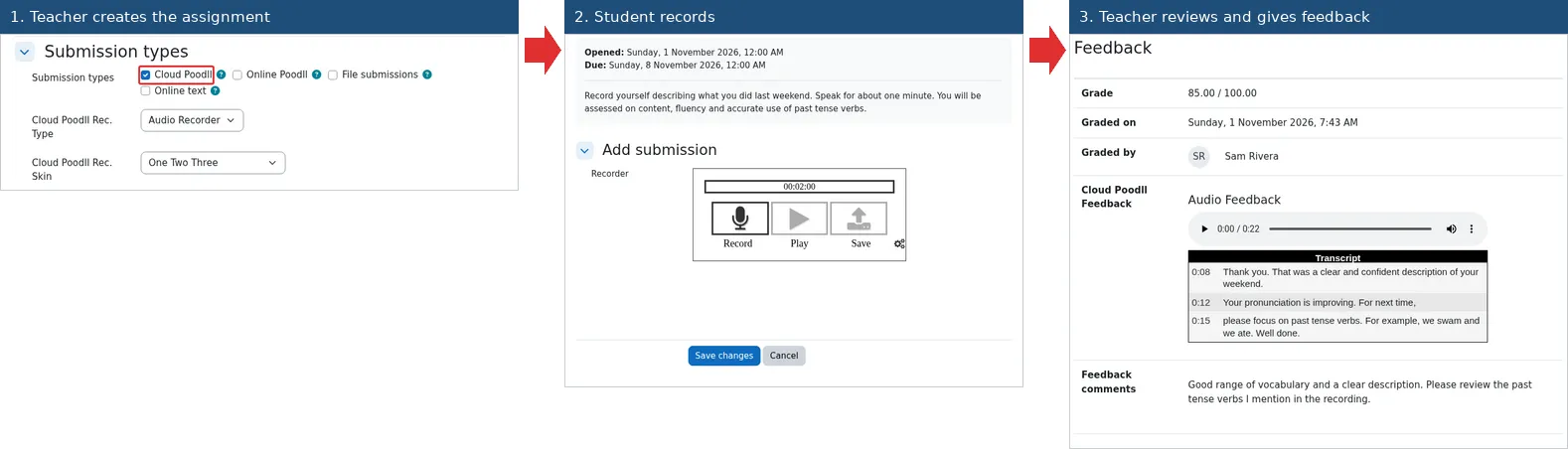
1.4 Where can I find Cloud Poodll in Moodle?
Section titled “1.4 Where can I find Cloud Poodll in Moodle?”Cloud Poodll does not appear as a single separate application. Its tools are integrated into Moodle activities and editors.
In an assignment
Section titled “In an assignment”- Open your Moodle course and turn editing on.
- Add a new Assignment activity, or open the settings of an existing assignment.
- Find Submission types to see whether Cloud Poodll is available for student recordings.
- Find Feedback types to see whether Cloud Poodll feedback is available for teacher feedback.
The assignment submission and feedback features are separate plugins. One can be available without the other.
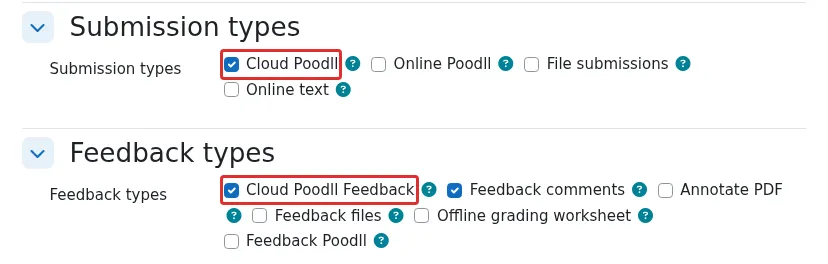
The two places to look for Cloud Poodll in Assignment settings.
In a quiz
Section titled “In a quiz”- Open a quiz or the Moodle question bank.
- Choose to create a new question.
- Look for Cloud Poodll Recording Question in the list of question types.
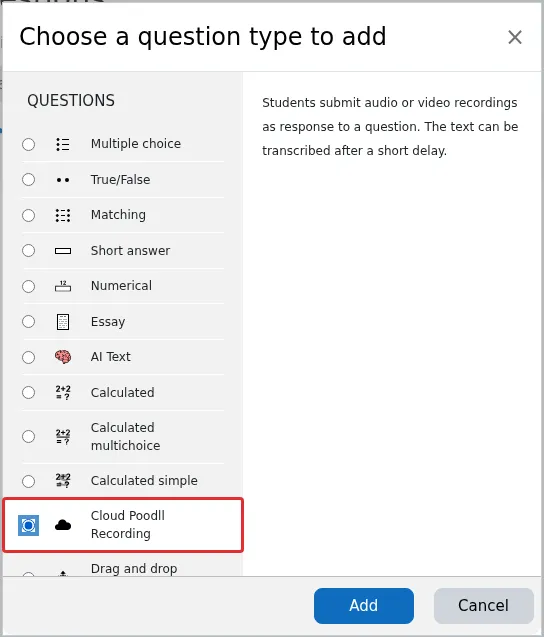
Selecting the Cloud Poodll recording question type.
In the Moodle text editor
Section titled “In the Moodle text editor”Look for the Poodll microphone or camera tools while editing content, for example in a course page or an area that accepts formatted text. On recent Moodle installations using TinyMCE, the editor plugin is called Tiny Poodll. The appearance and availability of buttons can vary with the editor and site permissions.
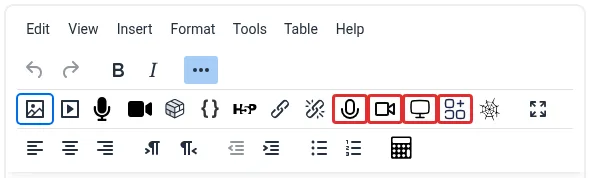
Poodll recording tools in a Moodle text editor.
Can’t see a Cloud Poodll option? Your site might not have that particular plugin installed, it might be disabled, or your role may not have permission to use it. Ask your Moodle administrator or support team. The presence of one Cloud Poodll tool does not mean every other tool is enabled.
1.5 Before you begin: microphone, camera and browser access
Section titled “1.5 Before you begin: microphone, camera and browser access”You and your students usually need only a supported web browser and the relevant recording device. For audio recordings, use a microphone. For video, you normally need a camera and microphone. Built-in or external mics and cameras are fine.
Before recording:
- Check your microphone or camera. A headset microphone can help reduce echo and background noise.
- Open the activity in your browser. Use an up-to-date browser supported by your institution.
- Allow device access. If the browser asks whether Moodle can use the microphone or camera, choose Allow.
- Make a short test recording. Say a sentence, stop the recording and play it back if the recorder offers that option.
- Check the result before submitting. Confirm that your voice is audible and, for video, that your camera shows what you intended.
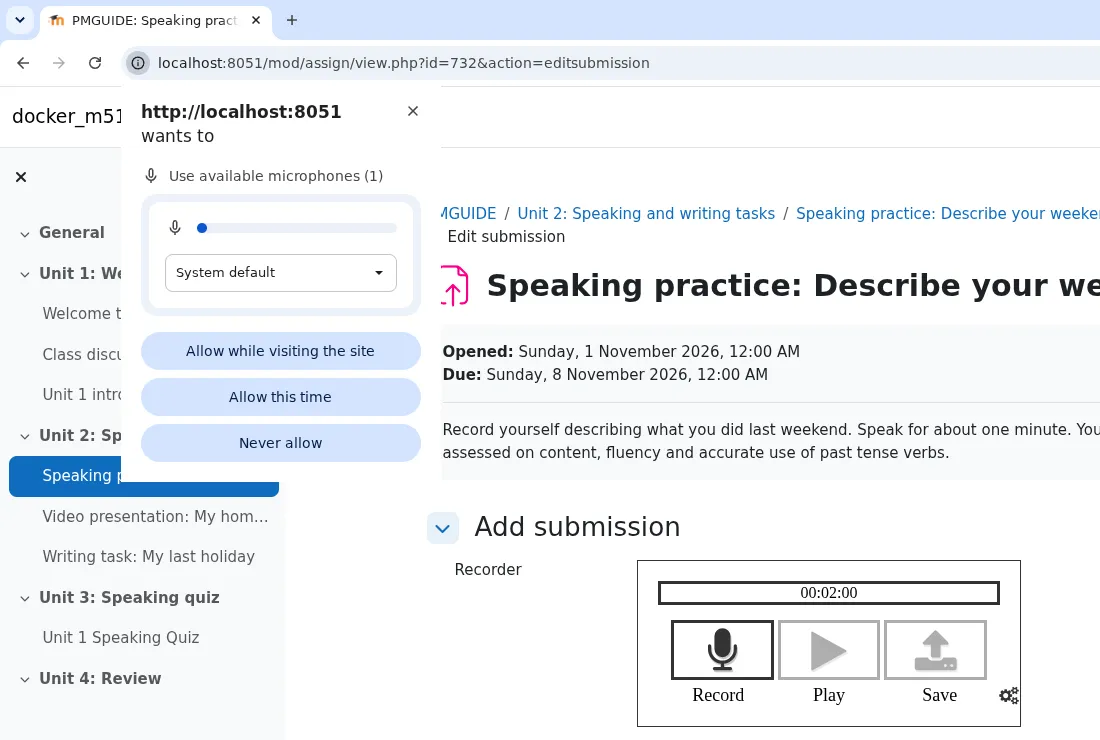
Example of a browser permission prompt.
If the recorder does not detect a microphone or camera, check the browser’s site permissions and your device’s system privacy settings. On shared computers, confirm that the intended microphone is selected.
Tip for teachers: Test a new recording activity using Moodle’s student view or a test student account before assigning it to a class. This helps you check permissions, instructions and the student submission experience.
1.6 Choosing the right Cloud Poodll tool
Section titled “1.6 Choosing the right Cloud Poodll tool”Start with what you want the student (or you) to do:
| Desired action | Best option |
|---|---|
| Students should submit a recording that you will assess | Use a Moodle Assignment with Cloud Poodll Assignment Submission |
| Students should respond to a specific question in a quiz | Use the Cloud Poodll Recording Question type |
| Teacher responds to submitted work by voice or video | Use Cloud Poodll Assignment Feedback |
| Teacher gives grammar corrections with changes highlighted | Use the Corrections feedback option within Cloud Poodll Assignment Feedback |
| Teacher adds an explanation or example to a Moodle page or other editable content | Use Tiny Poodll |
1.7 What will students experience? A quick overview
Section titled “1.7 What will students experience? A quick overview”Students generally work in the familiar Moodle course interface. They do not need to open a separate Poodll activity or visit a different website to use Cloud Poodll.
For a typical audio or video assignment, a student:
- Opens the assignment and reads the teacher’s instructions.
- Selects Add submission or the equivalent submission control.
- Gives the browser permission to use the microphone or camera, if prompted.
- Makes a recording using the on-screen recorder (or uploads a file if the teacher has enabled that option).
- Finishes the recording and follows the on-screen steps to save or submit their work.
- Returns to the assignment later to see grades and feedback, once released.
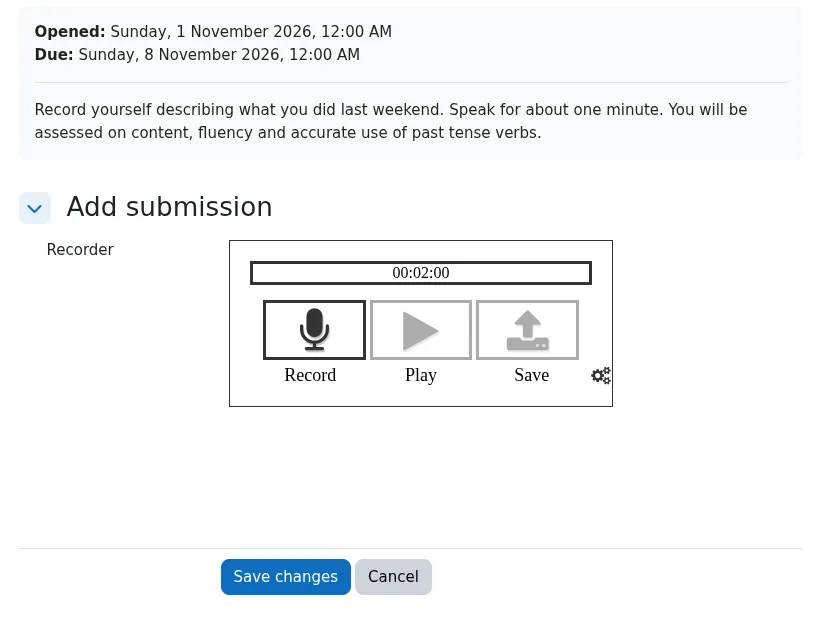
Image 8. Student view of a typical recording assignment.
1.8 What happens to recordings and transcripts?
Section titled “1.8 What happens to recordings and transcripts?”Cloud Poodll stores and processes recordings using Poodll’s cloud service rather than storing them as ordinary files in Moodle’s own file storage. Depending on the plugin and site configuration, recordings can also be processed to create transcripts or captions.
Schools and institutions control which plugins and features are enabled and should establish appropriate policies for their learners. If you have questions about storage location, retention, transcription, consent or privacy, consult your Moodle administrator or your institution’s data protection guidance rather than assuming every Cloud Poodll site is configured in the same way.
For further information, see Cloud Poodll and Data: Q & A.
1.9 Where to go next
Section titled “1.9 Where to go next”- Section 2: Recording audio and video in the Moodle editor.
- Section 3: Creating audio and video assignments.
- Section 4: Giving audio, video and Corrections feedback.
- Section 5: Using recording questions in Moodle quizzes.
- Section 6: Transcriptions, captions and playback.
- Section 7: Practical teaching ideas.
- Section 8: Troubleshooting and frequently asked questions.