
3. Creating Audio and Video Assignments
Cloud Poodll Assignment Submission allows students to record audio or video as submissions directly in a Moodle Assignment activity. Teachers can collect audio/video submissions without asking students to prepare and attach a separate media file. The Cloud Poodll Assignment Submission type also supports Whiteboard drawings.
Recordings are handled by Cloud Poodll, rather than the Classic Poodll filter. The plugin appears as a submission type in Moodle Assignment settings. Teachers can review recordings and grade them using Moodle’s normal assignment grading tools.
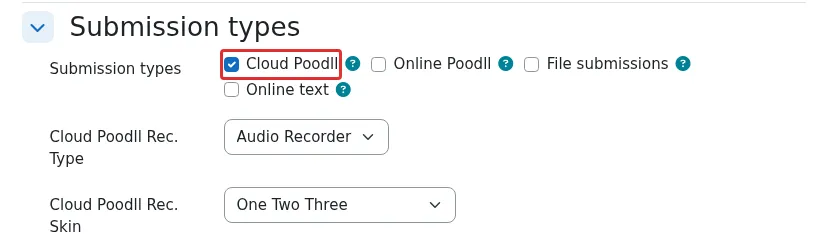
Figure 3.1. Cloud Poodll submission type in a Moodle Assignment.
Cloud Poodll or Classic Poodll? For the instructions in this chapter, choose Cloud Poodll under Submission types, not Online Poodll. Online Poodll is the older Classic Poodll submission plugin and depends on the Poodll filter. If you see both options on your site, use Cloud Poodll for new assignments unless your institution directs otherwise.
3.1 When to use a recording assignment
Section titled “3.1 When to use a recording assignment”Use a Cloud Poodll recording assignment when students should submit an individual recording for review or grading. Typical activities include:
- Speaking practice: Students answer a question or talk about a topic in the target language.
- Pronunciation tasks: Students read a passage, practise a dialogue or pronounce a set of phrases.
- Oral presentations: Students present a short argument, summary or project explanation.
- Reflections: Students explain what they learned or describe their progress.
- Demonstrations: Students record a video showing or explaining a process.
A recording assignment is particularly useful when you need one submission per student, a due date, a grade and feedback. Note that the Cloud Poodll Assignment Submission type also supports group assignments.
Audio or video? Audio is usually enough for language speaking tasks, reflections and oral answers. Use video when seeing the speaker or a visual demonstration is important to the learning outcome.
3.2 Creating an audio assignment
Section titled “3.2 Creating an audio assignment”- Open the relevant Moodle course and turn Edit mode on.
- In the course section where you want the task, select Add an activity or resource.
- Choose Assignment.
- Enter an Assignment name, such as Speaking practice: Describe your weekend.
- In Description, explain what students should record, how long they should speak and how the task will be assessed. Enable Display description on course page only if you want that text shown there.
- Under Availability, set the relevant opening and due dates. You can also set a cut-off date if needed.
- Expand Submission types and select Cloud Poodll. If the task should accept only Cloud Poodll recordings, deselect other submission types that are not needed, such as File submissions and Online text.
- In the Cloud Poodll options that appear, choose “audio” in the Cloud Poodll Rec Type setting.
- Choose a recorder appearance or skin and set a recording time limit if appropriate.
- Configure the remaining Moodle Assignment settings, including grades, notifications and completion conditions, as needed.
- Select Save and return to course or Save and display.
- Open the saved assignment and check its instructions and settings.
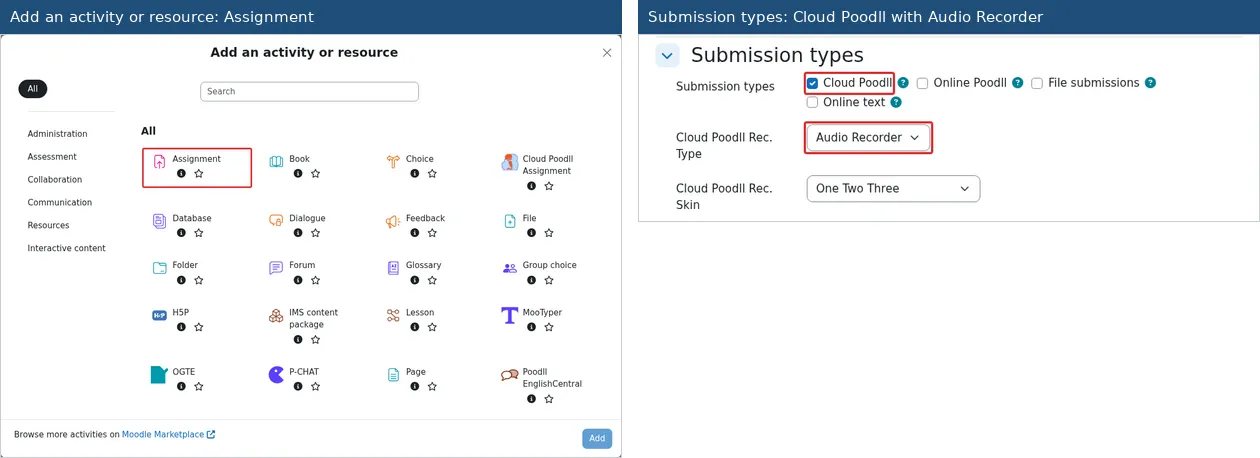
Figure 3.2. Creating an audio assignment and selecting the Cloud Poodll audio recorder.
3.3 Creating a video assignment
Section titled “3.3 Creating a video assignment”The setup is almost identical to an audio assignment.
- Add a new Moodle Assignment, then enter its name and task description.
- Set any relevant availability dates.
- Under Submission types, enable Cloud Poodll.
- Choose a video recorder in the Cloud Poodll options.
- Set a recording duration limit if needed, and select the available recorder appearance if your site offers a choice.
- Set the grading method, submission rules and other assignment options.
- Save the assignment, then check it before making it available to students.
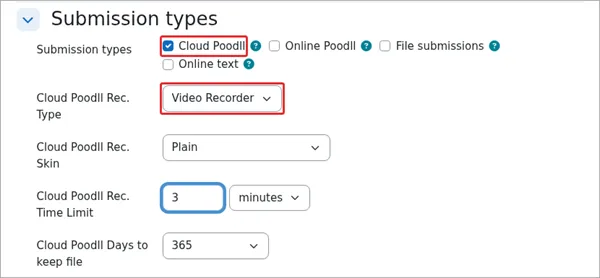
Figure 3.3. Selecting a video recorder for an assignment.
Teaching tip: Video recordings are typically larger than audio recordings and may need more upload or processing time.
3.4 Creating a whiteboard assignment
Section titled “3.4 Creating a whiteboard assignment”The setup is almost identical to an audio or video assignment
- Add a new Moodle Assignment, then enter its name and task description.
- Set any relevant availability dates.
- Under Submission types, enable Cloud Poodll.
- Choose whiteboard in the Cloud Poodll options.
- Optionally upload a background image to draw over.
- Set the whiteboard canvas size.
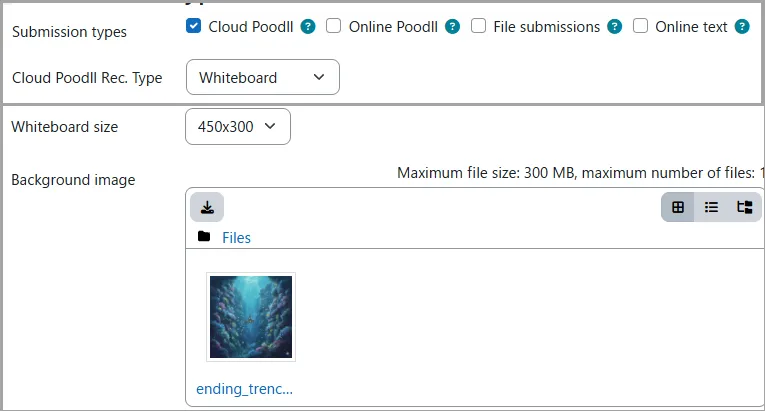
Figure 3.4. Selecting whiteboard for an assignment.
3.5 Recording limits, submission settings and transcription
Section titled “3.5 Recording limits, submission settings and transcription”Some settings belong to Moodle Assignment and others belong to the Cloud Poodll submission plugin. Understanding the distinction makes it easier to configure the task.
Cloud Poodll recording options
Section titled “Cloud Poodll recording options”| Option | What it controls | Practical guidance |
|---|---|---|
| Recorder type | Whether the student records audio or video or draws on a whiteboard. | Choose the medium needed for the learning outcome. |
| Recorder skin / appearance | Which recorder interface is presented. | The available choices depend on the site configuration. |
| Recording time limit | Maximum length of one recording. | Where the setting is available, 0 means no time limit. Choose a duration that suits the task. |
| Transcription | Whether supported speech recordings are transcribed automatically. | If offered, select the correct spoken language or language-region. See Section 6 for more detail. |
| Transcript display | Who can see the transcript, if this option is enabled. | Review the available teacher/student display choices before publishing the task. |
| Recording retention / expiry | How long the recording is retained in Cloud Poodll storage, where configurable. | Follow your institution’s retention policy; do not assume indefinite storage. |
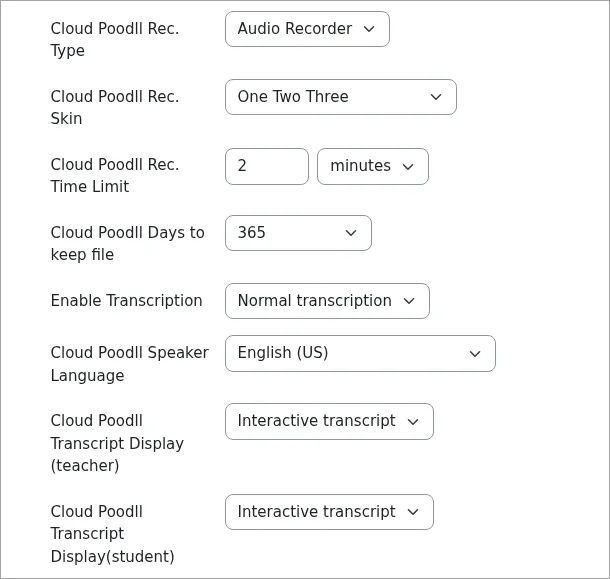
Figure 3.5. Cloud Poodll recording and transcription options. The available fields may vary by installation.
Standard Moodle Assignment options
Section titled “Standard Moodle Assignment options”- Due date and cut-off date: Set when students should submit and, if needed, when submissions are no longer accepted without an extension.
- Require students to click the submit button: If enabled, students must explicitly submit their saved work for grading. Otherwise, Moodle’s normal submission-status behavior applies.
- Attempts reopened / maximum attempts: Control whether students can make another submission after feedback, subject to your Moodle settings.
- Grade: Choose the maximum grade or grading method (such as a rubric) as appropriate.
- Groups and group submissions: Use Moodle’s standard group settings if the activity requires them; test the workflow for your particular task.
3.5 Checking the recording and submission workflow
Section titled “3.5 Checking the recording and submission workflow”Before you assign the activity to a class, verify that the settings produce the experience you intend. If your Moodle site offers Log in as or a designated test-student account, you can use it in accordance with your institution’s policies.
- Open the assignment and confirm that the title, instructions and dates are correct.
- Confirm that the assignment uses Cloud Poodll and the intended audio or video recorder.
- Check the recording time limit and other Cloud Poodll options.
- With an appropriate test account, open the assignment’s recording form and check that the expected recorder appears.
- Make a brief test recording, stop it and complete the upload or save process shown by the recorder.
- Finish the Moodle submission process, including Submit assignment if your assignment requires it.
- Return to the teacher’s view and confirm that the recording appears in the submission and can be played.
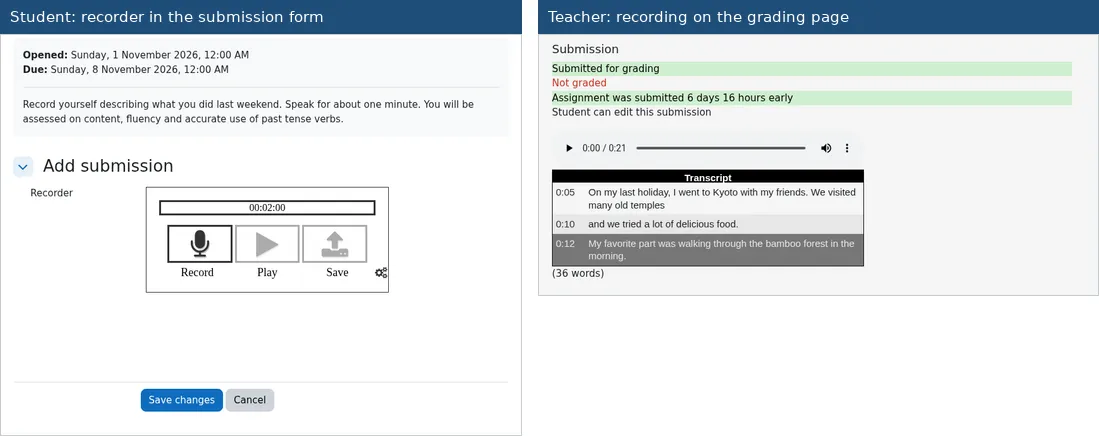
Figure 3.5. Checking that a Cloud Poodll recording is correctly submitted and available for review.
Caution: Moodle won’t let you test an assignment submission unless you have the student role.
3.6 Viewing and grading student recordings
Section titled “3.6 Viewing and grading student recordings”Cloud Poodll submissions are assessed through the ordinary Moodle Assignment grading interface.
- Open the assignment in your course.
- Select View all submissions.
- Locate a student and select Grade..
- Use the embedded Cloud Poodll player to listen to or watch the recording.
- If transcription was enabled and a transcript is available, review it alongside the recording. Remember that automatic transcripts may contain mistakes.
- Enter a grade and any written feedback permitted by the assignment settings.
- Save the grade and move to the next submission using Moodle’s grading navigation.
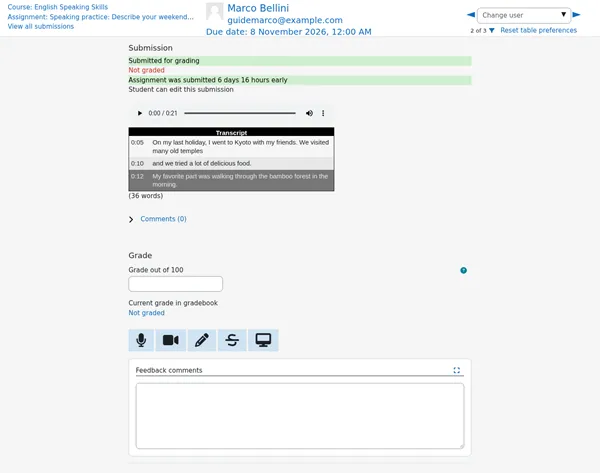
Figure 3.6. Reviewing and grading a Cloud Poodll recording in Moodle Assignment.
Giving recorded feedback and corrections
Section titled “Giving recorded feedback and corrections”You can use Moodle’s standard grading and feedback features with Cloud Poodll submissions. If your institution also enables Cloud Poodll Assignment Feedback, you can provide recorded audio or video feedback, and use its Corrections feedback features where configured. The submission plugin and the feedback plugin are separate: enabling Cloud Poodll under Submission types does not by itself enable Cloud Poodll feedback.
3.7 Common questions
Section titled “3.7 Common questions”I cannot find Cloud Poodll in Submission types. What should I do?
Ask your Moodle administrator or support team to check whether Cloud Poodll Assignment Submission is installed and enabled. It is a separate plugin from Tiny Poodll and Cloud Poodll Assignment Feedback.
I can see Online Poodll, but not Cloud Poodll. Are they the same?
No. Online Poodll is the Classic Poodll assignment submission plugin. This guide is for Cloud Poodll, which does not need the Classic Poodll filter.
Can students upload a recording made earlier?
Cloud Poodll has upload functionality. It can be enabled in two ways:
- Setting the recorder skin to “Upload” or
- Enabling “Show upload option” in the activity settings.
Why can I not see a transcript?
Transcription must be enabled and supported for the recording and selected language. Processing may also take time. Check the assignment’s transcript options and consult your Moodle support team if the transcript does not appear.
Does Cloud Poodll Assignment Submission provide audio feedback automatically?
No. Audio/video feedback and Corrections feedback are features of the separate Cloud Poodll Assignment Feedback plugin, covered in Section 4.