
5. Reading Practice with Poodll ReadAloud
Poodll ReadAloud helps students improve their oral reading and lets teachers measure it. You set a passage. Students listen to it, practise it line by line and then read it aloud. ReadAloud uses speech recognition to calculate their words per minute (WPM) and accuracy, and it can send a grade to the Moodle gradebook. An optional quiz can follow the reading.
Because the scoring is automatic, you can assess a whole class without listening to every reading, and students can complete the activity outside class.
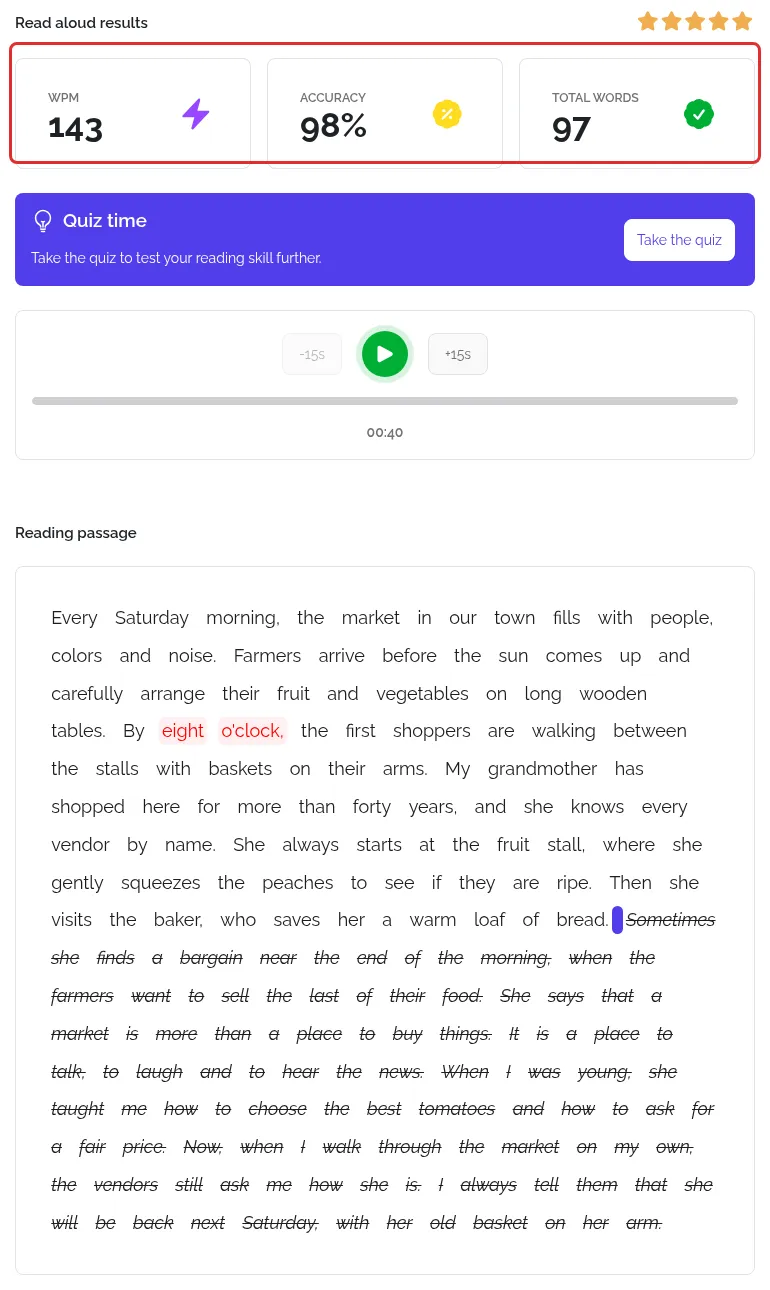
Figure 5.1. A student’s ReadAloud results.
5.1 The activity steps
Section titled “5.1 The activity steps”A ReadAloud activity can have up to four steps. Students see them as a guided journey, and you choose which ones to enable.
| Step | What the student does |
|---|---|
| Listen | Listens to the model audio while the passage is highlighted. |
| Practice | Hears the passage line by line, reads each line aloud and gets feedback on it. |
| Read | Reads the whole passage aloud without help until the time limit. This attempt is scored automatically. |
| Quiz | Answers questions about the passage. |
Students also see a Report step in their menu, which shows their results. By default, students complete the steps in order. If you check Optional practice steps, the Read step is open straight away and students can choose whether to use the Listen and Practice steps.
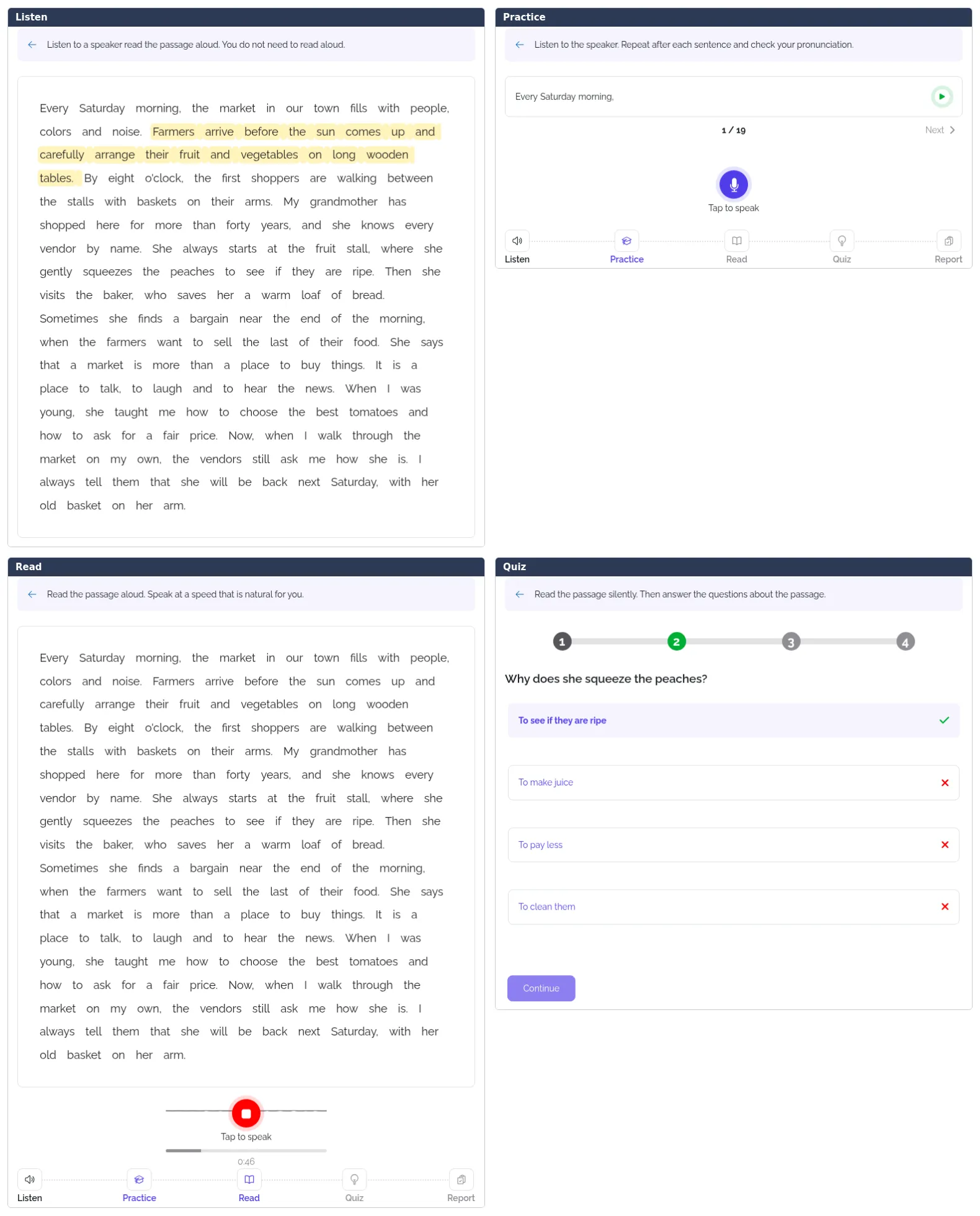
Figure 5.2. The ReadAloud steps as seen by a student.
5.2 Creating a ReadAloud activity
Section titled “5.2 Creating a ReadAloud activity”- In your course, turn Edit mode on and select +, then Activity or resource.
- Choose Poodll ReadAloud and enter a name.
- Set the Time limit. The default is 1 minute.
- Enter the Reading passage as plain text, without formatting or images. It should not be longer than 3000 characters if you want audio generated for it.
- Optionally add a Passage picture.
- Set the Passage language.
- Choose a TTS voice in that language and a TTS speed.
- Set the Target WPM. See Section 5.4.
- Choose the Activity steps.
- Select Save and display.
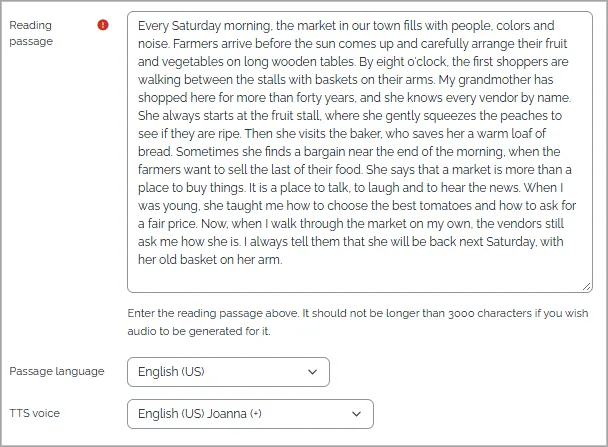
Figure 5.3. Entering the passage and choosing the language and voice.
Teaching tip: Make the passage longer than your strongest student can read in the time limit. Otherwise, students may finish early and their WPM score will be less meaningful.
Help with writing the passage
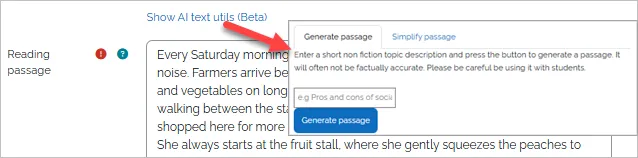
Section titled “Help with writing the passage”Select Show AI text utils (Beta) to generate a passage from a short topic description, or to simplify an existing passage to a chosen level. Always check generated text, as it may not be factually accurate.
Other settings
Section titled “Other settings”| Setting | What it controls | Default |
|---|---|---|
| Pre-attempt instructions | The text displayed before reading. | Standard text |
| Default feedback | The message shown after reading. | Thanks for reading. |
| Can exit early | Whether a student’s actual reading time is used if they finish early. See Section 5.5. | On |
| Max. attempts | How many reading attempts a student can make. | Unlimited |
| Can reattempt reading | Whether a student can read again. | No |
| Audio recorder type | Just start begins recording immediately. Mic-test then start tests the microphone first. | Just start |
| Practice step transcriber and Read step transcriber | The speech recognition mode for each step. See Section 6.3. | Open STT (Strict) |
| Days to keep file | How long recordings are kept. | 365 |
| Evaluation display | What students see afterwards: the passage only, the passage and scores, or the scores and errors as well. | Passage, scores and errors |
| Grade options | Whether the gradebook uses the latest attempt or the highest-scoring attempt. | Latest attempt |
5.3 Setting up the model audio
Section titled “5.3 Setting up the model audio”The Listen and Practice steps use model audio of the passage. By default, this is generated from your passage with the chosen TTS voice. In the voice list, + marks better-quality voices. A voice marked ! cannot have its audio broken into lines automatically.
ReadAloud places break points in the passage so that playback can pause and highlight each line. You can adjust them on the Model audio tab.
- Use your own audio: record it or upload a file. After a few minutes, while the audio is transcribed, refresh the page to see the automatic breaks.
- Change a break point: tap the space or word in the passage to turn a break on or off, then save the markup.
- Fix poor timing: select Re-Generate model audio markup, then Save model audio markup. If that does not help, change the voice in the settings, or check Manual break timing and tap the breaks while the audio plays.
Adding commas and full stops to your passage creates natural pauses and tends to make breaks more accurate.
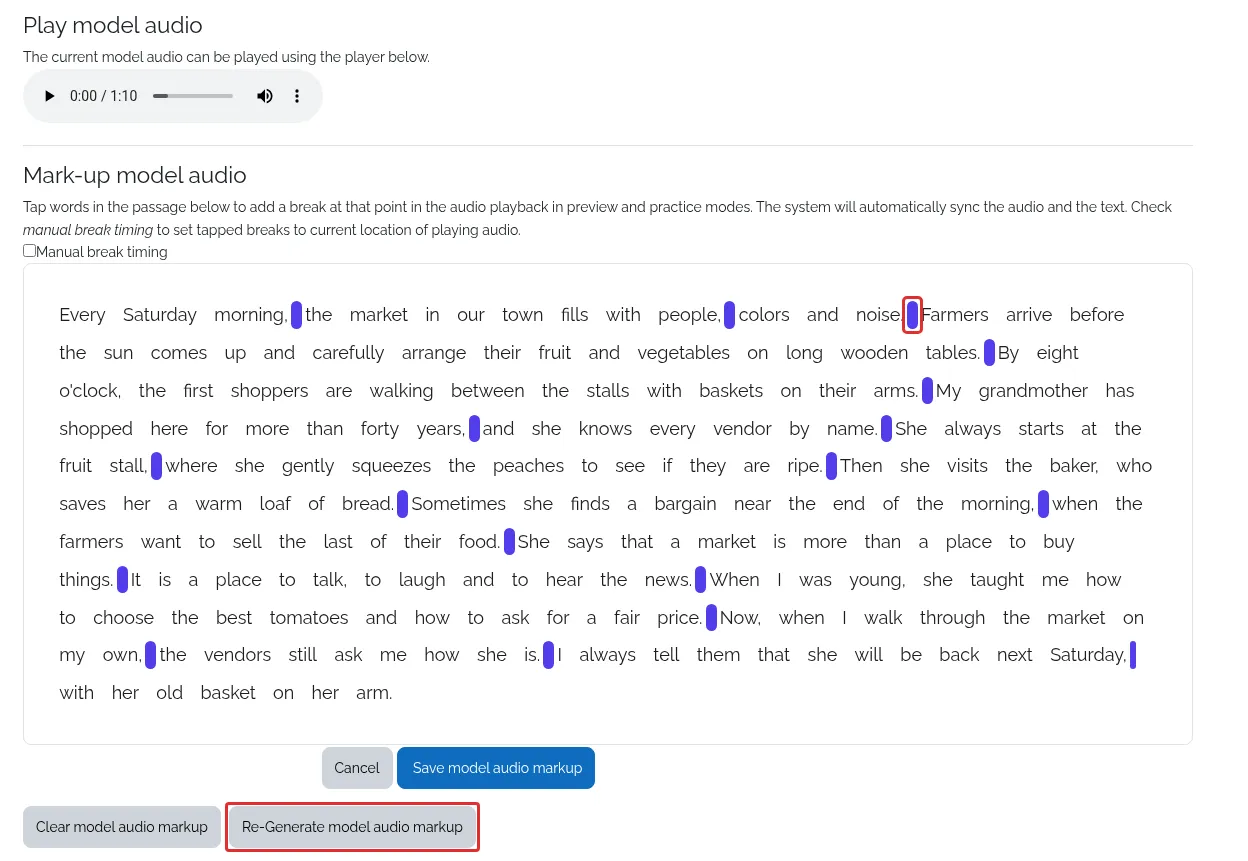
Figure 5.4. Adjusting line breaks on the Model audio tab.
For more detail, see Marking up model audio in Poodll ReadAloud.
5.4 How the reading is scored
Section titled “5.4 How the reading is scored”ReadAloud compares the transcript of the student’s speech with the passage. Each word it cannot match is marked as an error.
WPM is the number of correct words per minute. The grade is based on your Target WPM:
| Grade calculation | Formula |
|---|---|
| Normal (default) | Correct words per minute ÷ Target WPM |
| Strict | (Correct words − errors) per minute ÷ Target WPM |
Example: A student reads 75 words correctly in one minute. With a Target WPM of 100, the Normal grade is 75%.
Choose a Target WPM that suits your students’ level and the difficulty of the passage. The default is 100. If you use the Quiz step, the quiz score is averaged into the final grade (see Section 5.7).
Human or machine grading
Section titled “Human or machine grading”Human/Machine grading controls which evaluation becomes the grade:
- Never use machine eval. for grade: only your manual grades are used.
- Use human or machine eval. for grade (default): the machine evaluation is used unless you have graded the attempt manually.
- Always use machine eval. grade: only machine evaluations are used.
If you turn off Enable AI, you need to grade the attempts manually.
WPM adjust (AI)
Section titled “WPM adjust (AI)”Under Recording and AI options, the WPM adjust(AI) setting can compensate for errors made by speech recognition. You can choose No adjustment, Adjust by fixed amount, or Ignore all errors.
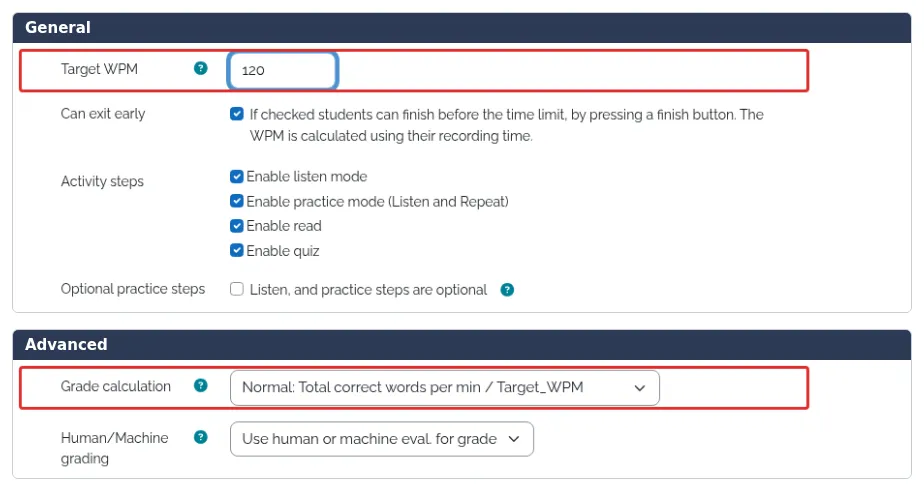
Figure 5.5. The settings that determine how readings are graded.
5.5 Reviewing and correcting grades
Section titled “5.5 Reviewing and correcting grades”The Grading tab shows each student’s latest attempt. Select Grade now or Regrade to open it. Click a word in the passage to work with it in one of three modes:
| Mode | Word highlight | What clicking a word does |
|---|---|---|
| Grading mode | Red | Marks the word as an error, or removes the error, and updates the score. |
| Spot check mode | Green | Plays the audio at that point, so you can decide whether the word was correct. |
| Transcript check mode | Grey | Shows what speech recognition heard. |
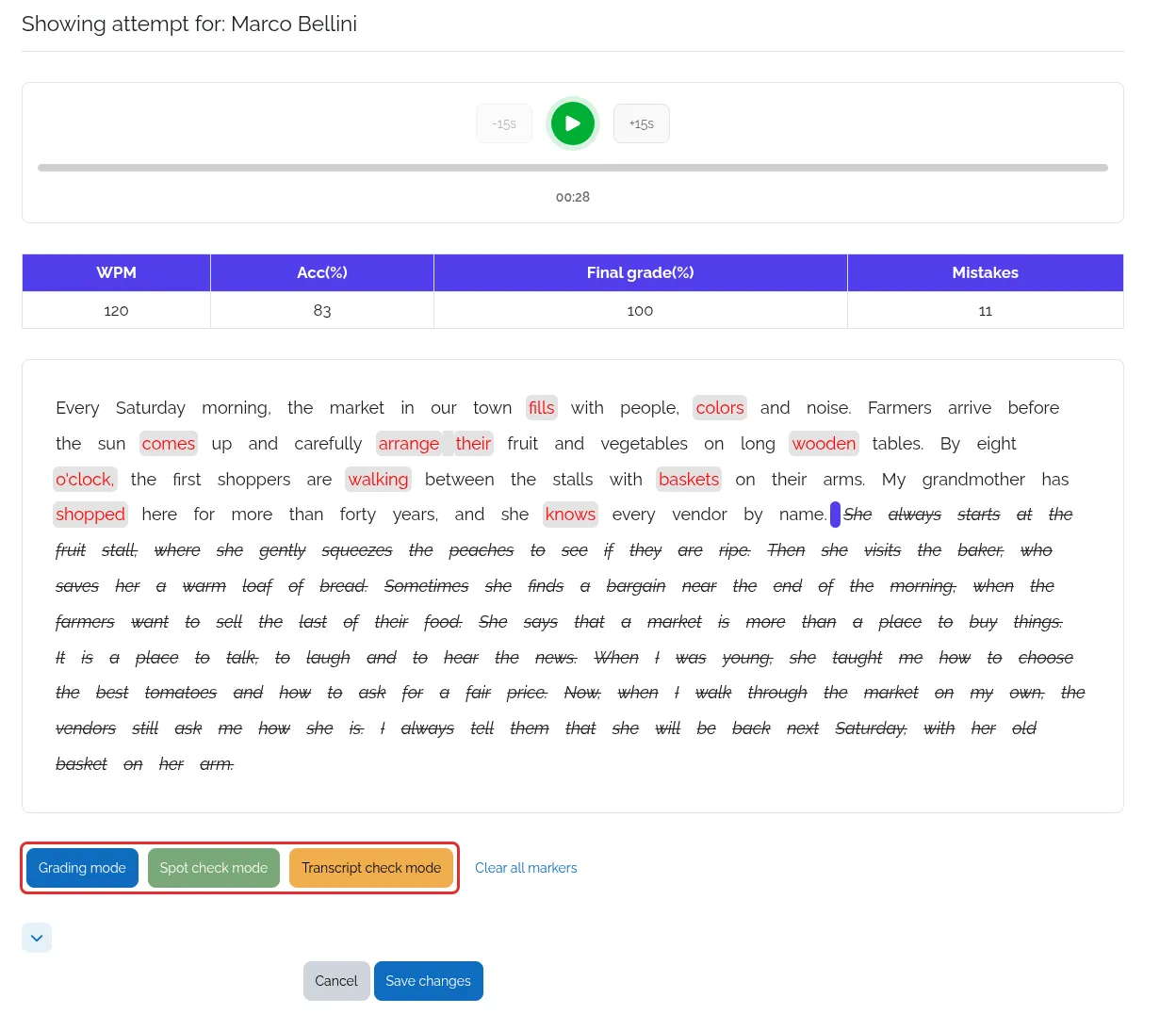
Figure 5.6. Checking a reading on the grading page.
The Reports tab has an Attempts summary report, a Course attempts report and a Missed words report, which lists the most common errors in recent attempts. You can also export the Grading list to CSV.
For activity completion, you can require All steps, a Minimum grade, or both.
If students try to game their scores
Section titled “If students try to game their scores”| Behaviour | Response |
|---|---|
| Reading a short section very well and then stopping | Uncheck Can exit early. The WPM is then calculated from the full time limit. Make sure the passage is long enough. |
| Reading extremely fast to get more words recognised | Set Grade calculation to Strict, so errors reduce the score. |
5.6 Improving recognition with alternatives
Section titled “5.6 Improving recognition with alternatives”Speech recognition may sometimes mishear a word that was read correctly, or a similar-sounding word such as their and there. If this happens repeatedly, you can specify alternatives, which are transcriptions you will accept for a word in the passage.
Enter one word set per line. The passage word comes first, followed by acceptable alternatives, separated by |:
their|there|theyreapple|applesYou do not need to include capitals or punctuation. Only single words are allowed. There are two special cases:
- Forward match: when one transcribed word stands for two passage words, add the following word after the alternative. For example, this accepts youre for you are:
you|youre are - Wildcard: to accept anything for a difficult word such as a name:
arikawa|*
You can edit alternatives in the activity settings or on the Administrator tab. The Administrator tab shows a summary of mistranscriptions, which helps you see the mistakes that recur. Save and re-evaluate all attempts applies new alternatives to existing attempts. Re-push evaluations to gradebook sends the updated grades to the gradebook.
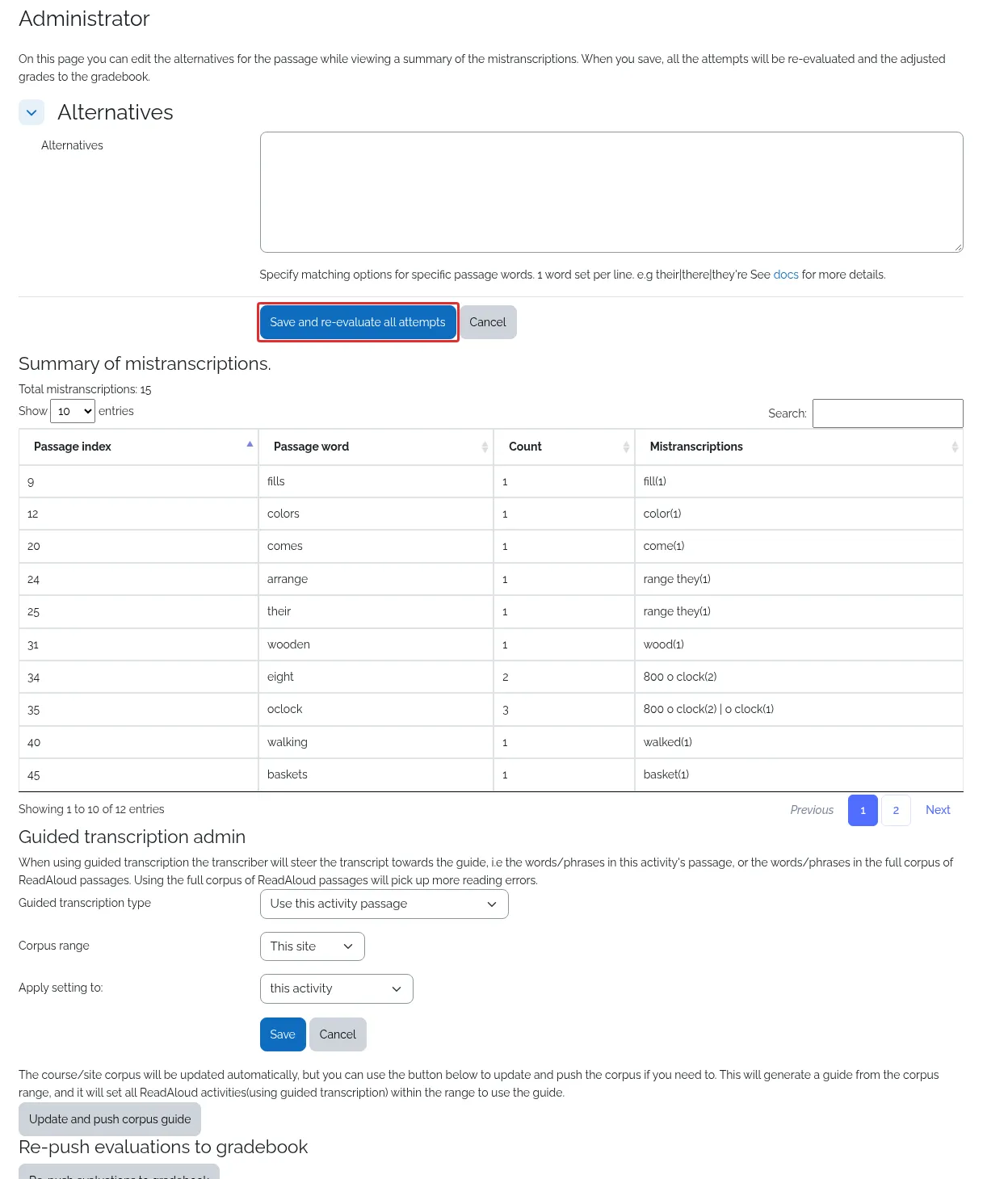
Figure 5.7. Using the Administrator tab to tune recognition.
For the full syntax and a starter list for English, see Tuning your Read Aloud activity.
5.7 Adding a quiz
Section titled “5.7 Adding a quiz”With Enable quiz selected in Activity steps, you can add questions on the Questions tab to check comprehension after reading. Select Add question to create a multiple-choice question.
Quiz settings control whether question titles are shown, whether students can reattempt the quiz, and what appears on the quiz finish screen.
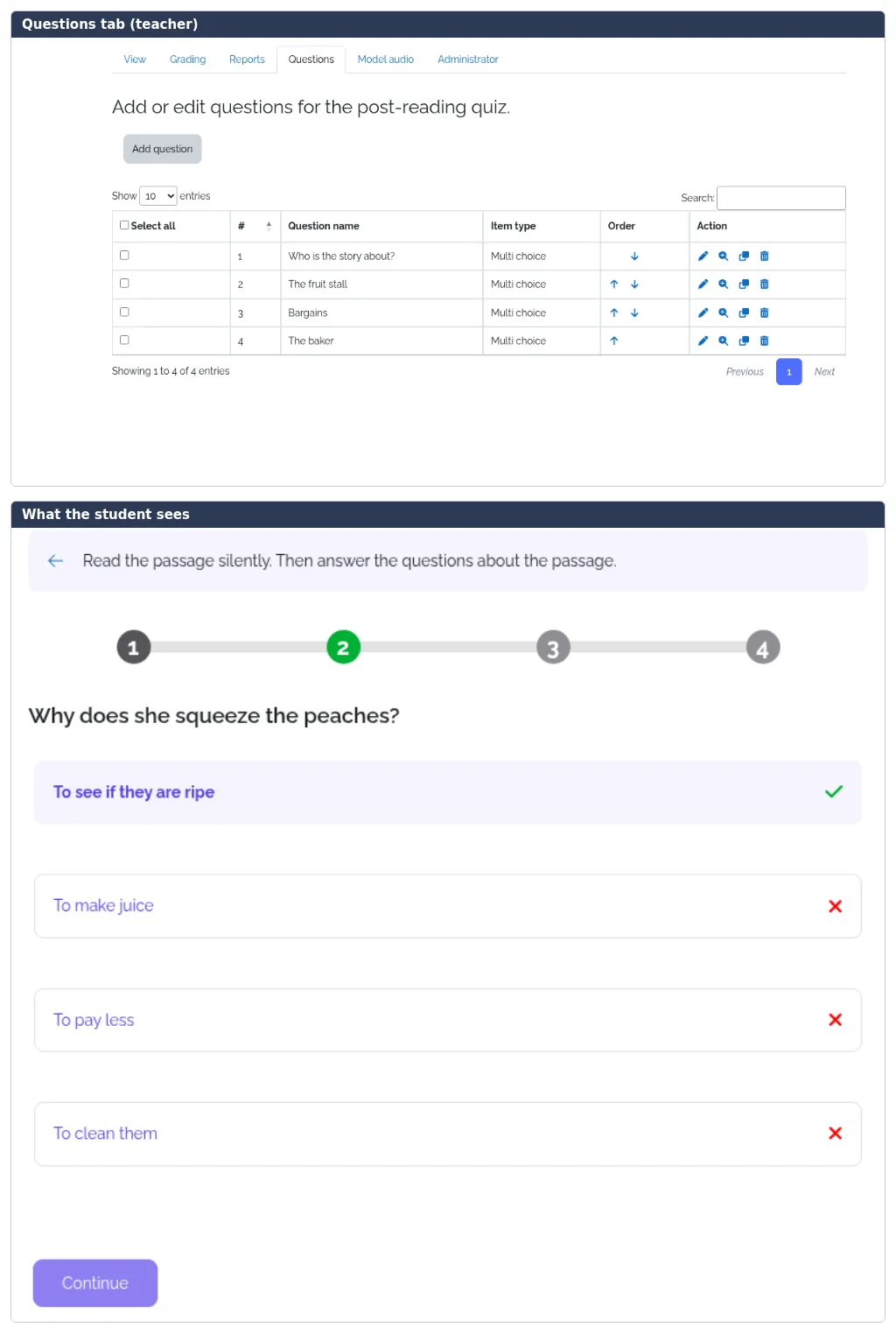
Figure 5.8. Adding quiz questions and how they appear to students.
The quiz affects the grade. If the Quiz step is enabled and has questions, the final grade is the average of the reading score and the quiz score. If you add no questions, students skip the quiz and the grade comes from the reading alone.
5.8 Common questions
Section titled “5.8 Common questions”Why does a student’s WPM seem too low?
Section titled “Why does a student’s WPM seem too low?”Check that the Passage language is correct and the recording is clear. Then use Transcript check mode to see what was heard. If the same words are often misheard, add alternatives, or try Guided STT (Poodll) in the transcriber settings.
Why are the Listen and Practice steps not pausing correctly?
Section titled “Why are the Listen and Practice steps not pausing correctly?”The voice may not support automatic breaks, or the timing may need adjusting. See Section 5.3.
Can students read more than once?
Section titled “Can students read more than once?”Set Can reattempt reading to Yes and choose Max. attempts. Grade options decides which attempt goes to the gradebook.
Is ReadAloud only for English?
Section titled “Is ReadAloud only for English?”No. It supports many languages and regional variants. Check that the language you need is in the Passage language list, and test it with a few readings.