
1. Getting Started with Poodll Languages
Poodll Languages is a set of four Moodle activities designed for language learning. Students practise speaking, listening, reading, writing and vocabulary inside your Moodle course, and receive automatic scores and feedback from speech recognition and AI. Teachers save marking time and can see in reports and the gradebook how each student is progressing.
This guide is written for teachers at Moodle sites where the Poodll Languages plugins have already been installed and configured by an administrator.
1.1 What is Poodll Languages?
Section titled “1.1 What is Poodll Languages?”Poodll Languages is made up of four separate activity plugins:
| Activity | In one sentence | Main skills |
|---|---|---|
| Poodll MiniLesson | A short, self-guided lesson built from a sequence of interactive items. | All four skills, grammar and vocabulary |
| Poodll Solo | An automatically graded speaking (or writing) task on a topic that you set. | Speaking, writing |
| Poodll WordCards | Flashcards and practice games that teach a set of words and track which ones each student has learned. | Vocabulary |
| Poodll ReadAloud | A guided reading activity that scores words per minute and accuracy when a student reads a passage aloud. | Reading fluency, pronunciation, comprehension |
Unlike the Poodll Media plugins, which add recording tools to Moodle’s existing assignments, quizzes and text editors, each Poodll Languages plugin is a standalone activity. You add it to a course from the activity chooser, like a Moodle Quiz or Forum.
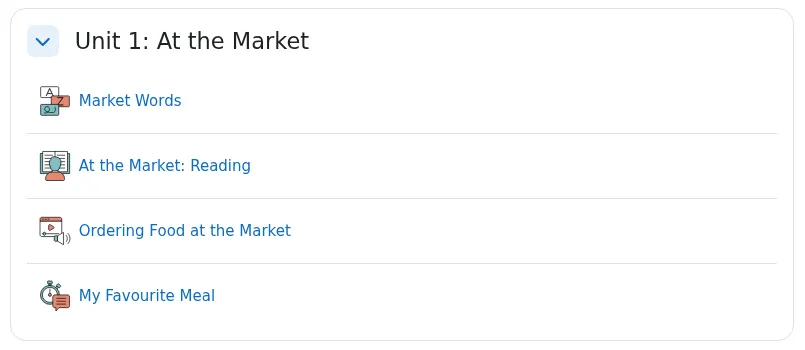
Figure 1.1. The four Poodll Languages activities on a Moodle course page.
1.2 Choosing the right activity
Section titled “1.2 Choosing the right activity”Start with what you want your students to do.
| I want students to… | Use… |
|---|---|
| Work through a mixed lesson of listening, speaking, reading and writing tasks | MiniLesson |
| Speak freely on a topic and receive an automatic grade and grammar suggestions | Solo |
| Write a short response and receive instant AI feedback | Solo (a typed sequence) or a Free Writing item in MiniLesson |
| Learn a set of words and keep reviewing them across a course | WordCards |
| Read a passage aloud and receive words-per-minute and accuracy scores | ReadAloud |
| Read a passage aloud, then answer questions about it | ReadAloud with the Quiz step enabled |
| Have an AI conversation partner to talk with | MiniLesson with an Audio Chat item |
The activities also work well together. For example, a unit might open with WordCards to introduce vocabulary, continue with a ReadAloud that uses those words, and end with a Solo speaking task. Section 7 has more ideas.
1.3 Adding an activity to your course
Section titled “1.3 Adding an activity to your course”All four activities are added in the same way.
- Open your Moodle course and turn Edit mode on.
- In the section where you want the activity, select +, then Activity or resource.
- Choose Poodll MiniLesson, Poodll Solo, Poodll WordCards or Poodll ReadAloud.
- Enter a name and complete the activity settings. The defaults are a good starting point, but always check the language setting.
- Select Save and display to open the activity and continue setting it up.
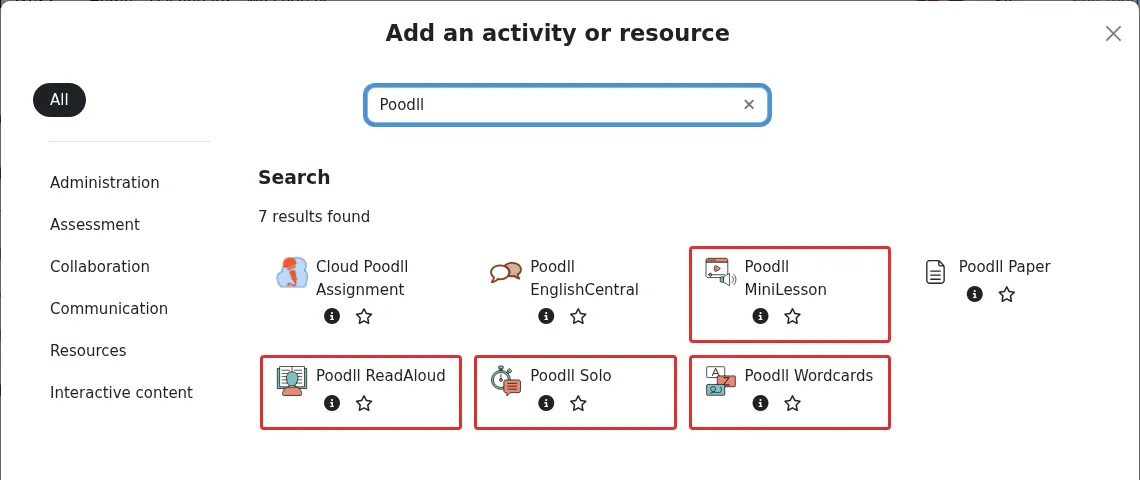
Figure 1.2. The Poodll Languages activities in the Moodle activity chooser.
Can’t see an activity? Each plugin is installed separately, so your site may have only some of them. Your role may also lack permission to add them. Ask your Moodle administrator or support team.
1.4 Teacher tabs and student views
Section titled “1.4 Teacher tabs and student views”When you open a Poodll Languages activity as a teacher, you see tabs along the top that students do not see. They are where you add content and review results.
| Activity | Main teacher tabs |
|---|---|
| MiniLesson | View, Lesson Items, Grades, Reports, Import, AI Generate |
| Solo | Attempts, Grades, Reports |
| WordCards | Start, a Practice tab for each step, Reports, Words Admin, Import, Word Wizard |
| ReadAloud | View, Grading, Reports, Questions, Model audio, Administrator |
Some sites show additional tabs, such as Push, Lesson Bank or Assistant, if an administrator has enabled those features.
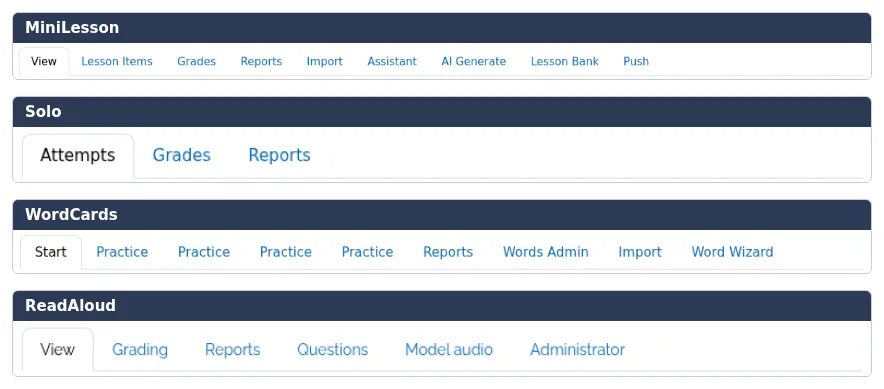
Figure 1.3. The teacher tabs in each of the four activities.
Tip for teachers: To see what students see, use Moodle’s Switch role to… Student option or a test student account. Some features only behave normally for students. WordCards, for example, tracks learned words only for students.
1.5 Target language and native language
Section titled “1.5 Target language and native language”The most important setting in any Poodll Languages activity is the language your students are learning. It tells speech recognition what language to expect, and it determines the voices available for text to speech.
The setting is called:
- Target/Voice Language in MiniLesson.
- Target Language in Solo and WordCards.
- Passage language in ReadAloud.
Some features also use the student’s native language, for example to show translated definitions or to give AI feedback in a language the student understands. Section 6 explains how these settings work.
Important: If speech recognition seems to mark everything wrong, check the language setting first. An activity set to English (US) will not recognise a student who is speaking French.
1.6 Before you begin: what students need
Section titled “1.6 Before you begin: what students need”Students need an up-to-date web browser and, for speaking tasks, a working microphone. They do not need to install anything.
- Check the microphone. A headset microphone often reduces background noise and improves speech recognition.
- Allow microphone access. When the browser asks whether Moodle can use the microphone, choose an allow option, such as Allow while visiting the site. The wording varies by browser.
- Find a quiet place. Background noise and other voices reduce recognition accuracy.
- Make a short test. Try a brief spoken task to check that the recording and scoring work as expected.
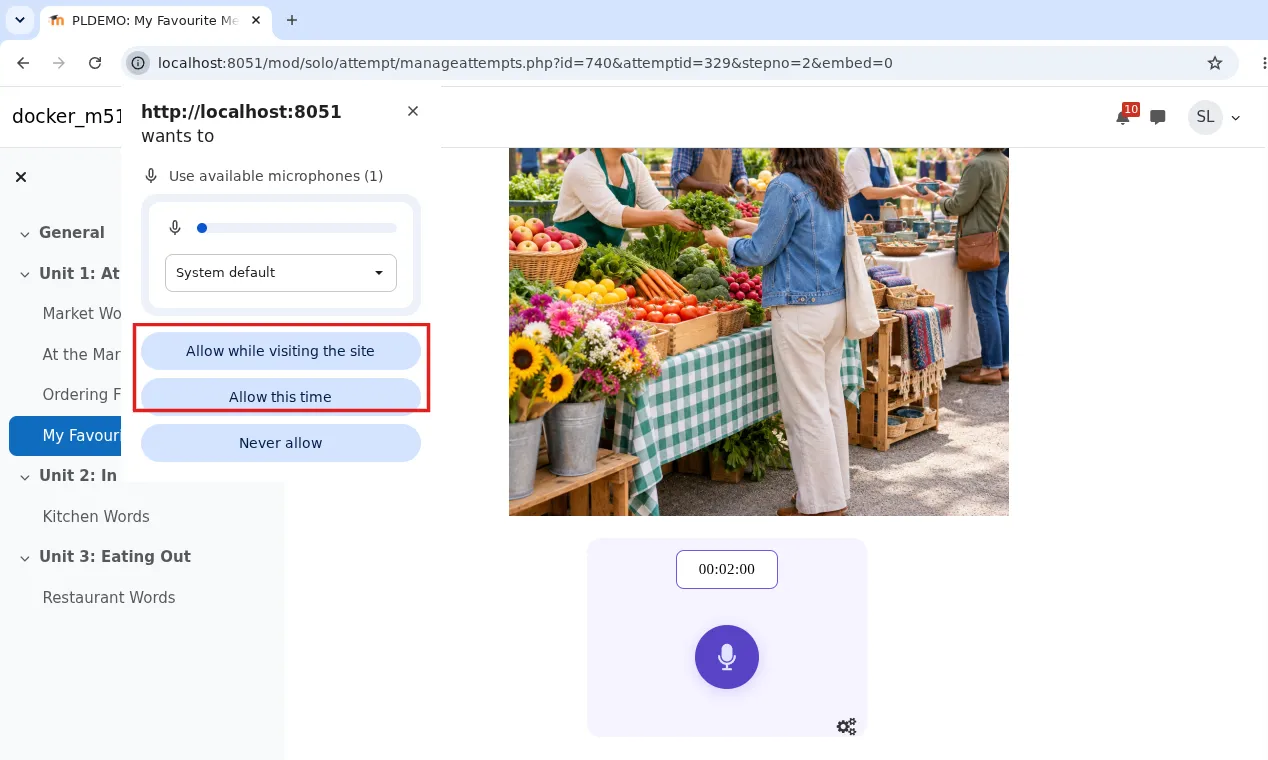
Figure 1.4. A browser asking for permission to use the microphone.
Not every activity needs a microphone. WordCards activities such as Choose the Answer and MiniLesson items such as Multi Choice can be completed without speaking. Check which tasks you have included if some of your students cannot record.
1.7 What happens to student recordings?
Section titled “1.7 What happens to student recordings?”Poodll Languages uses the Poodll cloud service for recordings, text to speech, speech recognition and AI features. Recordings are stored in the cloud region selected for your site or activity, and activities that record usually have a Days to keep file setting. After that period the recording is deleted automatically.
Schools control which plugins and features are enabled and should have appropriate policies for their learners. If you have questions about storage location, retention, AI processing, consent or privacy, consult your Moodle administrator or your institution’s data protection guidance.
For further information, see Cloud Poodll and Data: Q & A.
1.8 Where to go next
Section titled “1.8 Where to go next”- Section 2: Building lessons with Poodll MiniLesson.
- Section 3: Speaking and writing tasks with Poodll Solo.
- Section 4: Teaching vocabulary with Poodll WordCards.
- Section 5: Reading practice with Poodll ReadAloud.
- Section 6: Language settings, speech recognition, AI, grades and reports.
- Section 7: Practical teaching ideas.
- Section 8: Troubleshooting and frequently asked questions.