
8. Troubleshooting and Frequently Asked Questions
Cloud Poodll lets teachers and students record audio and video directly in Moodle. Most recording problems can be resolved by checking browser permissions, the selected microphone or camera, and whether the recording has finished uploading.
This section covers Cloud Poodll plugins, including Cloud Poodll Assignment Submission, Cloud Poodll Assignment Feedback, Cloud Poodll Recording Question, and Cloud Poodll recording tools in the Moodle editor. It does not cover the older Classic Poodll filter-based recording system. Cloud Poodll is more reliable than Classic Poodll and the troubleshooting steps are different,.
8.1 The microphone or camera is not working
Section titled “8.1 The microphone or camera is not working”A browser must have permission to use your microphone and camera before it can record.
Check browser permissions
Section titled “Check browser permissions”- Open the Moodle page containing the Cloud Poodll recorder.
- Click the site information or permissions icon beside the address bar. Its appearance depends on the browser.
- Check that Microphone is allowed. For video recording, also allow Camera.
- Reload the page if necessary and open the recorder again.
- Make a short test recording and play it back.
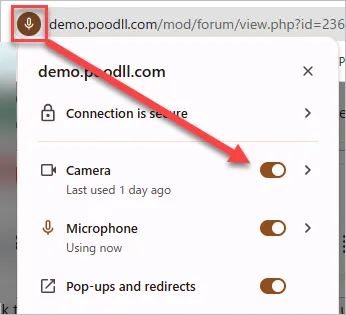
Fig 8.1 Browser permissions dialog
If you previously selected Block, change that permission in the browser’s site settings. A message such as NotAllowedError or Permission denied usually indicates that the browser cannot access the requested device.
Important: Microphone and camera access normally requires a secure HTTPS connection. If your Moodle site does not use HTTPS, contact your Moodle administrator.
Check the selected device
Section titled “Check the selected device”If your computer has several microphones (for example, a built-in microphone and a USB headset), Cloud Poodll or your browser may be using the wrong one.
- Open any available device selection menu on the recorder (usually a cog icon on the lower right).
- Select the microphone or camera you want to use.
- Check that your device is connected and not muted.
- Test the device in your computer’s sound or camera settings.
- Close other programs using the device, then try again.
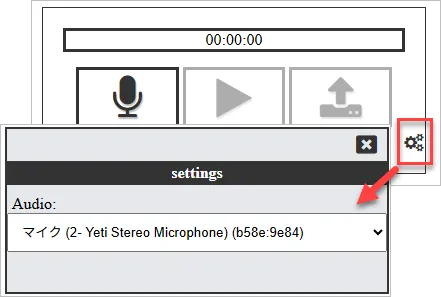
Fig 8.2 Device selection dialog
If the recorder shows a generic webcam/microphone warning while you are making an audio-only recording, you generally only need microphone access.
8.2 The recording does not start
Section titled “8.2 The recording does not start”If clicking Record has no effect:
- Confirm that the browser has permission to access the appropriate device (Section 8.1).
- Reload the page and try a short recording.
- Close other applications that might be using the microphone or camera.
- Try a current version of Chrome, Edge, Firefox or Safari, as supported by your institution.
- If the problem occurs only on one device or browser, try another to help identify the cause.
If the recording tool does not appear at all, verify that the relevant Cloud Poodll feature is enabled for the activity. For an Assignment, check Submission types or Feedback types. In the Moodle editor, expand any hidden toolbar controls and check that the appropriate recording plugin is available.

Fig 8.3 Submission types
Screen recording: When you start sharing your screen, the browser may first ask you to select a tab, window or screen and then click Share. If you cancel that dialog, recording will not begin.
8.3 The recording is still uploading or processing
Section titled “8.3 The recording is still uploading or processing”Cloud Poodll recordings are uploaded and may then be processed before becoming available for playback. Larger video and screen recordings often take longer than short audio clips.
If the recorder is still uploading:
- Keep the recorder open until the upload completes.
- Avoid navigating away, closing the tab or submitting the activity prematurely.
- Check whether your internet connection is stable.
- If the recorder reports an error, look for an option to retry. If the recorder displays the recorded file for you to download, download it. That could be used to recover your recording later.
For assignments and quiz questions, the SafeSave setting can prevent submission until a Cloud Poodll recording has finished uploading. Consider enabling it.
If upload has completed but playback or transcription remains unavailable, reopen the activity after a short interval. If it continues to fail, report it to your Moodle support team with the information in Section 8.8.
Cloud Poodll note: The old “Poodll is converting…” placeholder is associated with Classic Poodll troubleshooting. Do not use Classic Poodll filter or cron instructions as the default fix for a Cloud Poodll recording.
8.4 A recording is missing or cannot be played
Section titled “8.4 A recording is missing or cannot be played”First identify whether the recording was never uploaded or whether an uploaded recording is not playing.
A recording is missing from a quiz
Section titled “A recording is missing from a quiz”- Open the quiz attempt and review the response history and attempt log.
- Confirm that the response history shows the filename, eg “saved: poodll123456789.png”. If it does not, then the recording was not saved.
- Confirm that the attempt log reached “awaiting processing.” If it did not, then it was not completely uploaded.
- If the recording was saved and uploaded possibly it did not contain any data (eg an audio file of silence). Possibly something went wrong on the server. If you have the filename and time of recording, Poodll support may be able to help.
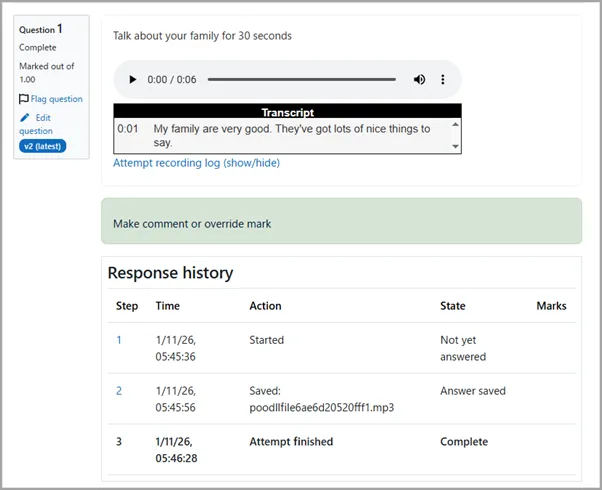
Fig 8.4 Question attempt response history
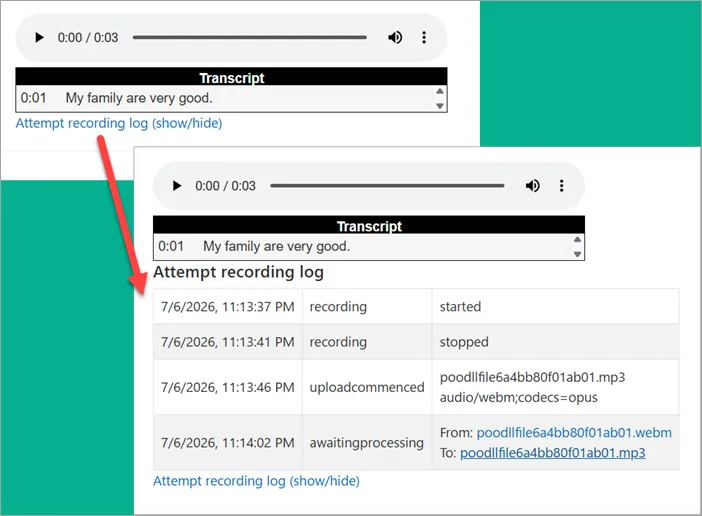
Fig 8.5 Question attempt recording log
A player is visible but will not play
Section titled “A player is visible but will not play”- Refresh the page after confirming the upload completed.
- Test another recording on the same Moodle site.
- Try the recording in another browser or device.
- Ask whether other users can play it; this helps distinguish an individual device issue from a site-wide issue.
- Contact Moodle support if playback remains unavailable.
If it used to play, but no longer plays, then possibly it reached it’s retention period and was deleted automatically.
8.5 Recording on phones and tablets
Section titled “8.5 Recording on phones and tablets”Cloud Poodll can be used on mobile devices, but the available recording methods depend on the browser, device and configuration.
- Use a current browser and grant microphone or camera permission when prompted.
- If direct recording is unavailable, look for an Upload, Choose file, or Record or choose option, when enabled.
- On some devices you can record using the phone’s native camera app and then upload the resulting file.
- Keep the browser open until the upload finishes, especially on mobile connections.
When preparing an assessment, test the exact assignment or quiz on the types of devices students are expected to use. For important graded activities, provide enough time to deal with device permissions and uploads.
8.6 Poor audio or video quality
Section titled “8.6 Poor audio or video quality”Audio is silent or too quiet
Section titled “Audio is silent or too quiet”Check the selected microphone, microphone mute switch, system input level and headset connection. Record a short sample and listen to it using headphones. If the sample is silent in both Moodle and the computer’s own recording application, the problem may be with the device or operating system settings.
Audio echoes or sounds distorted
Section titled “Audio echoes or sounds distorted”Use headphones to prevent speaker sound being recorded again by the microphone. Avoid recording close to loudspeakers and move to a quieter room if possible.
For tasks that require students to listen and speak simultaneously—such as shadowing or recording along with music—the Cloud Poodll Assignment Submission setting Disable Audio Noise Filters should be enabled. This can help with distortion in those particular tasks. This setting is also available as No Audio Filters in the Cloud Poodll Question.

Fig 8.6 audio noise filters
Video freezes or is blurry
Section titled “Video freezes or is blurry”Check the internet connection and camera settings. Close unnecessary applications, improve lighting and test a shorter recording. For screen recordings, reduce the recording duration where possible: screen captures may produce larger files that take longer to upload.
8.7 Frequently asked questions
Section titled “8.7 Frequently asked questions”Do students need to install recording software?
Section titled “Do students need to install recording software?”Cloud Poodll records through supported web browsers. Students still need a working microphone or camera, browser permission and a reliable connection. Some mobile devices may use a file-upload workflow instead of direct browser recording.
Can I use Cloud Poodll without the Classic Poodll filter?
Section titled “Can I use Cloud Poodll without the Classic Poodll filter?”Yes. Cloud Poodll plugins do not depend on the Classic Poodll filter. The two systems have separate plugins and storage workflows.
Can students submit an existing audio or video file?
Section titled “Can students submit an existing audio or video file?”In supported recording interfaces, an Upload option may be available. Whether students can use it depends on the plugin and how the Moodle administrator or teacher has configured the recorder.
Can I limit the length of recordings?
Section titled “Can I limit the length of recordings?”Yes. Cloud Poodll Assignment Submission and related recording activities have recording time-limit settings. Check the relevant activity configuration when creating the assignment or quiz question.
What if a student submits the assignment before the recording finishes uploading?
Section titled “What if a student submits the assignment before the recording finishes uploading?”The recording may be missing. For suitable recording-only assignments, consider SafeSave, which can hold the submission button until the recording upload is complete. It should be tested when additional submission types are enabled.
Why is there no transcript?
Section titled “Why is there no transcript?”Check that transcription was enabled for that activity and that the correct spoken language was selected. The transcript may not be immediate, and availability depends on the plugin and configuration. Poor audio quality can also reduce recognition accuracy.
How accurate are automatic transcripts and captions?
Section titled “How accurate are automatic transcripts and captions?”They are useful aids, but they can contain mistakes, especially with background noise, unfamiliar words, names and accented speech. Review them before using them as authoritative evidence in a graded assessment or publishing them as captions.
Where are Cloud Poodll recordings stored?
Section titled “Where are Cloud Poodll recordings stored?”Cloud Poodll uses Poodll-hosted cloud storage. Storage region depends on the site’s configuration. The file’s retention period is usually set in the plugin’s instance settings. A file’s retention period can not be changed after recording.
How long are Cloud Poodll recordings kept?
Section titled “How long are Cloud Poodll recordings kept?”The file’s retention period is usually set in the plugin’s instance settings (options tab in the HTML editor plugins). The options are: 1, 3, 7, 30, 90, 180, 365, 730, “Never expire”. A file’s retention period can not be changed after recording.
My Cloud Poodll recording has expired, and I can’t play it anymore. Can I get it back?
Section titled “My Cloud Poodll recording has expired, and I can’t play it anymore. Can I get it back?”Sadly, no.
Can I recover a recording after a failed upload?
Section titled “Can I recover a recording after a failed upload?”Sometimes. If the recorder is still open, a recovery or download option may be available. Check before closing or refreshing the recording page. If the recorder has already been closed and the file never uploaded, recovery may not be possible.
Why don’t I see a Poodll recording button or feedback option?
Section titled “Why don’t I see a Poodll recording button or feedback option?”The corresponding Cloud Poodll plugin might not be enabled or installed, or the button may be hidden in the editor’s extended toolbar. For assignments, make sure the appropriate Submission type or Feedback type is enabled. Contact your Moodle administrator if the feature is missing entirely.
8.8 Where to get help
Section titled “8.8 Where to get help”If the checks above do not resolve the problem, contact your institution’s Moodle support team. Include:
- The Moodle course and activity where the problem occurred.
- Whether you were recording audio, video or screen content.
- Which Cloud Poodll tool you were using: editor, assignment submission, assignment feedback or quiz question.
- Your device, operating system and browser.
- The exact error message, if any, plus a screenshot.
- Whether the problem affects one person or several people.
- Whether the recording failed to start, failed to upload, or uploaded but could not be played.
In some cases if Poodll detects an upload problem it may show the option to download the recording. 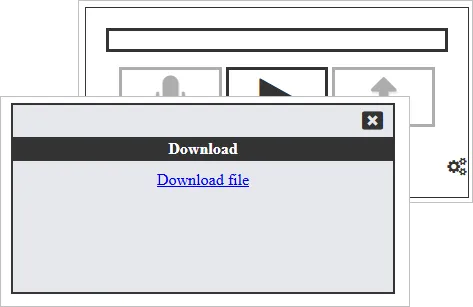
Fig 8.7 Error and download dialog
Additional help is available from the Poodll Support Center. Your institution’s Moodle support team should be the first contact for site-specific configuration, subscriptions or permissions.