
6. Transcription, Captions and Playback
Cloud Poodll can convert spoken audio into text and, in supported workflows, display captions or an interactive transcript alongside a recording. These features help teachers review spoken submissions, make recorded course material easier to follow, and provide more detailed feedback.
This chapter covers Cloud Poodll. It does not require the Classic Poodll filter. Some advanced subtitle players and subtitle-editing tools described in older Poodll documentation do use that filter; those are identified separately below.
6.1 Understanding transcripts, captions and subtitles
Section titled “6.1 Understanding transcripts, captions and subtitles”Although the terms are sometimes used interchangeably, they serve different purposes:
- Transcript: Written text representing the spoken content of a recording. A transcript can help a teacher review a submission without replaying the entire recording.
- Captions/subtitles: Text displayed in synchronization with playback, usually on or near the video. A subtitle track typically includes timestamps.
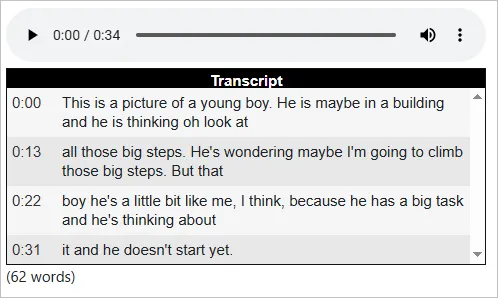
- Interactive transcript: A transcript synchronized to playback, where the current passage is highlighted; supported players may also allow the user to select a passage to jump to that point.
Cloud Poodll can generate text from audio or video using speech recognition. The text is machine-generated and should be checked before being relied upon for assessment or accessibility-sensitive material.
6.2 Enabling transcription for assignment submissions
Section titled “6.2 Enabling transcription for assignment submissions”The Cloud Poodll Assignment Submission plugin can automatically transcribe spoken submissions. Teachers can use the transcript while grading a recording.
- Open the Moodle course and locate the assignment.
- Select Settings (or Edit settings) for the assignment.
- Find the Cloud Poodll submission settings under Submission types.
- Enable the available transcription option.
- Choose the language that best matches the speech students will record, if those settings are displayed.
- Check any transcript visibility or display settings offered by the installed version.
- Save the assignment.
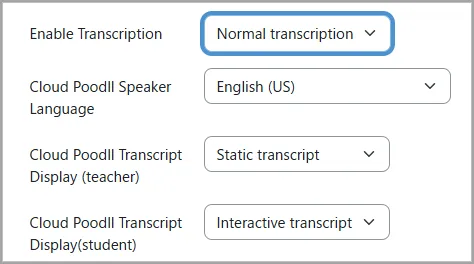
After students submit recordings, open the assignment’s submissions list and select Grade. Where transcription is enabled and processing has completed, the transcript appears with the recording in the grading interface.
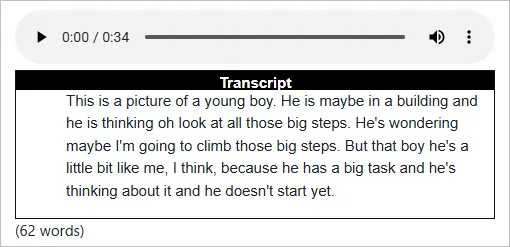
Important: Transcription is not always instantaneous. If a newly submitted recording has no transcript, allow for processing and check again. The transcript is a support for reviewing the submission, not proof that every word was spoken exactly as shown.
6.3 Using transcripts when grading speaking assignments
Section titled “6.3 Using transcripts when grading speaking assignments”Transcripts are useful for reviewing extended responses and finding parts of a recording that need closer attention.
- Open the assignment and choose View all submissions or Grade.
- Locate the student’s audio or video submission.
- Play the recording while reading the transcript.
- Where an interactive transcript player is available, follow the highlighted text as the audio progresses or select a passage to navigate to that point.
- Listen again to important passages before making an assessment.
- Enter the grade and feedback using the normal Moodle grading controls.
Teaching tip: A transcript can speed up review of a long response, but it may not be completely accurate. Speech recognition can omit repeated words, normalize grammar, or mishear proper names and unfamiliar accents.
6.4 Transcription in Cloud Poodll quiz questions
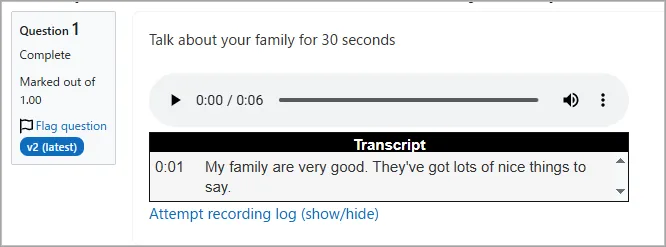
Section titled “6.4 Transcription in Cloud Poodll quiz questions”The Cloud Poodll Recording Question plugin can also generate transcripts of audio or video answers. This is useful when manually grading oral responses in Moodle quizzes.
- Open the quiz and edit the relevant Cloud Poodll Recording Question.
- Find its transcription settings.
- Enable transcription if available, and select the language used in the answer.
- Save the question and preview it to confirm the recording workflow.
- After quiz attempts have been submitted, open Results and navigate to Manual grading.
- Open the response to listen to the recording and review its transcript, if one was generated.
6.5 Requesting subtitles for recordings made in the Moodle editor
Section titled “6.5 Requesting subtitles for recordings made in the Moodle editor”The Cloud Poodll editor recorder can request timed subtitles when an audio or video recording is made or an existing file is uploaded. The following workflow applies where the recording dialog offers an Options tab and a Request subtitles checkbox, including supported Cloud Poodll for Atto and Cloud Poodll/TinyMCE configurations.
- Open a Moodle editor where the Cloud Poodll microphone, camera or screen-recording button is available.
- Select the relevant recording button.
- Before recording or uploading, open the Options tab in the Cloud Poodll dialog.
- Select Request subtitles.
- Choose the spoken language from the options available in the dialog.
- Return to the recorder or upload tab, and create or upload the recording.
- Wait until the upload is complete, then save the Moodle content.
- After subtitle processing finishes, open the saved content and check the available subtitle controls on the player.
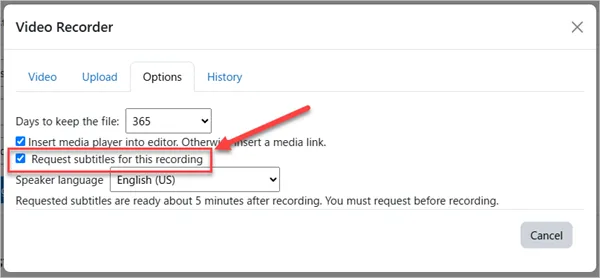
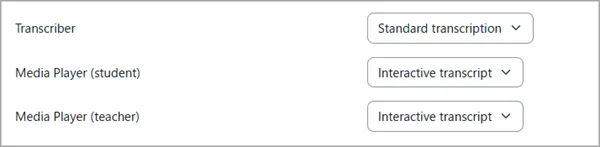
Options in the Cloud Poodll Dialog
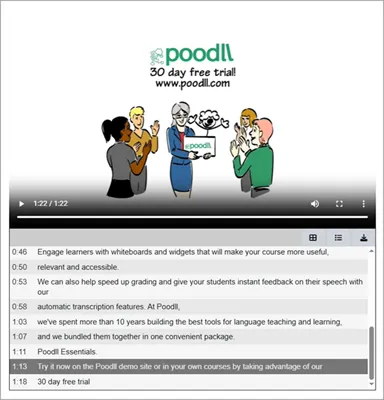
Interactive transcript video player
Important: Request subtitles before starting the recording or upload. Subtitle generation happens after the media has been uploaded and may take several minutes. Historical Cloud Poodll for Atto/TinyMCE documentation lists English and Spanish for this particular editor workflow; check your installed dialog for the languages currently offered rather than assuming every transcription language is available here.
Editor differences: The format used to insert the recording may differ between Atto and TinyMCE versions. In some versions the editor inserts a media link, which Moodle later turns into a player; in others the player is embedded directly. Either approach can display media in the saved content, but subtitle behavior depends on the player and the Moodle site’s media configuration.
6.6 Playing recordings and displaying captions
Section titled “6.6 Playing recordings and displaying captions”When a teacher or student opens saved Moodle content or a submitted recording, Cloud Poodll media is normally displayed using an HTML5 audio or video player provided through the applicable Moodle workflow.
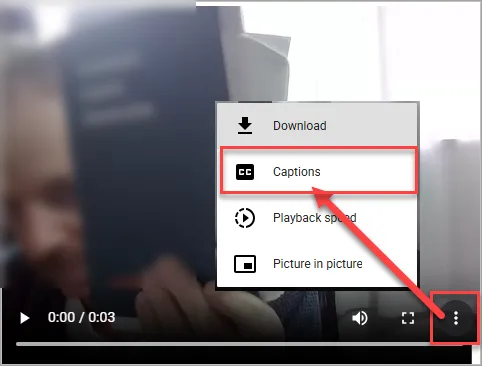
Common playback controls include Play/Pause, a playback timeline and volume. Video players that support captions may provide a CC or subtitles control. Audio players do not usually support captions. The Poodll filter (and the Generico filter) can provide audio players that display captions.
To check a recording:
- Open the saved Moodle page, assignment grading screen or quiz grading screen.
- Start playback and confirm that the audio or video works.
- If subtitles were requested, look for the caption control or transcript display.
- Enable captions, if supported, and compare them briefly with the spoken recording.
- If captions are absent, check whether processing is complete and whether the player supports captions.
6.7 Transcript and caption accuracy
Section titled “6.7 Transcript and caption accuracy”Speech recognition is especially useful for clear, single-speaker recordings. Its results may be less reliable when a recording includes:
- Background noise or an unsuitable microphone
- Multiple speakers talking at once
- Very quiet speech or poor audio quality
- Non-native accents, dialects or code-switching
- Unusual names, technical vocabulary or specialist terminology
- Long pauses, false starts and incomplete sentences
For assessed speaking work, treat the recording as the primary evidence and the transcript as an aid. A generated transcript is not a substitute for listening when evaluating delivery or pronunciation.
For accessible course materials, review machine-generated captions for errors, especially names, instructions and other information that students must understand accurately. Do not present unreviewed automatic captions as guaranteed accurate.
6.8 Editing subtitles and using interactive transcript players
Section titled “6.8 Editing subtitles and using interactive transcript players”Cloud Poodll can generate subtitles and transcripts, but there is no way to edit those transcripts/subtitles currently.
6.9 Common questions
Section titled “6.9 Common questions”Why is there no transcript beneath a recording?
Transcription might not be enabled, processing might still be underway, or a transcript may not have been generated successfully. Check the activity’s settings and ask your Moodle administrator if needed.
Can I automatically grade pronunciation or speaking quality from the transcript?
A transcript is a text representation of speech, not a pronunciation score. Cloud Poodll Recording Questions are manually graded; use the audio/video recording when judging spoken performance.
Will the transcript always be visible to students?
Not necessarily. Visibility depends on the plugin, activity settings and site configuration. In the Cloud Poodll question and Cloud Poodll assignment submission the transcript can be shown to teachers but hidden from students.
Can I request subtitles after a recording has already been inserted?
In the documented Cloud Poodll editor workflow, subtitles must be requested before recording or uploading. If you missed this option, ask your Moodle administrator about available reprocessing tools or upload the source file again with subtitles requested.
Do I need the Classic Poodll filter to use Cloud Poodll transcription?
No. The Cloud Poodll plugins do not depend on the Poodll filter. Some audio and video players that support subtitles requite the Poodll filter however.